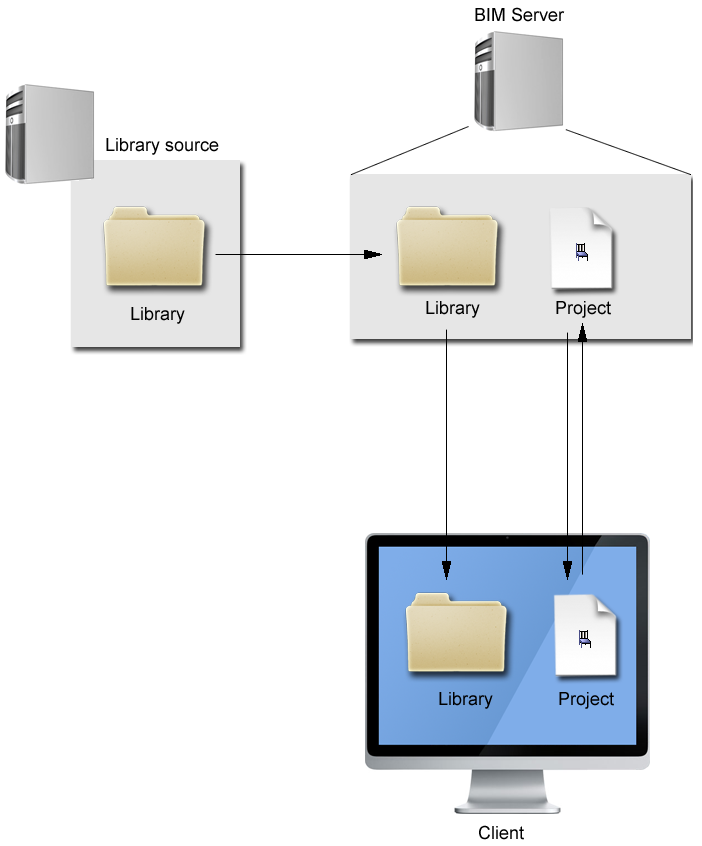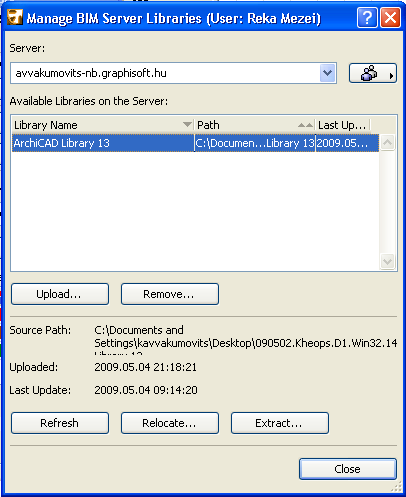
To use a BIM Server Library in a project (either solo or Teamwork), that library must first be uploaded to the BIM Server, using the Manage BIM Server Libraries dialog box. Use this dialog box to view, upload and otherwise manage the libraries on any BIM Server.
Note: In a Teamwork project, you must be an Administrator (either Project or Server Administrator) to use this dialog box.
Manage BIM Server Libraries Dialog Box
This dialog box is available:
•from File > Libraries and Objects > Manage BIM Server Libraries
•from the Library Manager: open the Add button’s pop-up list; click Use BIM Server Libraries to open the Choose BIM Server Libraries dialog box; click Manage BIM Server Libraries
Click Upload to add another library to this server (see details below) or Remove to remove it.
Whenever you upload a library to the BIM Server, a link to its Source Library is established.
Click Relocate to link a selected library on the BIM Server to a new source library path location.
You cannot edit the contents of a library via the BIM Server management controls. However, if changes are made in a Source library (e.g. new parts added to the Company Library), click Refresh to ensure that these changes are also made on this server.
Extract will extract the contents of the selected library to the location of your choice. This can be useful if the source library has for some reason become unavailable, or if you do not have the access right needed to edit the content of the Source library, yet you need a copy of the Source library.
Tip: It is recommended to upload all your company’s libraries to a dedicated GRAPHISOFT BIM Server.
Upload a Library to BIM Server
Note: In a Teamwork Project, only a Server Administrator or Project Administrator can upload libraries to a BIM Server.
1.Go to File > Libraries and Objects > Manage Server Libraries.
2.Choose the BIM Server to which you want to upload a library.
3.Click Upload.
4.Browse for the Source library you need. Uploaded libraries can include PLA or LCF files, or any folders. You cannot upload individual gsm files, just lcf, pla, and regular folders. For each selected library in the list, information is displayed on its source path, the date of upload and the last time it was refreshed from its Source library.
5.Click Choose. The library is uploaded and a link to its Source library is established.
See Source Libraries, above.
6.Close the dialog box.
Once libraries are uploaded, individual users can add these BIM Server Libraries to projects, either solo or Teamwork.
See also Add BIM Server Library.
Upload Individual Objects to BIM Server
To upload individual objects to the BIM Server, first place them into a folder, then upload the folder.
BIM Server Library Management Workflow: