Use this menu (Edit > Align) to align selected elements with each other, or to a custom-drawn target line, using a variety of criteria:
•Align elements right or left;
•Align elements to the top or bottom;
•Center elements vertically or horizontally;
•“Special”-align elements to any point on an existing element, or to a temporary line/arc drawn by you.
The Align commands are only active if you have selected at least two elements.
When using the Align commands, the expression “right” refers to the rightmost element on the x-axis in the window you are looking at (e.g. Floor Plan, Section, 3D). The expression “left” refers to the left-hand direction on the x-axis.
Similarly, “top” means the element with the highest y-coordinate in the current window, and “bottom” is the element with the lowest y-coordinate.
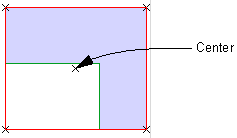
ArchiCAD identifies an element’s right/left/top/bottom/center point according to an (invisible) bounding box around the element.
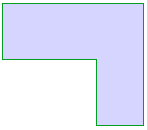
For example, suppose you want to align the following Corner Table object with other furniture:
ArchiCAD will use the centerpoint of the table’s bounding box (here, illustrated in red):
Note: If you want to use a different anchor point of the elements you are aligning, use the Special Align options (Edit > Align > Special Align).