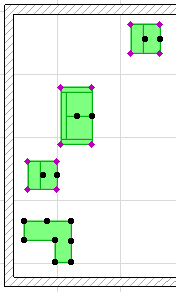
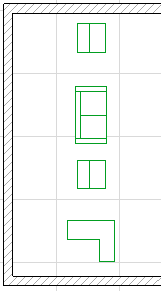
1.Select the elements you wish to align.
2.Go to Edit > Align and choose one of the following operations:
Left: If you choose Edit > Align > Left, all selected elements will be aligned to the leftmost bounding-box point of the element that is located farthest to the left.
In this example, we want to align the three windows shown in Section view.
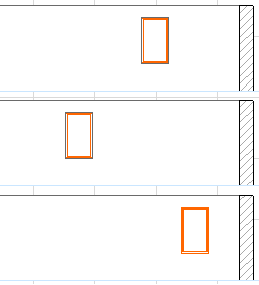
Select all three windows and use Edit > Align Left.
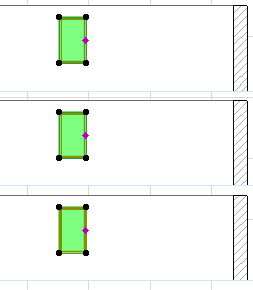
Right: If you choose Edit > Align > Right, all selected elements will be aligned to the rightmost bounding-box point of the element located farthest to the right.
•In the illustration below, the arc wall is the rightmost element; the rest of the walls (their rightmost points) are aligned to the rightmost point on the arc wall’s bounding box.
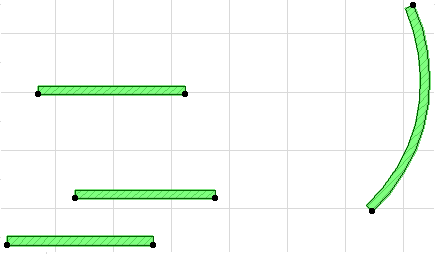
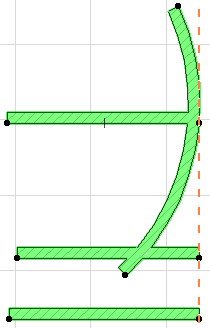
Top/Bottom: If you choose Edit > Align > Top or Bottom, all selected elements will be aligned to the topmost (or bottommost) point on the element that is the top (or bottom) element of the selected group.
•In the example below, we want to move up the window on the left, so that it lines up with other two windows.
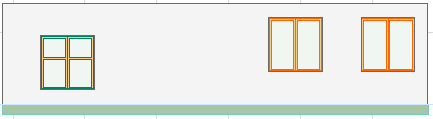
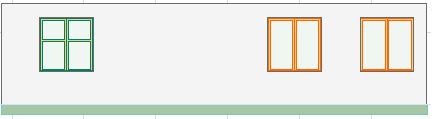
•To achieve this, we select all the windows, then use Edit > Align > Top to obtain the desired result.
Center Horizontally: If you choose Edit > Align > Center Horizontally, ArchiCAD will determine the selected elements’ top and bottom y-coordinates, and then align all the elements horizontally (using each element’s centerpoint), along a horizontal line halfway between the top and bottom elements.
Center Vertically: If you choose Edit > Align > Center Vertically, ArchiCAD will determine the selected elements’ leftmost and rightmost x-coordinates, and then align all the elements vertically, along a vertical line halfway between them.
•For example, in the following Floor Plan, we will center the selected furniture vertically.