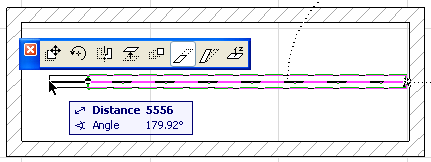
To stretch/shrink Beams using the pet palette:
1.Select a beam on the Floor Plan or in 3D.
Note: Beams can also be stretched/shrunk in Section view, if the Beam reference line is perpendicular to the Section line.
2.Click one of the beam’s endpoints. The pet palette appears. Choose the appropriate stretch (or stretch length) icon:
3.Click to define the new endpoint.
To stretch/shrink beams with the menu command:
1.Select a beam.
2.Choose the Edit > Reshape > Stretch command.
3.Click the reference line endpoint of the beam and move it.
4.Click again to either define the new endpoint as an extension (or reduction) of the previous length or define an entire different new location. The beam is stretched or shrunk and, if needed, rotated according to the new endpoint. The other endpoint will remain at its original position.
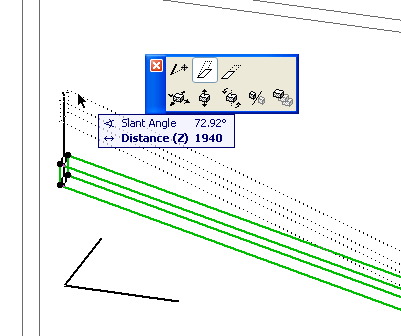
To modify the inclination (slant) angle of an inclined beam:
1.Select it on the Floor Plan or in the 3D Window.
2.Choose the Modify Angle command from the Pet Palette.
3.Drag the beam graphically to the desired inclination angle.
To curve or straighten a beam:
See Curve/Straighten Element Edge.
Note: You cannot curve an inclined beam.
To stretch a curved beam:
See Stretching Curves.