Drag, Rotate, Mirror Element Copies
You can also create exact duplicates of an element inside the same project by dragging one or several copies of the selected element. The selection can be made with either the Arrow tool or the Marquee tool.
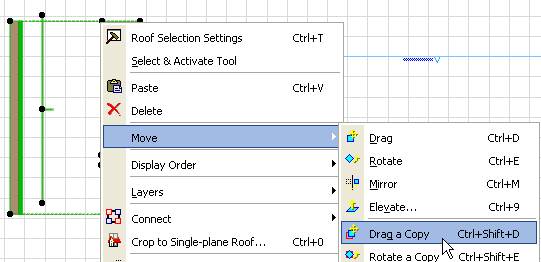
•To Drag, Rotate, or Mirror one copy of an element, select the element and choose the desired command from the Edit > Move menu or the context menu.
•Another way is to choose the plain Drag/Rotate/Mirror command from the pet palette, then press Ctrl (Windows) or Alt/Opt (MacOS). (This adds a small + sign to the cursor; press Ctrl again to undo the Copy feature). A copy of the selected element will be dragged, rotated or mirrored. Click to place the copy, which will now be selected instead of the original.
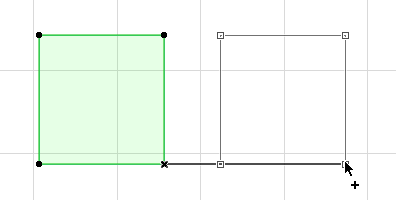
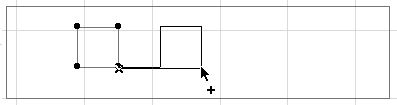
•To Drag or Rotate multiple copies of an element, select the element, choose the desired command from the Edit > Move menu or the context menu (or use Ctrl + Alt (Windows) or Cmd + Opt/Alt (MacOS) as a shortcut). You will see a “++” sign appear. Click the element to drag or rotate its copy to its new position. You can place any number of copies. Double-click to finish placing copies.
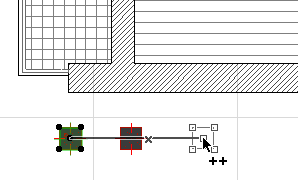
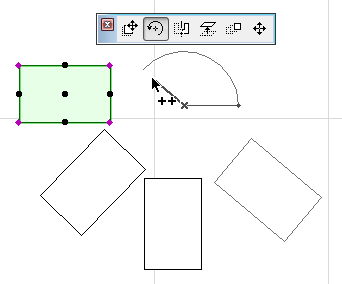
Note: When rotating copies, they will all be placed along the same rotation axis.
This feature works in the Floor Plan, Section/Elevation/IE windows and the 3D Window. In Detail Drawings, you can use it on any drawing elements. In the 3D Window, Drag/Rotate/Mirror is available only for added Drawing elements.
To create one or more copies of an element that are offset from (rather than exact duplicates of) the original:
See Offset All Edges.