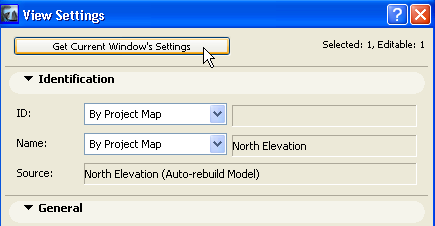
To change the settings of an already saved view, do one of the following:
•Open the View Settings Dialog Box and make any changes needed
•Click Get Current Window’s Settings to overwrite the original view settings with the current viewpoint settings (i.e. those of the active window).
If you have opened a saved view from the View Map, and if, while working in the active window, you have changed any of its View Settings, a triangular yellow “warning” icon will appear at the bottom of the Navigator, next to the changed settings, alerting you that “The settings in the frontmost window no longer correspond to the original view settings.” For example, the image below indicates that the current window’s zoom and layer settings are different than in the saved view.
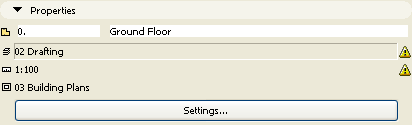
If you wish, you can save the current window settings as a view: Click Settings to open the View Settings dialog box, then click Get Current Window’s Settings.