ArchiCAD has a dedicated tool that is optimized for creating interior elevations of interior spaces.
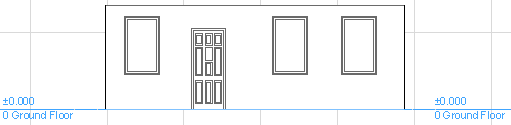
Interior Elevations (IEs) work similarly to Sections and regular Elevations: choose an input method; define the view and its limits graphically; and place a marker with custom-defined marker reference information.
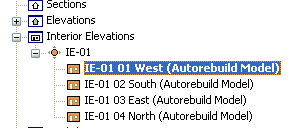
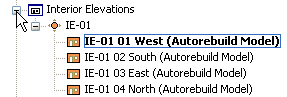
Each Interior Elevation is a separate viewpoint in the Navigator Project Map.
Edits made on an Interior Elevation can be reflected in the Model, and vice-versa: model changes can be reflected in the Interior Elevation following an update. Dimensions are associative.
Unlike the Section and Elevation tools, the Interior Elevation tool is used to create new viewpoints only; you cannot place a linked, reference-only IE marker.
Note: As source markers, IE markers are distinguished on screen by an optional semi-transparent fill. (Use View > On-screen View Options > Highlight Source Markers to enable or disable this distinguishing fill for all source markers. The color of this fill can be set in Options > Work Environment > On-Screen Options.)
An IE created using one of the polyline or rectangle input methods will have a separate IE view for each segment of the line; each view is created perpendicular to the segment.
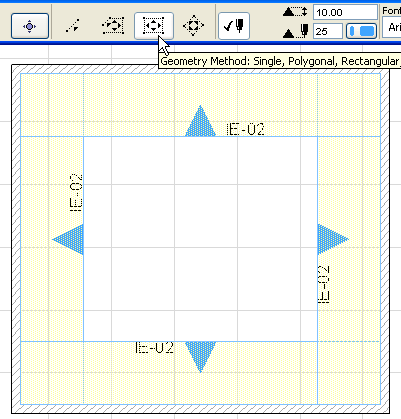
Since Interior Elevations are typically created in groups (e.g. four IE’s created by placing a four-segment polyline around a single room), IE’s are handled as a group for purposes of numbering, display, Trace functions, and placement on a layout. (Typically, you will use the Master Layout’s “Auto Arrange Setup” options - in Master Layout Settings - to fine-tune the appearance of IE views on the Layout.)
For more information, see Arranging Multiple Drawings on the Layout.
These IE groups are automatically listed together in their own subsets in the Project Map. Each new IE viewpoint is assigned to an IE Group, even if there is only one viewpoint in the Group.
You cannot move individual IE viewpoints from one Group to another.