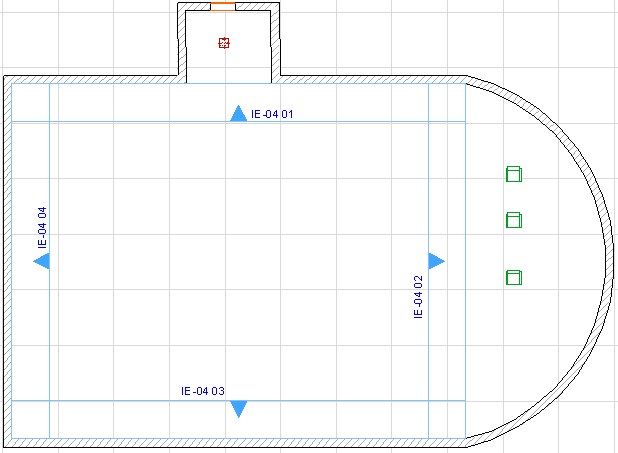
Vertical and Horizontal Range of the Interior Elevation
Vertical Range
An IE viewpoint’s vertical range is set manually by the user in the General Panel of Interior Elevation Settings, or the Info Box.
See Interior Elevation (IE) Tool Settings.
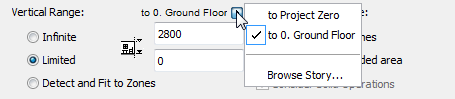
Each IE view (i.e. each segment of the IE limit polyline) can have a separate, custom vertical range value, if desired: choose the Limited option as the Vertical Range and enter the desired elevation limits.
Use the pop-up to define whether this vertical range should be measured from Project Zero, or from the Interior Elevation’s Home Story (the story onto which it was placed).
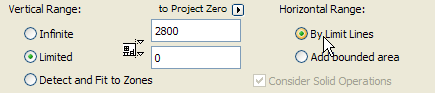
By default, the IE limit line represents the horizontal range of the resulting IE view.
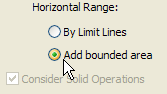
The Horizontal Range option of Interior Elevation Settings (see the General Panel) is set to By Limit Lines by default.
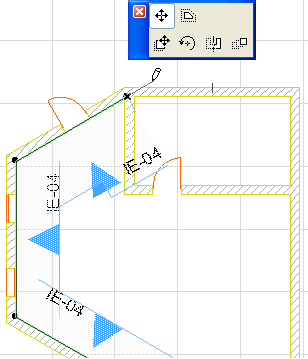
To adjust the horizontal range, select the limit line and stretch or shrink it using the commands of the pet palette. (Stretch/shrink modifications to this segment will affect the neighboring line segments accordingly, as when editing any polyline.)
To include connected enclosed areas in the Interior Elevation viewpoint, choose Add bounded areas the Horizontal Range option in IE Settings.
This way, if the room contains an odd-shaped alcove, the IE viewpoint will include structures that fall beyond the Limit Line, but still fall inside the room, as in this image: