While Publisher automates and simplifies the publishing process, publishing all or part of a project can be a major task. All of the views to be published must be generated or updated, which can require considerable computer time.
If you have finished setting up the publication but do not want to actually start publishing, you can simply close the palette without clicking the Publish button. All Publisher settings are preserved with the project.
Use the scroll-down list at the bottom of the Publisher to choose which item(s) to output:
•If you choose this set, the entire active publication set will be published.
•If you choose selected items, only the items currently selected in the active publication set will be published.
•If you choose all the sets, all currently defined sets will be published.
Click the Publish button at the bottom of the Publisher to begin the publishing process.
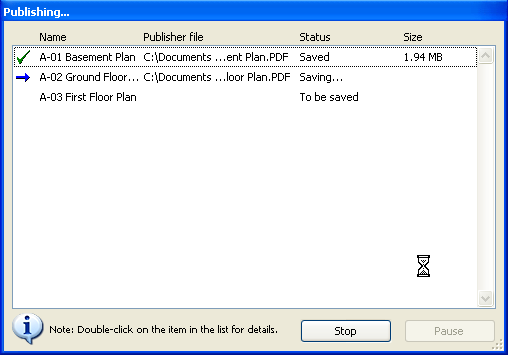
To end the whole publishing procedure, click Stop. To pause it, click Pause; the Stop button changes to Continue, allowing you to continue publication later.
A log file containing information on each publishing process is saved to the location you specify in Options > Work Environment > Publisher (“Publisher log location”).
Often, you may need to output a Publisher item multiple times to keep pace with revisions. You may wish to keep the older published files as a record.
The file name of each output Publisher item is identical to the name of the Publisher item itself. This means that if you output a Publisher item, and later rename it to reflect a new revision, you can re-publish it under the new name, without overwriting the previously output file, as was the case in older ArchiCADs.
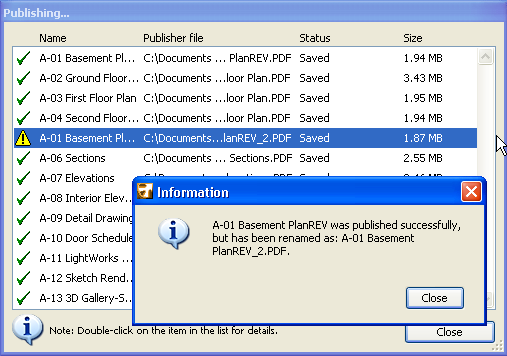
If you publish multiple items of the same name simultaneously, a yellow warning triangle appears in the Publishing process window; double-click to read the message, as shown below. ArchiCAD will automatically rename such files.