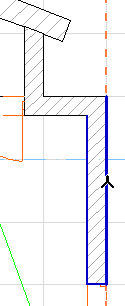
In the Floor Plan or Section windows, you can dimension wall thickness in a single click by clicking its contour. (The wall should be a regular or slanted straight wall.)
In this example, with the Linear Dimension tool active, move the cursor to the wall’s contour line.
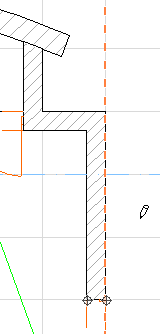
Click once. Two dimension points appear.
Double-click to complete the dimension chain and place it with the Hammer cursor.
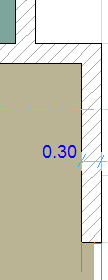
If you place a series of wall-thickness dimension markers along a chained wall, only the dimension points located on walls perpendicular to the dimension chain will be displayed.
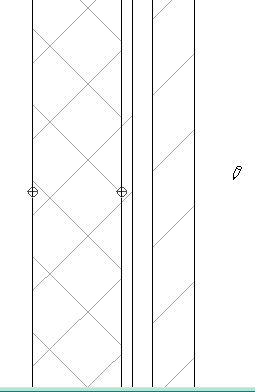
You can dimension the individual skins of a composite element:
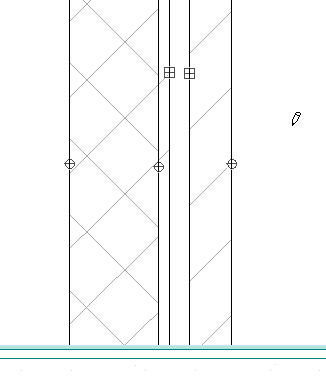
Note, however, that only the two sides of the Wall (the Wall’s full thickness) and the core are dimensioned associatively.
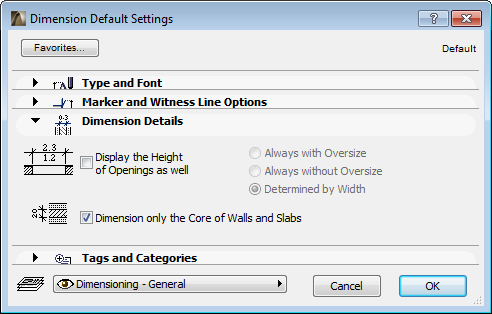
Dimension Core Only of Walls and Slabs
Check this box on the Dimension Details panel of Dimension Settings. This way, when you dimension Wall thickness (Floor Plan or Section) or Slab thickness (in Section), the single-click will produce dimension points only on the core structure.