Automatic Interior Dimensioning
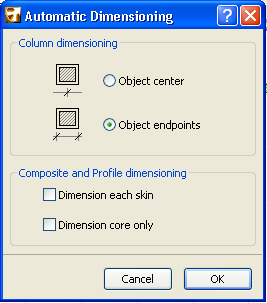
The Automatic Interior Dimensioning Dialog Box contains options for dimensioning Columns and composite or profile (complex) elements.
Open this dialog box from Document > Document Extras > Interior Dimensioning.
Choose preferred dimensioning options.
.
Column dimensioning: Use these options to set the way you wish to dimension columns.
•Object center: Dimension the axis of the column
•Object endpoints: Dimension the endpoints of the column.
Composite and Profile dimensioning: Use a combination of these two checkboxes to determine how the skins of composite and profile elements should be dimensioned.
•Dimension each skin: Each skin of the composite/profile element is dimensioned separately. (If this is unchecked, a single dimension is applied to the total width of all the skins.)
•Dimension core only: Only the skins (components) that are part of the core of the composite/profile element are dimensioned. You can dimension each skin/component of the core separately (if you also check the “Dimension each skin” box above), or dimension the core as a whole (if you leave the above checkbox empty.)
Note: This checkbox has the same effect as the “Dimension only the Core of Composite and Complex Walls” checkbox in the Dimension Details panel of Dimension Tool Settings.
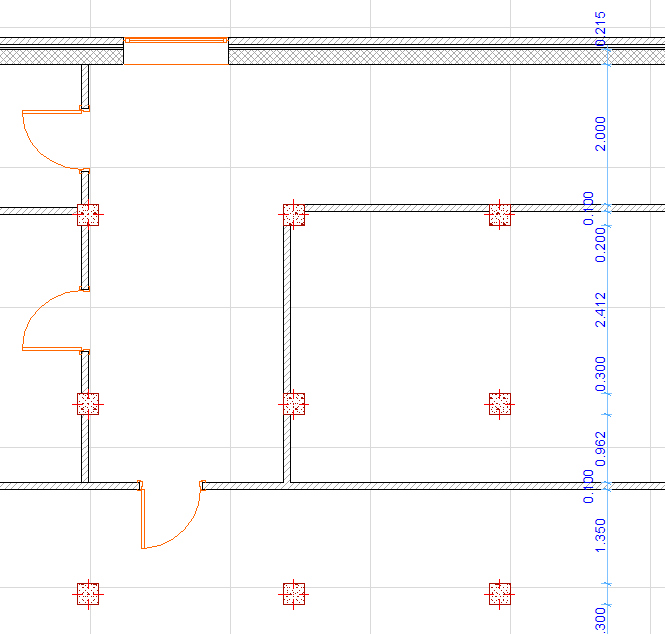
Next, draw a line across the selected elements. Walls, Columns, Beams, and Slab, Roof and Mesh edges perpendicular to or crossing the drawn line will be dimensioned. The line can consist of several segments. Double-click to finish drawing the line. An additional click is needed to determine the place of the dimension line. After placing the dimensions, the crossing line disappears.