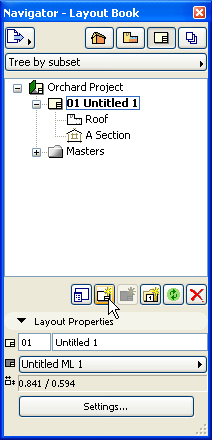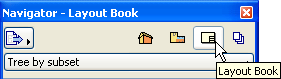
At the core of the ArchiCAD layout concept is the Layout Book that includes all the layouts defined for the project, optionally organized into subsets (represented by folders). The Layout Book tree structure can be accessed in the Navigator and Organizer.
Although it is possible to use a flat structure in your Layout Book, Layouts are ideally organized in “chapters”, that is, folders known in ArchiCAD as subsets. This is especially useful when working on larger projects requiring many drawings.
A pop-up button at top left of the Layout Book map allows you to view the components of your Layout Book according to the current view, that is, Tree by Subsets or Tree by Masters.
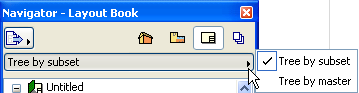
•Tree by Subsets groups your Layouts according to Subsets and shows the names of the drawings that belong to each. In Tree by Subsets, Drawings are accompanied by icons that correspond to the file type.
•Tree by Masters lists your Layouts according to the Master Layouts they are assigned to.
You can move and rearrange elements using the drag and drop technique to:
•Create hierarchical Subsets
•Move a Layout from one Subset to another
•Apply a Master Layout to a Layout
•Move a Drawing from one Layout to another Layout
Note: In this case, the proportionate distance of the Drawing from the Layout origin remains unchanged.
While you are editing the elements of your Layout Book, the Navigator or Organizer palette keeps track of which element you are working on.
•Elements selected within the Navigator will be highlighted.
•When you move over and work in the Layout window, the highlight changes to a box.
Important: Operations involving Navigator/Organizer items (such as drag and drop between Navigator maps, deleting items from a map, or adding items to the Publisher set) are not added to the undo queue, and are not undoable.
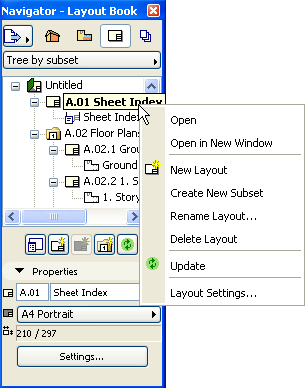
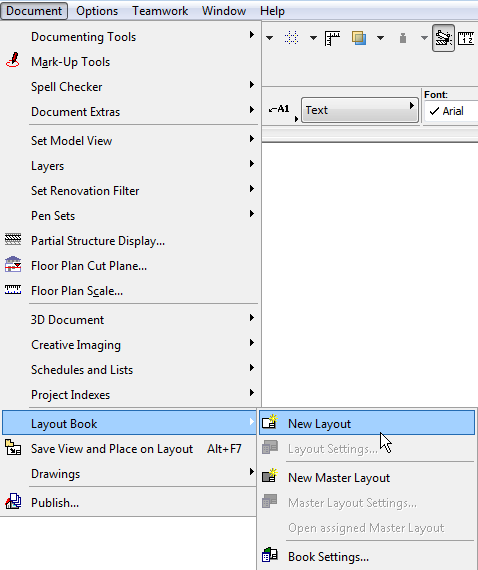
The easiest way to access the settings of any item of the Layout Book is to select it in the Organizer or Navigator palette, then click the Settings button at the bottom of the Properties section. Or use the commands of the context menu of the selected item in the list, or the commands of the Document > Layout Book menu.
Note: Another way to gain an overview of Layouts or Drawings in your project, or to sort them by criteria, is the Project Index function.
See Project Indexes.
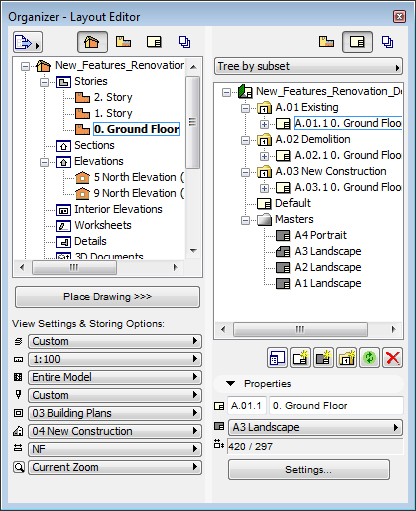
When you start a new project, the ArchiCAD Layout Book contains a number of predefined layouts and master layouts that correspond to the needs of your national version.
All or some of the layout management functions are available from various locations in the ArchiCAD interface:
•The icons at the bottom of the Navigator palette
•The set of icons of the Organizer palette’s Layout Editor view
•The context menu opened by right-clicking an item in the tree view of the Navigator or Organizer palette
•The commands of the Document > Layout Book menu