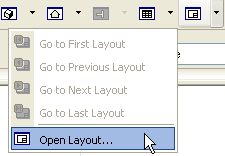
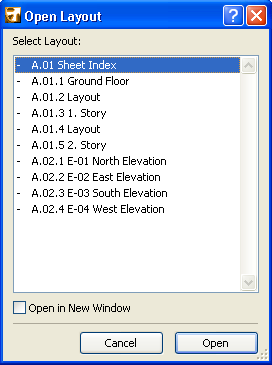
To open a particular layout in the Layout Window, do one of the following:
•Double-click its name from the Navigator’s Layout Book or the Organizer palette’s Layout Editor.
•Click the Layout’s name from the Window menu
•Click the Open Layout command from the Layout drop-down in the Mini-Navigator Toolbar. Activate the desired Layout from the appearing Open Layout list.
(To open a Layout in a new, separate window, select the Layout in the Navigator and choose Open in New Window from the context menu.)
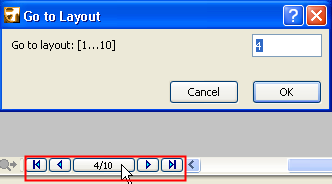
To navigate sequentially among Layouts in the Layout Book, click the navigation arrows at the bottom of the window to move to the previous, next, first or last Layout in the Layout Book. Click the button showing the current Layout number to access the Go to Layout command.
The contents of the layout windows are saved with the project.
•The white area represents the usable print area of the paper delimited by a blue frame.
•The gray area represents the non-printing area (margins) of the paper.
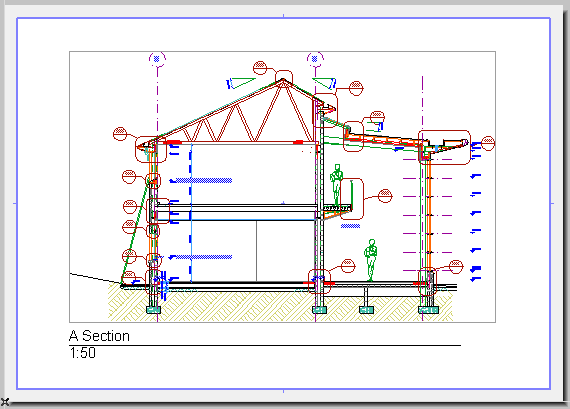
The displayed size and the margins of the Layout are defined by the Master Layout.
See Master Layouts.
When printing the Layout, you can fit it to the actual paper size used by the device, with the Fit to Page control of the Print Layout dialog box.
See Print Layout.
You can place, arrange and transform drawings in the Layout window, and manually add 2D elements as well as Autotext items.
For more information, see Drawings in the Layout Book.
To create a new Layout, do one of the following:
•choose the Document > Layout Book > New Layout command. The new layout will be listed at the bottom of the Layout Book.
•Click the New Layout icon in the Navigator or the Organizer
•Use the New Layout command from the context menu of any Layout Book item in the Navigator.
In the Navigator’s Tree by Subsets view, the new Layout will be listed directly underneath the currently highlighted element.
•If a Layout window is currently open, the new Layout will now be opened in its place.
•If a Subset is currently highlighted in the Navigator palette, the new Layout will be placed as the last element inside the Subset folder.
•If the Layout Book is currently highlighted in the Navigator palette, the new Layout will be placed as the last element in the Layout Book.
You can also create new Layouts automatically when placing and importing drawings.
See Drawings in the Layout Book.
Delete Layouts
You can delete any Layout in the Layout Book except the last one: the Layout Book must always contain at least one Layout.