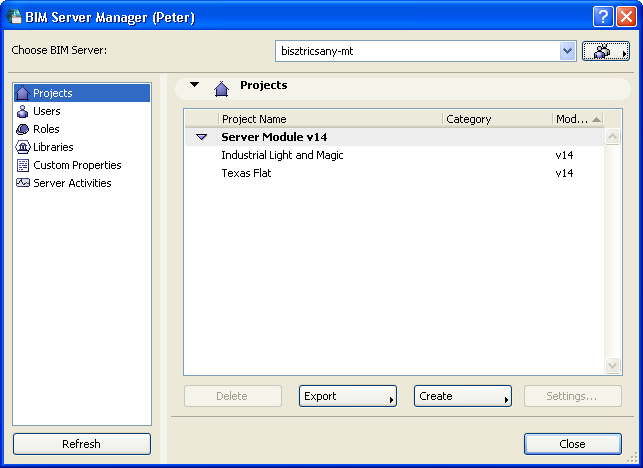
To open the BIM Server Manager (after BIM Server is installed and configured), do one of the following:
•Use the BIM Server Manager command from the Start menu (on Windows) or the Applications folder (MacOS).
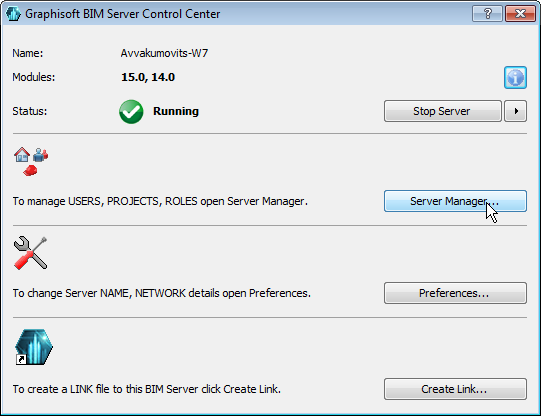
•If the BIM Server is located on your machine, open the BIM Server Control Center using the icon in the system tray (on Windows); or from the menubar (in MacOS); and click the BIM Server Manager button.
Note: Clicking this button opens the BIM Server Manager for the local machine only. The “Choose BIM Server” and user authentication controls of the BIM Server Manager will not be available.
Choose BIM Server and Server Administrator
Note: If you open BIM Server Manager from the BIM Server Control Center, you will access the server on your current machine, and the “Choose Server” and user pop-up are not available.
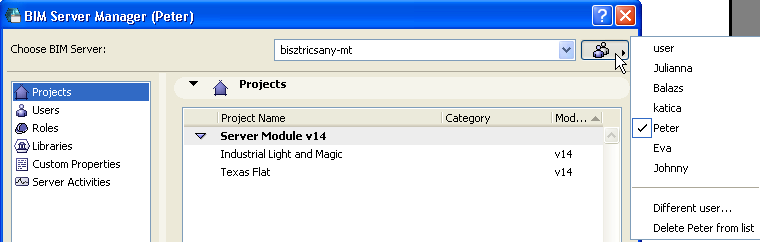
1.From the pop-up list at the top of BIM Server Manager, choose the server whose content you want to manage.
2.From the pop-up list at top right, choose a user who has Server Administrator rights, as defined in the Users page of BIM Server Manager.
(If you have not yet added any users, then the only available name is the Server Administrator defined in Step 4 of BIM Server Configuration.)
Note: If you have lost/forgotten all administrator accounts, then go to the server machine and start BIM Server Manager from the BIM Server Control Center application. BIM Server Manager will open without authentication and you will be able to create new Users.