Edit Module: Break Link, Edit Elements, Replace Hotlink
Another way to edit a module is to break its hotlink, then edit it, and replace the previous hotlink with the newly edited module.
1.Select the module to edit on the Floor Plan.
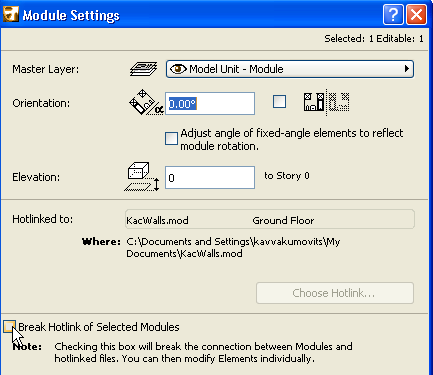
2.Choose File > External Content > Hotlinked Module Settings.
3.In Module Settings, check the Break Hotlink of Selected Modules box, and click OK to close the dialog box.
4.Edit the elements as needed. (Use Edit > Grouping > Suspend Groups to enable editing.)
5.Select the elements again and choose File > External Content > Save Selection as Module.
6.Give the new module file a unique name.
Note: If you choose the old name of the module file, you will overwrite the previous source file and thereby overwrite all placed instances of the module file, not just the selected module.
7.Click Save. The new, edited Hotlinked module is placed.
Apply Offset and Rotation of Edited Module
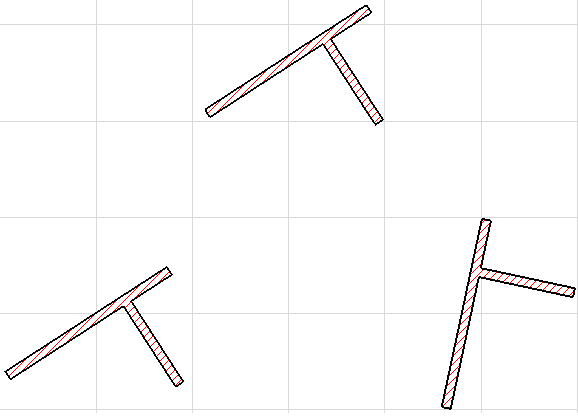
When several instances of a module have been placed with different rotation and offset values, and you edit the source file after breaking its hotlink, a relocation effect occurs when you save the modified source file.
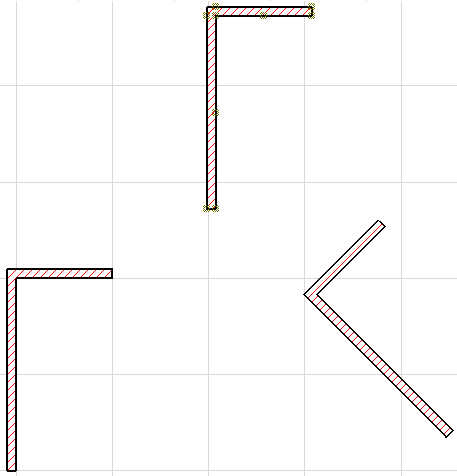
To correct this:
Follow the steps listed above to break the hotlink and edit it.
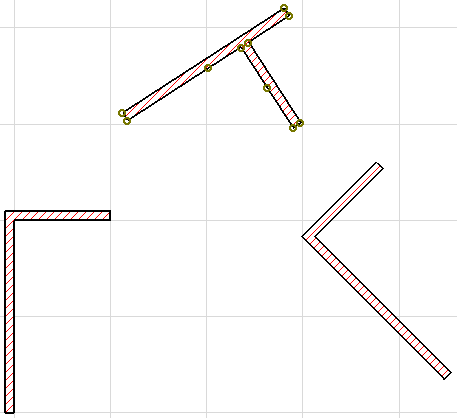
When saving the edited selection as a module in the Save Selection as Module dialog box (see step 5 above):
Check both the Replace selection with this hotlinked module file and Apply offset/rotation of most recently broken hotlinked module boxes. Click the Save button.
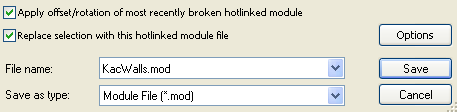
The placed module instances keep their relative locations.