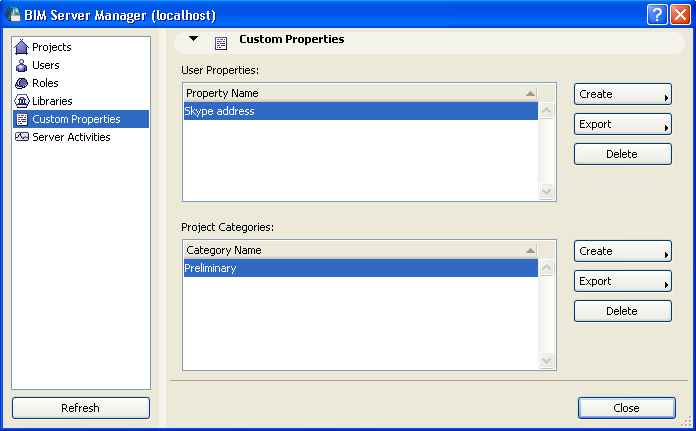
BIM Server Manager: Custom Properties
Note: You must be a Server Administrator to use these controls.
Use the Custom Properties page of BIM Server Manager to define optional custom properties for Projects and for Users on this server.
About User Properties
User properties are categories, defined by the Server Administrator only. Custom User properties (e.g. Skype address) can be defined.
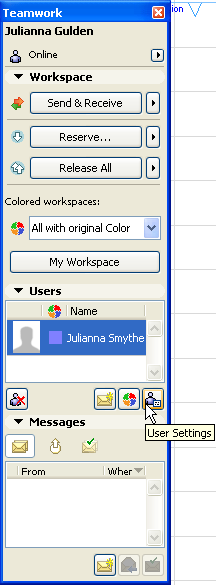
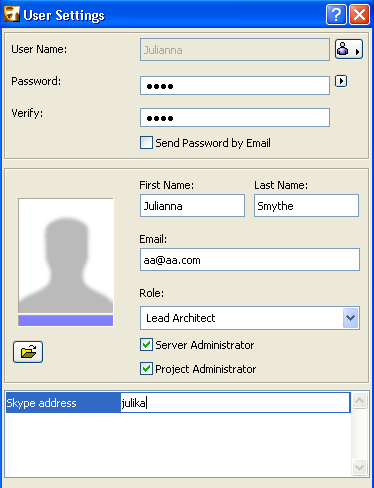
User-specific properties for each category appear in the User Settings dialog box of any selected User. (User Settings is available in ArchiCAD from the Teamwork Palette.) In User Settings, any user can enter related information about themselves (e.g. Skype address, office location) into these fields, to help others identify who is who, and to communicate more easily.
•To view other users’ personal information in these fields, any user can select a name from the Users list on Teamwork Palette, then click the user icon: the selected user’s data appears here.
•You may edit the user information for your own User Settings only.
About Project Categories
Project categories are custom-defined and assigned to any project by an Administrator.
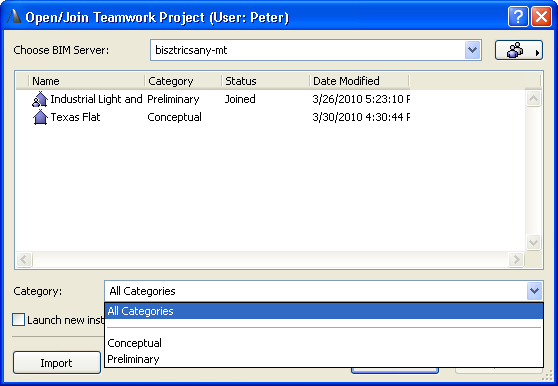
Project Categories become useful as the number of projects on the BIM Server grows: users who are opening a Teamwork project can filter the projects by these categories, to make it easier to find the right project.
•Go to the Projects page of BIM Server Manager, select the project and click Settings
•or go to Project Settings.
Choose the category you need from the pop-up Category list.
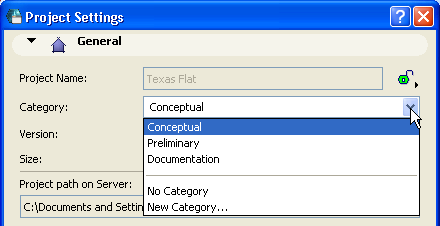
This way, the project list (both on the Projects page of BIM Server Manager and in the user-accessible “Open Teamwork Project” list) contains an additional column by which to sort and identify projects on the server.
Create User Property or Project Category
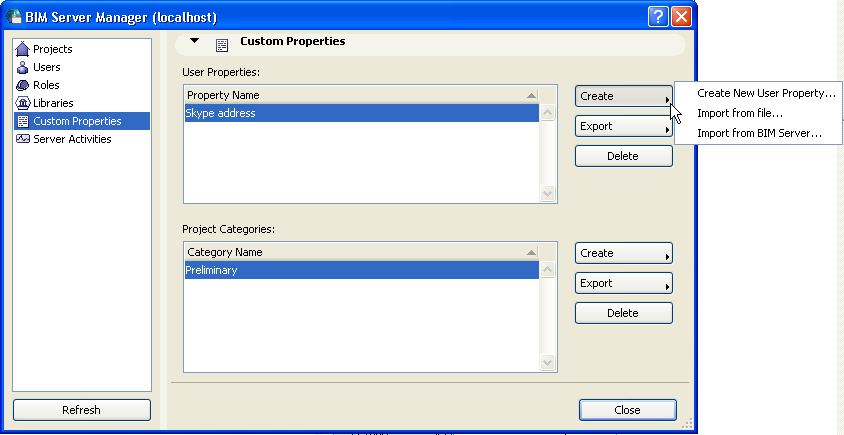
On the Custom Properties page of BIM Server Manager, click the appropriate Create button (the top Create button is for User Properties; the bottom Create button is for Project Categories.
Choose one of the three options for adding either a new user property or project category to the BIM Server:
•Create New User Property/Create New Project Category: The corresponding dialog box appears. Enter a user property or project category name.
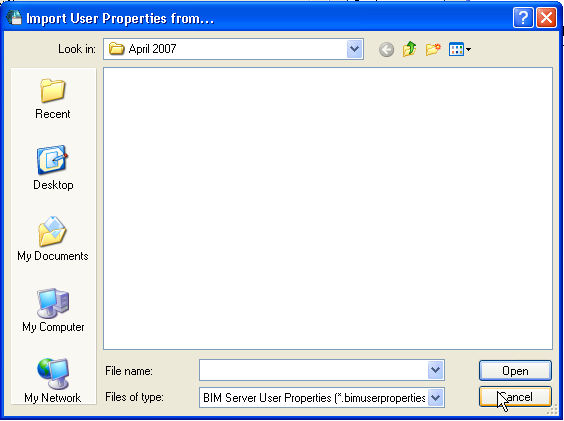
•Import from File: Browse for a user properties file (.bimuserproperties) or project category file (.bimprojectcategory) that was earlier exported (from this or any other BIM Server).
See Export User Property or Project Category.
User properties or project categories from these imported files will be added to the current server.
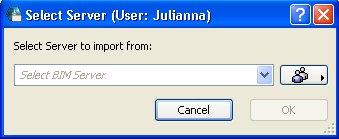
•Import from BIM Server: If you choose this, you must first select a server from which to import user properties or project categories.
In the appearing dialog box, check the Import box next to the user properties or project categories you wish to import to your BIM Server.
A yellow warning triangle appears alongside any user property which already exists on your server. You must decide how to handle these cases by clicking on one of the two options:
•Overwrite existing
•Keep existing, and rename the imported roles
Export User Property or Project Category
Use this function if you want to transfer user properties or project categories from one BIM Server to another.
Go to the Custom Properties page of BIM Server Manager.
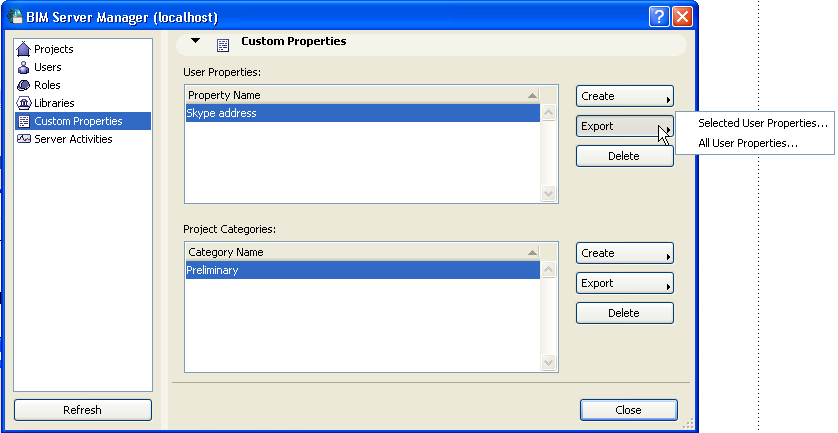
•To export only certain properties or categories, select one or more from the list.
Use the respective Export button: choose Selected User Properties, or Selected Categories.
•To export all properties or categories, do not select of them. Click Export, then All User Properties, or All Categories...
In the appearing dialog box, browse for a location for the saved file.
Data for all exported user properties will be placed into a single file, with extension.bimuserproperties.
Data for all exported project categories will be placed into a single file, with extension.bimprojectcategories
From another BIM Server, you can now import these files.