
Accessing the BIM Server Over the Internet
The GRAPHSOFT BIM Server is designed to enable Teamwork users to access the BIM Server and its projects over the Internet.
Introduction
Setting up the BIM Server for Teamwork in a LAN office is easy - you basically just “plug and play” (though local firewalls can still cause problems). If you want to work over the Internet, however, the situation is a little more complex.
By default, data traffic initiated from the outside will not reach the office server inside. An office LAN is connected to the Internet via a router, and all incoming and outgoing data traffic goes through this router. When someone tries to access an office computer from the outside (for example, to join a project on our server), in reality they are accessing the router, which has a public IP address.
Without custom setup, the router does not know that it has to redirect the communication to any of the computers in the LAN. In addition, firewalls will block communication from the outside unless ports are properly configured.
Virtual Private Networking (VPN) is a solution by which computers in different internet-connected LAN’s can act as if they were on the same LAN. This solution also has advantages regarding the security of confidential data transmitted from one computer to the other, because VPNs include cryptographic solutions.
The rest of this topic is devoted to regular remote access of LAN from the internet - without VPN.
Enabling Remote Access to a LAN from the Internet
1.In BIM Server Preferences, under “Internet address”, enter either the router’s public IP address or a domain name. The simplest choice is to use a static IP address obtained from your Internet provider. If there is a domain name, this will be “translated” to a public IP Address automatically.
If the client ArchiCAD has never connected to the BIM Server, and is attempting to do so via the Internet, he must use the public IP address or domain name when adding a new BIM Server to the servers list in ArchiCAD.
If the client ArchiCAD has connected to the BIM Server at least once inside the office, then this server name will be automatically located whenever the client tries to connect remotely through the Internet.
ArchiCAD will automatically recognize and resolve the varying addresses of your BIM Server, no matter which address (i.e. “internal” or “external” server address) is used. Links to BIM Server Libraries and Hotlinked Modules will be automatically located, even if many team members are accessing the project using various server addresses from different locations.
2.Note the ports used by the BIM Server for communication. These are set during BIM Server Configuration and can be viewed or changed in BIM Server Preferences:
These ports are necessary for communication to occur. Once you know these port numbers, you can use them to adjust the settings on the router and firewall to enable communications between the BIM Server (in the office) and a client ArchiCAD (outside the office).
Make sure you know the specific ports used by the server module which will be accessed from the outside. For example, if the outside client ArchiCAD is version 13, then you must open the ports used by Server Module 13. (You can, of course, open all the ports.)
3.Set up a PAT (Port Address Translation): When data traffic from the client ArchiCAD arrives to a specific port of the router, the PAT information enables the router to forward this data to the BIM Server itself.
4.Open firewalls as needed to make sure that communication on ports related to ArchiCAD and the BIM Server is not blocked.
For more information, see: Firewalls.
General Considerations
•We cannot give you detailed examples of how to set up a PAT or Firewall according to the above solutions due to the high variety of the possible network topology, network devices and interfaces of the software involved. In small offices, you can do these changes if you are fully aware of the LAN topology in your office and if you are also aware of the interface of the Firewall and of the software or hardware responsible for PAT. Otherwise, an IT professional has to do the job. In large offices, we suggest that an IT professional do this job.
•The above solutions assume that your router retains exactly the same Public IP Address on a constant basis (static IP address). If the router’s IP address changes regularly, then you must use further technologies (such as DynDNS, at dyndns.com) to be able to uniquely identify your computer from the outside over the course of time.
Firewalls might exist at several places throughout the route of the data traffic.
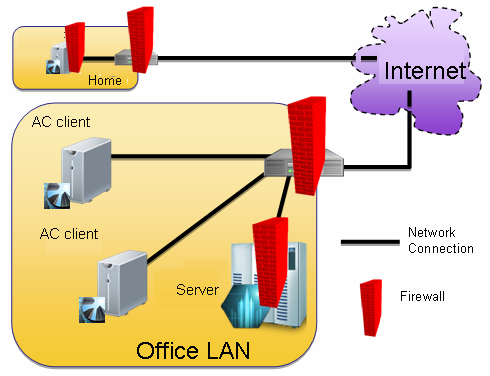
The Firewall on the client home computer:
Usually, this firewall will (by default) allow all traffic initiated from the client computer out to the outside world, but will block all traffic initiated from the outside from coming in to the client computer. This means that if the default Firewall settings are not changed, then an ArchiCAD running on this client computer will be able to successfully communicate with a BIM server outside of the client computer.
The Firewall on the Router of the home network (if a Router is used in the home network):
Most routers targeted for home networks have a built-in Firewall. As above, these by default allow all traffic initiated from any computer of the home LAN to the outside world, but block all traffic initiated from outside from coming in to the LAN. This means that if the default Firewall settings are not changed, then an ArchiCAD running on a computer in the home LAN will be able to successfully communicate with a BIM server outside of the LAN.
The Firewall on the Router of the office network:
In case of a router firewall targeted for small offices, the behavior of the Router might be the same as in the previous case. However, in this scenario the office network router is receiving data from the outside, so the firewall’s default settings will block traffic initiated from the home LAN to a computer in the office LAN. Thus, you must change the default settings of the firewall in order for the remote connection to work.
In case of Firewall software targeted for large offices, the default behavior is to block all traffic, whether incoming or outgoing. Again, you will need to change the settings for a successful communication.
The Firewall on the server computer in the office network:
Having a separate Firewall on the server computer is unusual, because the main Firewall can fulfill this task. If the server does use a firewall, it must also be configured to let data through.