Request Elements or Project Data
Use Request if the element you wish to reserve is currently owned by another user.
You must be on-line to Request.
The Request command is available from the following locations:
•in the Teamwork Palette
•in the context menu of selected Navigator items
•in the context menu of selected elements
•in the dialog box of project data (for example, Model View Options)
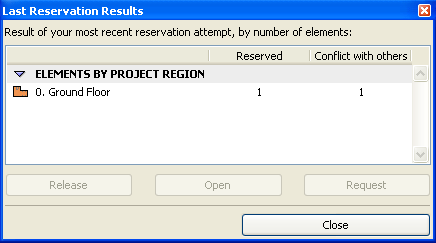
•from the Last Reservation Results dialog box.
See Reservation Results.
Clicking the Request button here means you request the “Conflict” items from their owners.
Click Request.
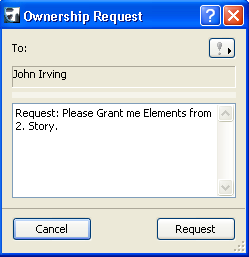
The Ownership Request dialog box with an automatically generated message that includes the requested items and their location. You can add any other text as needed; then click Send.
See also Request Messages.
Whenever you send an Request message, it is filed in your Pending Requests list.
Concurrently, the Request message is delivered to the owner’s To Do list.
If the owner is not currently on-line, the Request will be delivered as soon as s/he goes on-line.
If the owner releases the requested item independently of the Request message, the requesting user automatically receives the item.
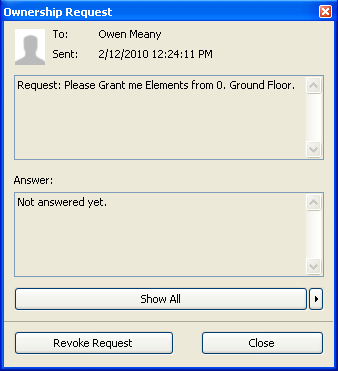
If you open one of your Pending Requests, you get a status report: how many of the requested items have been granted/denied and how many are still pending. You can opt to revoke a pending request: click Revoke Request.
Handling Request Messages
The owner receives the Request message showing the requester’s name and any message; he/she can respond to the request by clicking the triangle to show relevant commands, or double-clicking it to open the request:
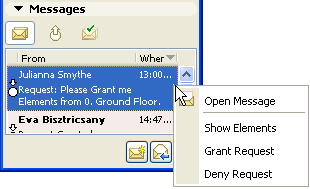
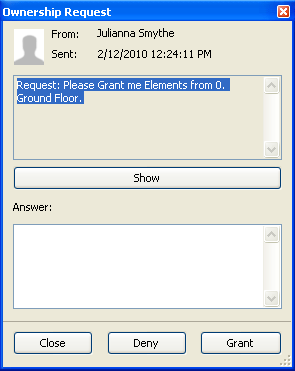
•Open Message: Same effect as double-clicking the item, or clicking on the fly-over message notice.
•Mark as Read: Unopened messages are listed in bold typeface. You can remove the bold typeface using the Mark as Read command. (Double-clicking the message to open it will also mark it as read.)
•Show Elements/Dialog: Zoom in to view the requested element(s) or dialog box.
•Deny Request. Click this if you do not want to release the elements. The elements remain in your workspace.
•Grant Request: Click to approve the request. If you grant a Request, this means you have released the item, which is now instantly and automatically reserved by the user who sent the request.
Once the owner grants or denies a Request, the associated request message is automatically moved to his/her Completed list.
At the same time, the user who issued the Request receives the response in his/her own To-Do list: (the message is concurrently removed from his/her Requests list).
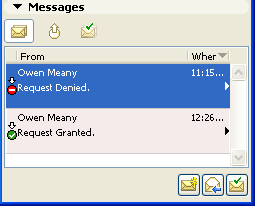
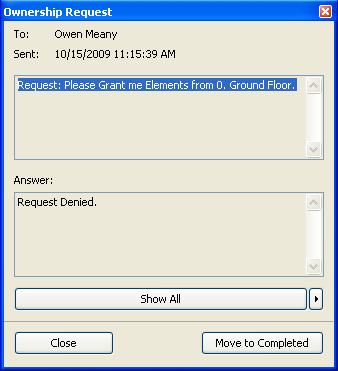
Now, this response to the Request can be opened, where the original request, the owner’s response, and information on the elements can be viewed in a single window. Click Show All to zoom in to the elements in question, or to access the dialog box of the requested data type.