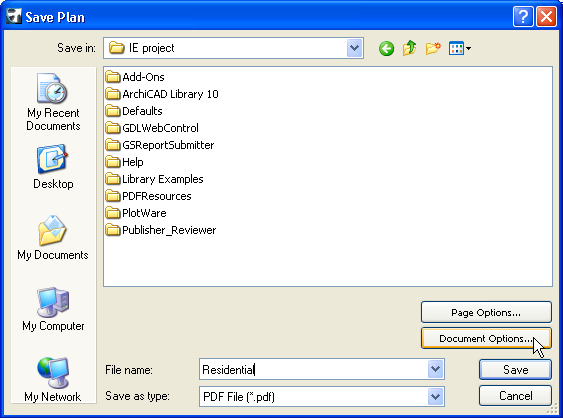
Go to File > Save As, and choose PDF as the file format.
Note: To limit the window contents to be saved, use the Marquee tool.
Click Page Options to set the Paper Size and Orientation of the resulting PDF Document.
Note: No Page Options button is available if you are saving to PDF from a Layout window.
Click Document Options to define your preferred settings for the content of the resulting PDF Document. These are similar to the options in the Print 2D/Print 3D dialog boxes.
Note: No Document Options button is available when saving to PDF from a formatted list window.
For more information, see Print 2D Document.
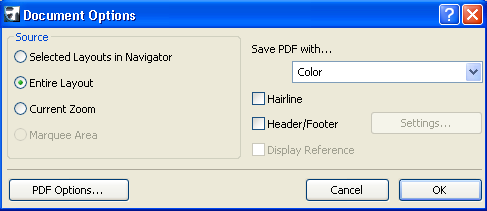
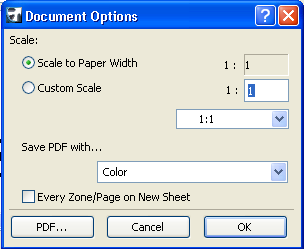
When saving to PDF, you can save the contents in Color, Black & White, or Grayscale.
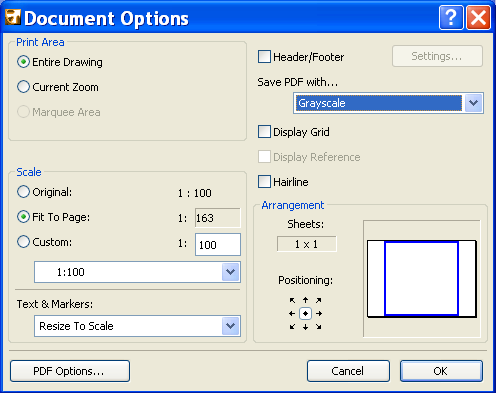
•For a Layout, you can choose to output multiple Layouts into a PDF files, or else just the current Layout (at its current zoom or in its entirety), just as when printing a Layout.
•For a formatted list, you have Scaling options and the ability to place each zone or page of the list onto a new sheet.
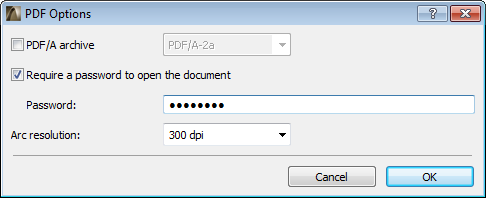
At the bottom left of the Document Options dialog box, click PDF Options.
Here, you can create an optional password;
or you can opt for a specialized PDF/A archive format:
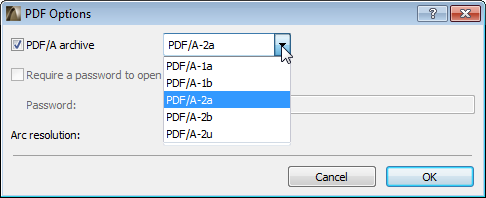
The default is PDF/A-2a.
Notes:
•If you choose one of the PDF/A formats, you cannot also set a password.
•If you choose one of the PDF/A formats, the U3D file embedding option is not available!
See 3D Content in PDF (WIN only).
•The PDF/A-1a and PDF/A1b formats do not support transparency effects. (These features are available with the PDF/A-2 formats.)
The Arc resolution setting reflects the fact that the PDF format does not recognize arcs/circles and must approximate them by converting them to polygons. The Arc resolution setting defines the accuracy of these polygons.