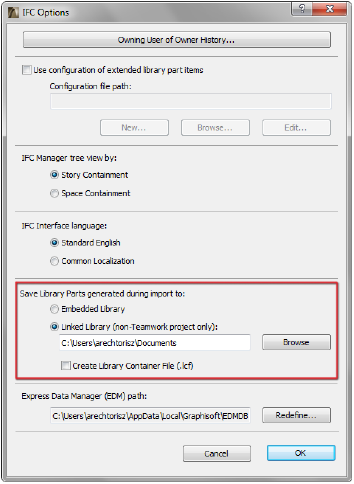
The settings defined at IFC Options (File > File Special > IFC 2x3) also affect the way that IFC data are created and managed.
Use this option to enter general information about the project owner (Person, Organization and/or Person and Organization). This information (IfcOwnerHistory) will be added to each exported element.
Notes:
•If the ArchiCAD Project Info (File > Info) includes Architect Details, then these Person and Organization data are derived from those details (see mapping table below). To edit these data manually, uncheck the “Use Architect Details from Project Info” box.
|
Project Info/Architect Details |
Person and Organization |
|
“Architect Name” |
Person/“FamilyName” |
|
“Architect Position” |
Person/“Roles” |
|
“Architect Company” |
Organization/“Name” |
|
“Architect Full Address”/“Address” |
Person/Addresses/“AddressLines”(“Postal” Address type) |
|
“Architect Full Address”/“City” |
Person/Addresses/“Town” (“Postal” Address type) |
|
“Architect Full Address”/“State/Province” |
Person/Addresses/“Region” (“Postal” Address type) |
|
“Architect Full Address”/“Postcode/ZIP” |
Person/Addresses/“PostalCode” (“Postal” Address type) |
|
“Architect Full Address”/“Country” |
Person/Addresses/“Country” (“Postal” Address type) |
|
“Architect E-mail” |
Person/Addresses/“ElectronicMailAddress” (“Telecom” Address type) |
|
“Architect Phone Number” |
Person/Addresses/“TelephoneNumbers” (“Telecom” Address type) |
|
“Architect Fax” |
Person/Addresses/“FacsimileNumbers” (“Telecom” Address type) |
|
“Architect Web” |
Person/Addresses /“WWWHomePageURL” (“Telecom” Address type) |
•At model filtering of export/import (by using Model Filter), the IFC elements can be grouped by the Person name of the Owner information (called Element Owner) set here or received from other applications.
See Model Filter.
Configuration of extended library part items
Use these controls (check the box) to convert selected or all parameters of ArchiCAD Library Parts (Object, Door, Window, Skylight, Stair, Zone and Lamp) to IFC Properties. In essence, this is a mapping process that is carried out according to an applied configuration file (mapping rule). Since the configuration file is editable (see later), this option allows you to do the following:
•to store the library part parameters as custom IFC Properties (in custom Property Sets) by default, and to prepare them for export;
•to prepare certain library part parameters to be stored and exported as standard IFC Properties (in standard Property Sets), if a corresponding parameter exists in the IFC 2x3 scheme documentation (for example, ArchiCAD’s “Fire Rating” parameter corresponds to the standard IFC property “FireRating”);
•to harmonize library part parameters with IFC Properties handled by other applications’ import/export processes. This means that the conversion file used in IFC Options will be considered by ArchiCAD’s IFC import processes (Open/Merge, Detect IFC Model Changes and Update with IFC Model), so that - for example - the custom Properties of an IfcSpace (such as a Revit Room) imported from another program will be mapped to the values of an ArchiCAD Zone library part.
Several configuration files (using the extension .xml) can be created and saved (New), browsed for (Browse) or modified (Edit). The mapping process always relies upon a single configuration file that is selected here and whose name is displayed in the Configuration file path field.
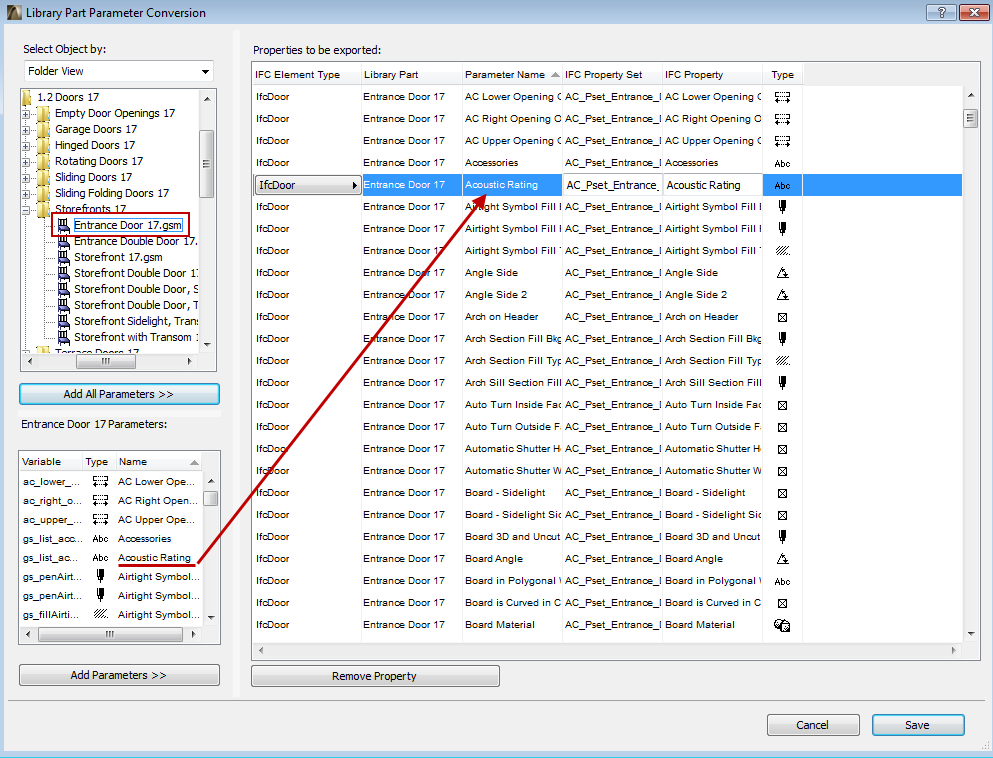
When creating a new configuration file or editing an existing one, you will use the appearing dialog box with the following main controls.
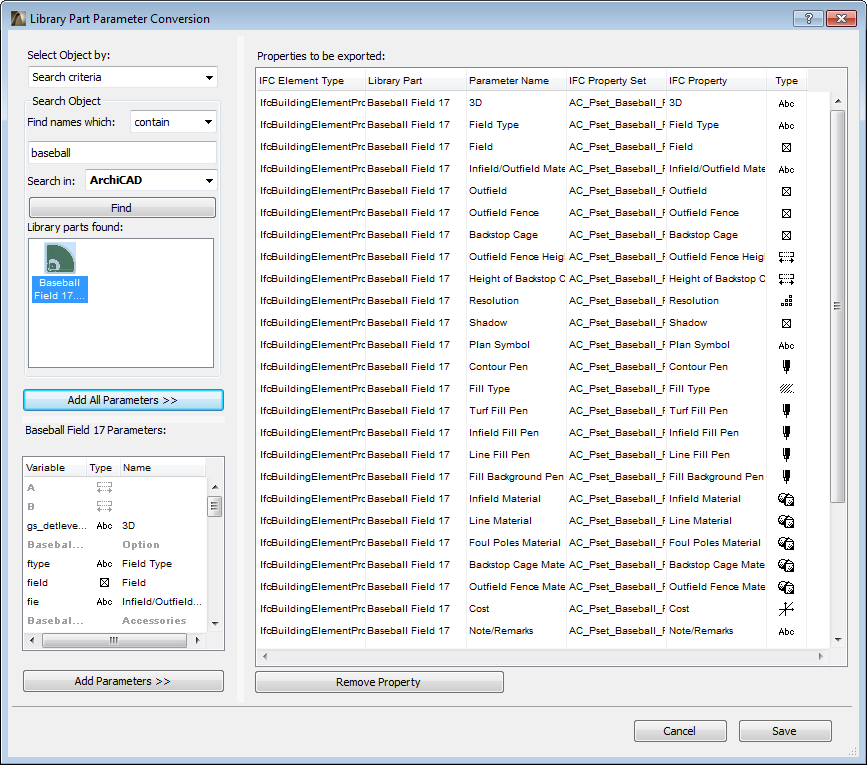
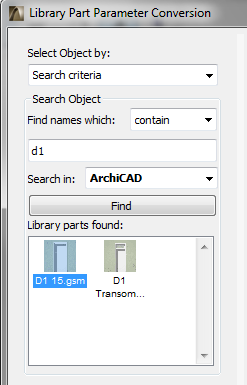
The Object list at the top left displays the libraries currently loaded in the project (Folder View). You can change among the following views: Folder View (used Objects only) and Search criteria, which enable you to search for an object based on numerous criteria.
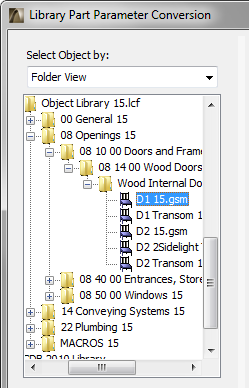
The list at the lower left (Available Parameters) displays all the parameters of the Library Part selected from the list above. (In Folder View, if multiple objects are selected, this list is empty.)
The configuration list on the right shows those parameters whose conversion to IFC Properties will take place using the current configuration file. Parameters can be placed in this list in the following ways:
•by dragging any or all parameters of multiple selected Library Parts into this list, or by clicking the Add All Parameters button;
•or, if a single Library is selected, by dragging any or all of its parameters into the list, or by clicking Add Parameters.
In the configuration list, all parameters belonging to a particular Library Part are stored in their own custom Property Set (AC_Pset_ “Library Part name”), using the IFC Property name that corresponds to the parameter’s localized name. The IFC Element Type (such as IfcDoor) is automatically created based on the Object’s GDL subtype, and can be modified as needed (it can be re-classified as any IFC Entity).
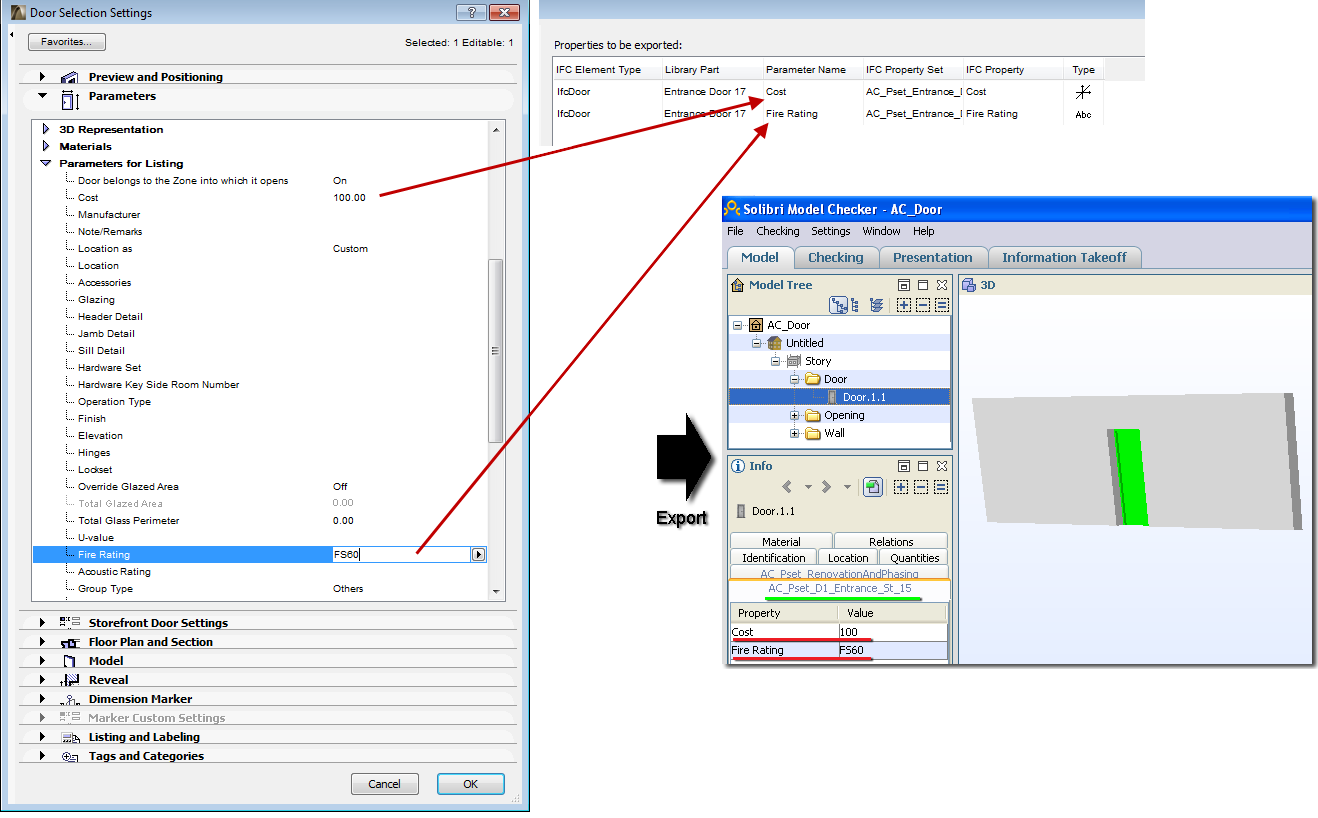
Example: We have assigned the Cost and Fire Rating parameters to a Door, using the Door Settings dialog box. We want to export these parameters (and their values) as custom IFC Properties, together with the Door, to an IFC file. All we need to do is drag the two parameters of the Door into the Configuration list. The values of the Door parameters will be assigned to these IFC Properties during export. You can see the result, for example, by using an IFC model viewer/checker.
To complete and save the configuration file in .xml format, click Save. The Save button is active if you have activated the “Use configuration of extended library part items” in the IFC Options dialog box, and if the file is shown in the “Configuration file path” field.
Note: The chosen configuration file is also used when you save additional custom Property Sets (IFC Translation Setup > Export Options > Derived Model Data to Export > All Library Part parameters as custom IFC properties).
As needed, you can modify the names of the previously mapped IFC Properties and Property Sets in the configuration list. This way, you can export certain parameters as standard IFC Properties. (ArchiCAD uses the configuration file during the import process, too: you can pair incoming custom Properties with their counterparts in ArchiCAD, if any exist. For example, if a custom IfcSpace arrives from Revit, you can define which ArchiCAD Zone parameters should correspond to those IFC Properties.)
Example: We would like to export a Fire Rating parameter, which is assigned to a Door, as a standard IFC Property. This is possible, since this parameter has a counterpart in the IFC 2x3 scheme documentation, namely “FireRating”, in the “Pset_DoorCommon” Property Set. All we need to do is rename the existing IFC Property Set and IFC Property accordingly.
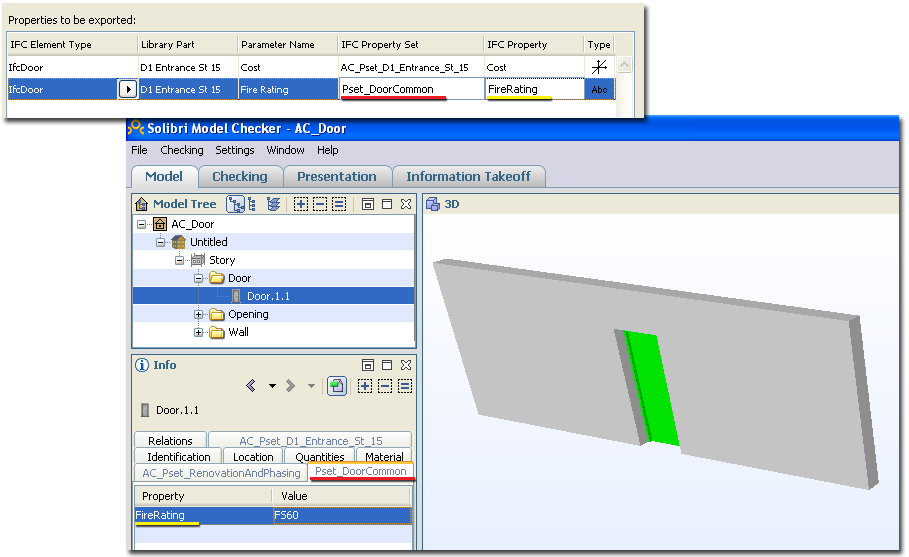
Using the configuration file to map parameters will immediately take effect in the current project: the corresponding IFC Properties and Property Sets will appear as derived data in the Settings dialog box of the affected Library Part, as well as in the IFC Manager, if the Library Part is selected.
Use this control to vary the tree view used by the IFC Manager. If the ArchiCAD model (even after IFC model import) contains ArchiCAD Zones (IfcSpaces) which contain Objects (such as MEP elements, furnishing, Morph elements, etc.), then you can switch the view of the IFC Manager’s containment tree to a view (called Space Containment) which lists the Object and Morph content belonging to each IfcSpace.
Note: Space Containment tree view is only a visualization mode in the IFC Manager. But, if you would like to export this AC Zone (IfcSpace) relation of the elements, you have to check the “Space containment” option for the export at the “Derived model data to export” options of the used IFC Translator. In this case, in the IFC model hierarchy, an element will be linked directly to the IfcSpace in which it is located, and will be linked only indirectly (via the IfcSpace) to its IfcSpace home story (IfcBuildingStorey).
See Export Options.
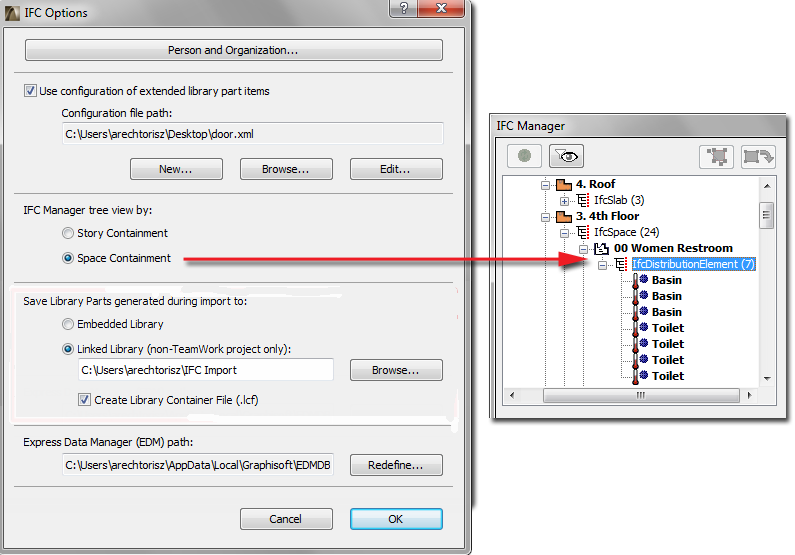
The standard language of IFC 2x3 is English, thus the default and recommended setting for the interface is English. In localized ArchiCAD versions, some standard IFC key words (such as IFC Entity, Property, Attribute names) may be shown in the local language, but this has no effect on the IFC export, just helps users comprehend IFC terms on the interface.
Folder-system option for Library Parts generated during import
By default, if Library Parts (e.g. ArchiCAD Objects) are generated during IFC import, they will be placed in the project’s Embedded Library. You can change this setting by saving the generated objects to a linked library. To help you keep track of Library Parts generated during IFC import, all such elements (whether saved to the Embedded or a Linked library) will automatically be stored in a subfolder, whose name is the same as the imported IFC file, plus an extension showing the time of import.
Hint: In case of repeated IFC Merge processes with large models, your Embedded Library may become very large if many Library Parts are generated; this can cause performance problems. In this case, you should save the generated Library Parts to a linked library instead.
Notes:
•Make sure that the target folder is write-enabled at the time of import. If it is not, the import process will fail.
•In Teamwork, the Linked Library option is not available; generated Library Parts are saved to the Embedded Library.
Express Data Manager (EDM) path
The EDM (Express Data Manager) toolkit is the engine which creates an ArchiCAD model from the imported IFC model, and which also creates an IFC file out of the exported ArchiCAD model. The default engine is the recommended one, but you can use the Redefine option here to modify it as needed.