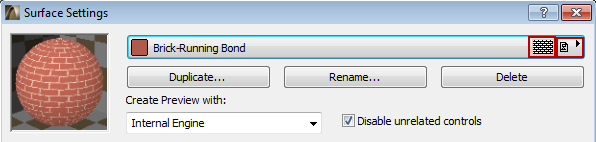
Use the Options > Element Attributes > Surfaces command to open this dialog box.
For general information, see also Surfaces.
The pop-up palette at the top of the dialog box displays the surfaces available in the Project. At the top of the pop-up list, you will see the name of the currently selected surface, and icons indicating whether this surface has a Vectorial Hatching and/or a Texture associated with it.
The Preview picture changes dynamically as you work in the Surfaces dialog box, so that you can see the effects of your settings. The Preview gives you an idea of what the chosen surface will look when rendered, depending on the rendering engine used.
Create Preview with: Choose a rendering engine from the list.
For more information on rendering engines, see PhotoRendering Settings.
Note: The Preview file of the current rendering engine function is not available if the Apply Data file is not properly installed or has been removed from the ArchiCAD Folder.
Important: The panels which appear in Surface Settings depend on which rendering engine you have chosen as the Preview engine. By default, the Disable unrelated controls checkbox is checked: only those panels and controls which apply for the selected rendering engine will appear in the dialog box.
To see all controls which determine the properties of the surface with different engines, uncheck this box.
Use the buttons under the pop-up menu to Rename and Delete Surfaces.
Note: Please note that surfaces are identified by their index number and not by their names. (Index numbers for Surfaces and other attributes are shown in Attribute Manager.) Deleting ArchiCAD surfaces from a project file will cause all library parts that reference those deleted attributes to revert to some other default surface.
Delete and Replace: When deleting a Surface, you have the option to replace it with a different one.
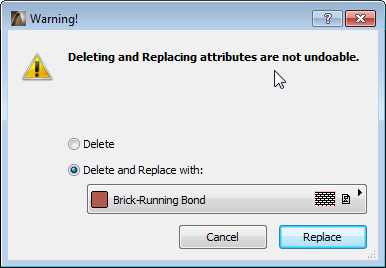
Note: In Teamwork, only elements, composites, profiles or favorites reserved by you will get the replacement surface. All others will have a “Missing” surface.
Create a New Surface
1.From the pop-up palette at the top of the Surface Settings dialog box, activate a surface which looks like the one you want.
2.Click the Duplicate button.
3.Assign a name in the Duplicate Surface dialog box.
4.Edit the surface’s characteristics using the relevant controls in the panels of the Surfaces Settings dialog box. (The panels appearing here depend on the rendering engine you have chosen as the Preview engine, using the Create Preview with control.
5.Click OK to verify the new Surface’s settings.
The GENERAL Surface is only available for Building Materials, Element Surfaces and GDL. When a Surface is defined as “GENERAL”, it will display a solid color based on an Elements’ Uncut Line Pen.
By default, this General Surface will be assigned to new Building Materials and to new Surface parameters added within GDL. It is used to avoid assigning to an incorrect Surface or creating a missing attribute. It is hard coded into ArchiCAD and is not available in the Surface Settings dialogue or Attribute Manager.
Topics in section:
Surface Exposure to Light Panel