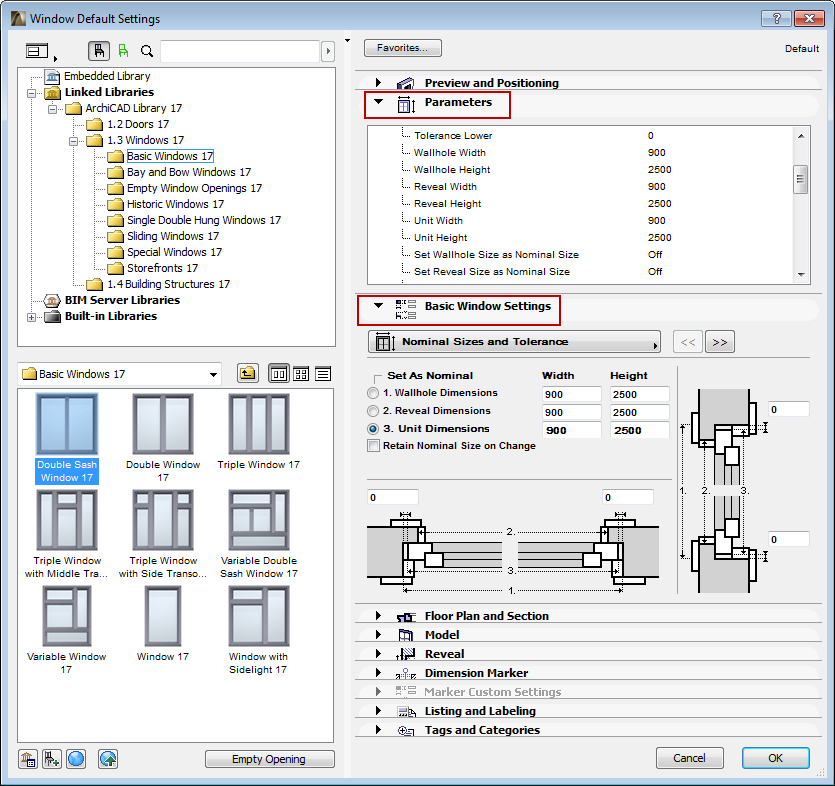
Where to Set Door/Window Parameters
Parameters are available in two different panels of the Door/Window Settings Dialog box:
1.the Parameters Panel; and
2.the Graphical Interface Panel. (The name of the panel varies depending on the type of Door/Window.)
The contents of the two panels are essentially identical. The Parameters panel contains parameters in list format, while the Graphical Interface panel contains the same parameters grouped into categories and illustrated with graphics.
Using the Graphical Interface Panel
For every Door/Window in the INT library, you can set parameters using the Graphical Interface panel. The name of the panel varies depending on the Door/Window type that is selected.
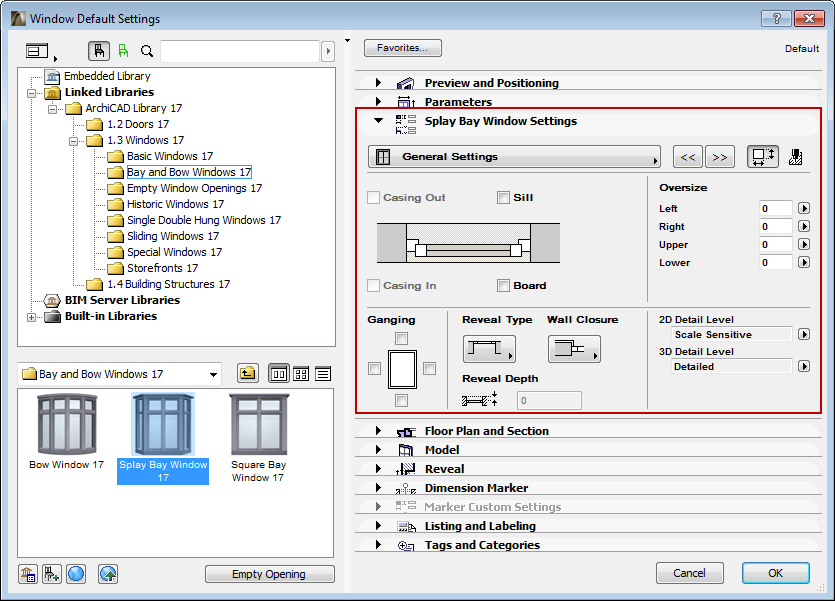
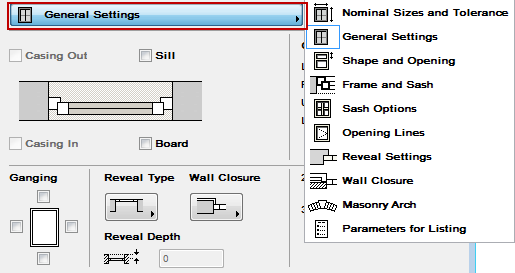
The parameters are grouped into tab pages. Click the button at the top of the panel to view the parameter group and switch tab pages.
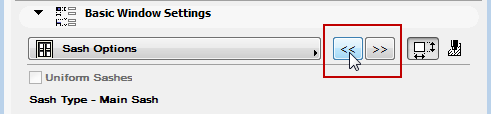
Another way to switch tab pages is to use the arrows at the top right of the panel.
Attributes Sub-Pages in the Graphical Interface Panel
Some of the tab pages of the Graphical Interface panel have an additional sub-page, where you set the fill, pen and material settings for the parameter group. Click the Attributes button at the top right of the Graphical Interface panel to access these attributes.
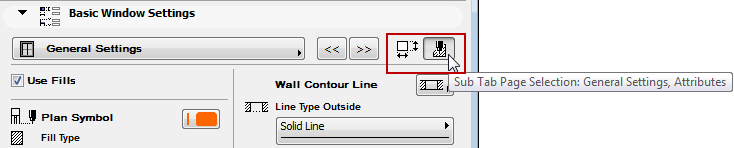
For example, this page has two sub-pages: use one of the sub-pages to set the general geometry; use the other sub-page to set the corresponding attributes.
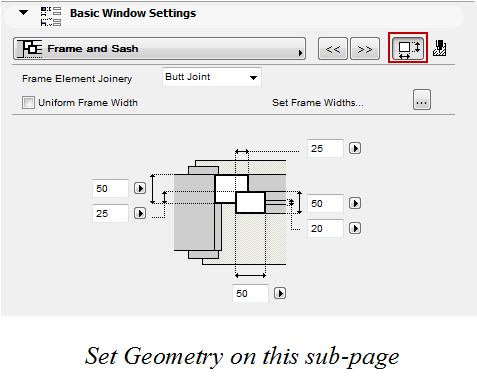
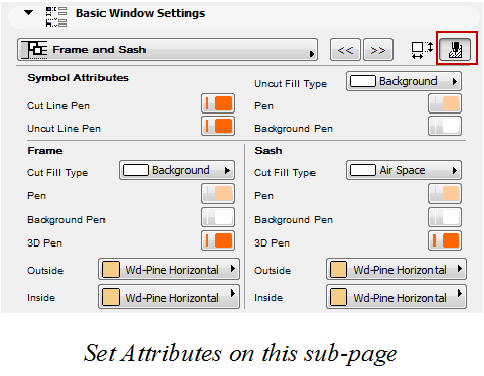
For a description of these controls, see: Graphical Interface Panel for a Door or Graphical Interface Panel for a Window.
For more information on Door/Window attributes, see Define Floor Plan Attributes of Doors/Windows.