
How to Create an Element with the Magic Wand
1.From the Toolbox, select the type of the new element you want to create.
2.Activate the Magic Wand by doing one of the following:
•Press the Spacebar
•Click the Magic Wand icon in the Control Box
Note: The Control Box is not visible by default. To show it, choose its name from the Window > Palettes menu.
•Choose Design > Outline Polygon with Magic Wand
The Magic Wand has three different shapes for identifying:
•nodes
•edges

•empty space and surfaces

3.Click with the Magic Wand active. It will automatically find and trace a polygon shape.
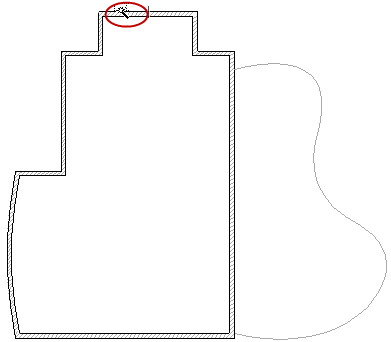
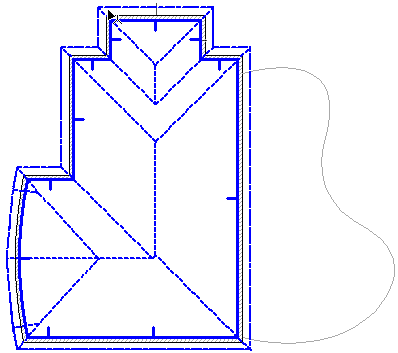
•If you click on an edge or node, the Magic Wand creates a polygon by tracing that element and/or finding an element chain: it runs along that edge and traces the element chains whose endpoints fall within that edge.
For example, activate the Roof tool (Multi-plane method) and click with the Magic Wand on the edge of the Wall to instantly create a Roof that matches the Wall polygon.
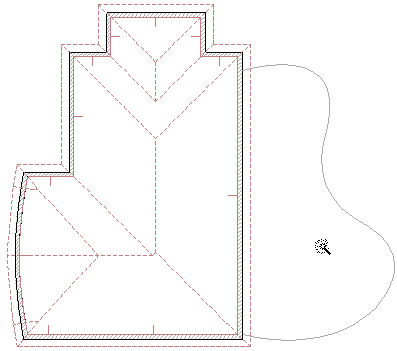
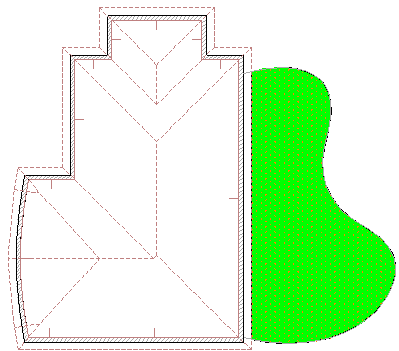
•If you click in empty space or on a surface, the Magic Wand searches for and traces the closed geometric area formed by the nearest elements (whether chained together or merely intersecting), and generates the resulting polygon.
For example, activate the Fill tool, then click with the Magic Wand inside the empty area denoted by the curved line, to create a Fill of that shape.
•You can refine the Magic Wand function by selecting one or more elements. In this case, the Magic Wand will only take the selected elements into account when searching for chained elements or a bounded area.
4.The new elements are generated.
•The new elements are not linked to the originals and can be manipulated independently.
•If the original shapes are superfluous, you can delete them.
•If Offset or Multi-Offset has been activated, you can complete the offset function after the Magic Wand has created the new polygon.
•If you are creating a single Roof, you must first draw a pivot line and define the pitch before creating the polygon with the Magic Wand.
•If you are creating a Fill with a custom origin, you will first generate the polygon with the Magic Wand, then draw the fill orientation vector.
All of the characteristics of the new elements are determined by the current default settings of the corresponding tool. You should always check that these are correct either before or after using the Magic Wand, especially if the elements are intended to have a specific relationship to each other, such as a roof resting on a Wall.