Using the Magic Wand to Add/Subtract Polygon Shapes
Instead of defining a new polygon, you can use the Magic Wand to add or subtract the shape of an existing polygon (of the same or a different element type).
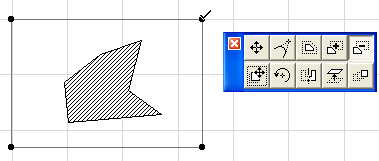
1.Select the polygon from which you wish to subtract another shape. In this example we want to subtract a complex polygonal shape from a slab.
2.Choose the “Subtract from Polygon” icon in the pet palette.
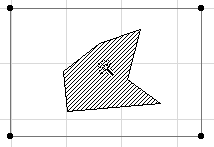
3.Move the cursor onto the polygon that you want to subtract and activate the Magic Wand (press the spacebar).
4.Click to complete.
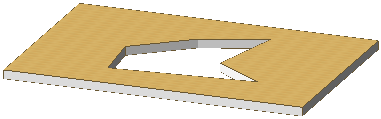
Verify that the operation has been performed by deleting or dragging away the other polygon or viewing the shape in 3D. Or select the polygon and note the contour around its hole.
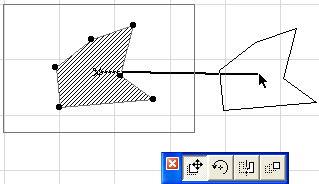
Note: Drawing a polygon hole by clicking inside the selected element’s boundary with its tool active is similar to subtraction, but it lets you temporarily create a self-intersecting shape. Subtraction always creates a valid shape.
For more information, see Magic Wand Settings.