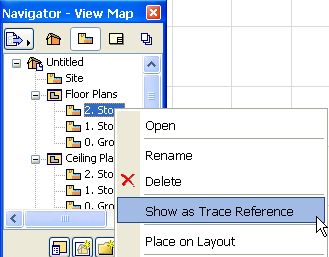
Use one of the following methods to activate and choose a Trace Reference.
Topics in this section:
Show Navigator Item as Trace Reference
Choose Trace Reference from Menu
Choose Reference from Trace & Reference Palette
View Context of Hotlinked Module while Editing Module Content
Show Navigator Item as Trace Reference
1.Select the item from the Navigator and right-click to bring up its context menu.
2.Choose Show as Trace Reference.
Click the “Browse for Trace Reference” sub-command from one of these locations:
•View > Trace Options > Choose Reference > Browse for Trace Reference.
•The “Choose Reference” command in the Trace Reference drop-down menu of the Standard Toolbar.
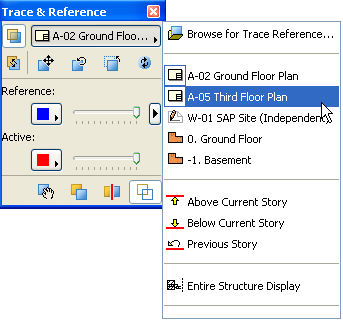
•The chooser button at the top of the Trace & Reference Palette.
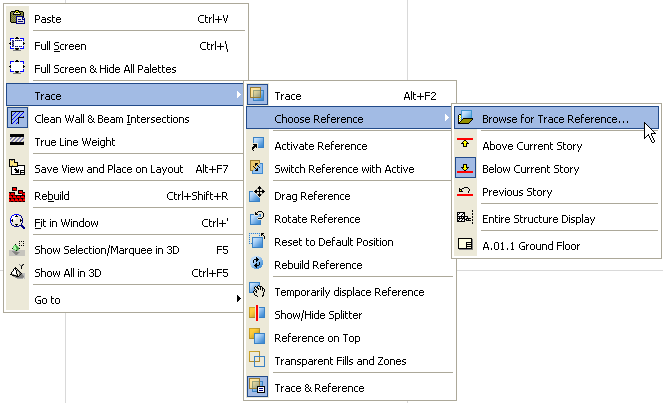
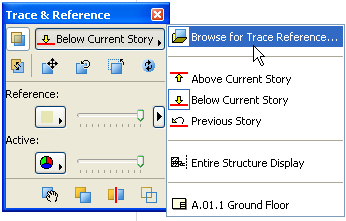
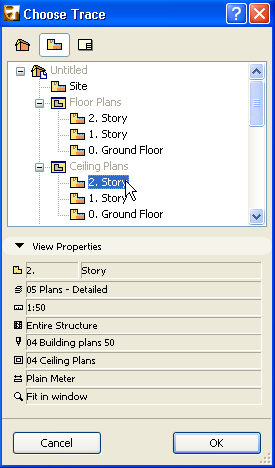
The Choose Trace Reference dialog box appears. This is a Navigator-like structure, with only those items available which are eligible to use as a Trace. (In the View Map, View Properties are also displayed.) Choose the desired Trace Reference and click OK to display it as a Trace.
Choose Trace Reference from Menu
1.Activate the Trace Reference function in the Standard Toolbar by clicking the Trace button.
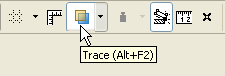
2.Click the drop-down Trace Reference menu from the Standard Toolbar, then choose an item from the Choose Reference list.
See also The “Choose Reference” List.
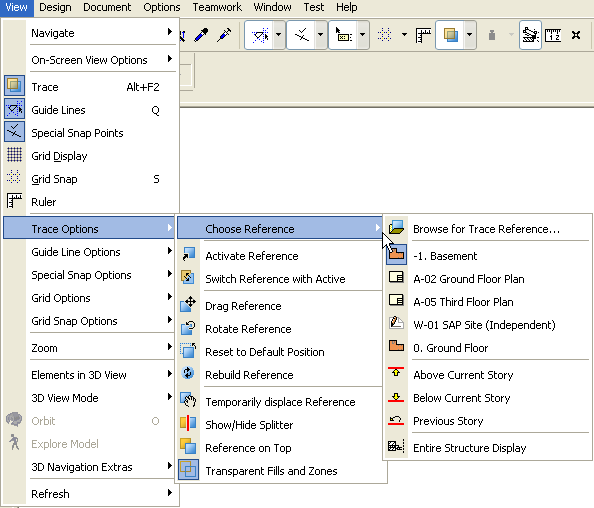
The same commands are available from the View menu:
1.Activate the Trace toggle in the View menu. (Click the menu’s Trace icon to activate it.)
2.Access the Choose Reference list from View > Trace Options.
See also The “Choose Reference” List.
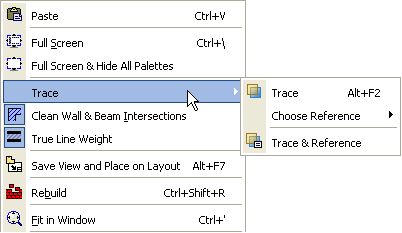
The same commands are available by right-clicking in the window to access the Trace commands:
Choose Reference from Trace & Reference Palette
Click the button atop the Trace & Reference Palette to access a list of possible Reference items. Click the one you need to show it as a Trace Reference.
See also The “Choose Reference” List.
The “Choose Reference” list is dynamic - the appearing choices depend on the content of the active window:
1.Browse for Trace Reference...: This command is at the top of the list. Use this if the Trace you need is not shown in the list. The Choose Trace dialog box appears, showing the eligible Navigator items. Click the one you need, then click OK to show it as a Trace Reference.
2.Recent References are listed next.
3.Other relevant References, if any, follow.
•If the active window is a Floor Plan: the Choose Reference list includes three possibilities that are relative to the current story, so that the Reference will change as you navigate among stories: Above or Below Current Story will always show the story above (or below) the current story as a Reference. Previous Story will always show the last story you were on as a Reference.
•If the active window is a Model-type Section/Elevation: the Choose Reference list includes the stories which fall into its vertical range (except if the range is unlimited).
•If the active window is a Drawing-type Section/Elevation: the Choose Reference list includes the relevant Model Section/Elevation.
•If the active window is an Interior Elevation: the Choose Reference list includes all viewpoints of the IE group (if any), plus the stories which fall into its vertical range (except if the range is unlimited).
•If the active window is a Detail or Worksheet: the Choose Reference list includes their source viewpoints.
Note: Independent viewpoints (e.g. an independent Section, Elevation, Detail or Worksheet) have no model source; their “Choose Reference” list shows the viewpoint itself.
If the active window is a Layout: the Choose Reference list includes the source view (if available) of the placed Drawings.
4.Entire Model Display: This option will display the current view/viewpoint as a Trace Reference in Entire Model Display form.
5.Next in the “Choose Reference” list: any Layouts containing drawings that originated with the current viewpoint.
If you choose a recent Reference, it will include any manual transformations (drag, rotate) which the user applied the last time he/she showed this Reference.
View Context of Hotlinked Module while Editing Module Content
You may wish to edit a Hotlinked Module at its source, then update it in the host file.
While you edit the source file, it can be helpful to see the module’s Floor Plan context in the host file. In this case, use the “Trace” function:
1.In the host file, save the Floor Plan (in the host file) as a view and place it onto a Layout.
2.In the source file, use the Organizer to access the host file and copy the Layout into the source file.
3.In the source file, select this Layout from the Navigator and choose “Show as Trace” from its context menu.