Select Multiple Elements Using a Selection Rectangle/Polygon
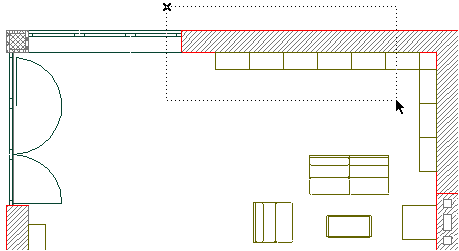
A useful method for selecting multiple elements is by drawing a selection polygon or rectangle around the items. These will be explicitly selected items, displaying selection dots.
Note: To select an area instead of explicitly selecting elements, use the Marquee tool.
See Marquee Area.
1.Activate the Arrow tool
2.Choose a selection method from the Arrow Tool Info Box - this defines the logic by which elements enclosed by the selection rectangle/polygon will be selected.
See Selection Methods for Selection Rectangle/Polygon, below.
3.Choose a Geometry method from the Arrow Tool Info Box - this defines your drawing method.
See Geometry Methods for Selection Rectangle/Polygon, below.
4.Click on the screen and draw the selection rectangle/polygon.
Note: If you want to use a selection rectangle or polygon within a quick-selectable area, press the spacebar to temporarily suspend Quick Selection, then draw the selection polygon - keeping the spacebar pressed.
Note: If you use the Polygon geometry method, then double-click while drawing the polygon to automatically close it, if at least two segments have already been defined manually. The double-clicked point becomes the last apex of the polygon.
See Geometry Methods for Selection Rectangle/Polygon.
This will select all the elements inside the area (either partially or entirely, depending on the selection method used), and deselect all other currently selected elements. If you keep the Shift key pressed, enclosed elements will be added to the selection while already selected ones will be subtracted from it.
Selection Methods for Selection Rectangle/Polygon
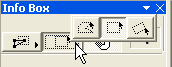
The Arrow tool’s Info Box offers three selection methods when using a rectangular or polygonal shape.
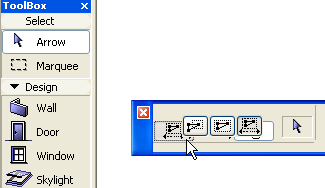
•With the first (default) Selection Method, any element that has at least one of its nodes, edges or curves in the selection polygon or rectangle will become selected.

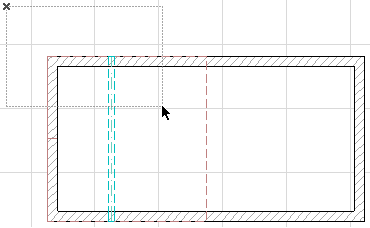
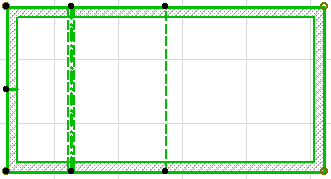
•With the second method, only elements with all nodes inside the selection polygon or rectangle will become selected.
•With the third, direction-dependent selection method, the selection logic will depend on the direction in which you draw the rectangle.

-If you draw the selection rectangle from right to left, then the first selection method is in effect: that is, any element with at least one node inside the rectangle will be selected.
-If you draw the selection rectangle from left to right, then the second selection method is in effect: that is, any element with all nodes inside the rectangle will be selected.
Geometry Methods for Selection Rectangle/Polygon
In the Arrow tool’s Info Box, you can choose among three selection area shapes.
The options are Polygonal, Rectangular and Rotated Rectangular.