Store and Access Selection Sets
Use the Window > Palettes > Selections palette to recall previously saved, frequently accessed sets of selections that are stored with the Project.
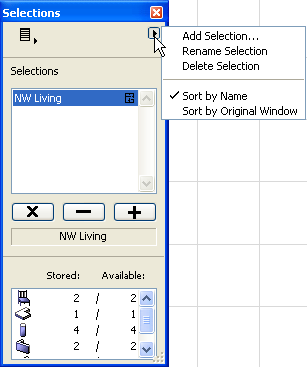
The controls of the Selections Palette allow you to save any selection made on the Floor Plan, in a Section/Elevation/IE window, or a Detail/Worksheet drawing. You can delete a selection or sort saved selections by name or by window of origin, using the pop-up menu at top right of the dialog box.
Use the commands in the pop-out menu at top right to manage sets of selected items. If you have selected items in the project, use Add Selection to save this selection (you will be prompted to name it.) The same pop-up contains commands to let you Rename or Delete any of these saved Selection Sets.
•Sort by Name: Choose this option to sort the items by their name.
•Sort by Original Window: Choose this option to sort the items by the windows they originate in
The bottom part of the palette displays the contents of the selection set, broken down by element type.
The three operation signs (x, -, +) affect the current, on-screen selection status of the stored selection set you have highlighted in the Palette (e.g., in the image below, “NW Living”):
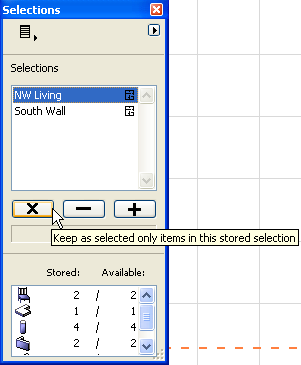
•The X function means that only the highlighted selection set will be selected on screen. Any other element which is not part of this selection set is deselected.
•The - function means that the elements of the highlighted selection set will be deselected.
•The + function will select all the elements of the highlighted selection set.
The operation is always performed on the currently active window.