Coordinate values are displayed in the Tracker, which follows your mouse movements and is available in any editable window type.
See Coordinates Palette for another method of coordinate input.
The Tracker gives you a dynamic and constant feedback on such values as edited lengths, angles, and hotspot values for GDL Object editing.
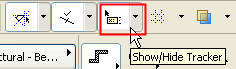
To use the Tracker, you must activate the Tracker toggle button on the Standard toolbar
or activate the Show Tracker checkbox in Options > Work Environment > Tracker and Coordinate Input.
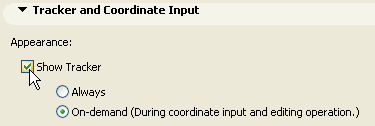
•By default, the Tracker only appears “On -demand”: that is, during coordinate input and editing operations.
•Another way to show the Tracker if you have not yet begun element input: use the n shortcut. The Tracker will pop up and display the cursor position.
•Alternatively, choose the Always option to display the Tracker continuously. This means that the Tracker will follow your cursor even if you are not inputting anything, providing feedback on the cursor position.
To deactivate the Tracker, deactivate the Tracker toggle icon on the Standard toolbar, or hit the n shortcut.
Tracker options (including colors, contents and behavior) can be set in Options > Work Environment > Tracker and Coordinate Input.
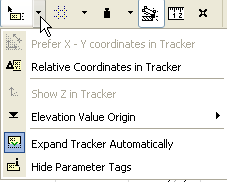
Some Tracker options are commands accessible from the pop-up arrow next to the Standard toolbar’s Tracker toggle.