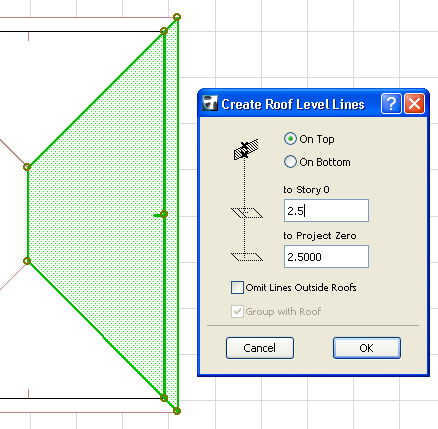
This works on Single-plane Roofs only.
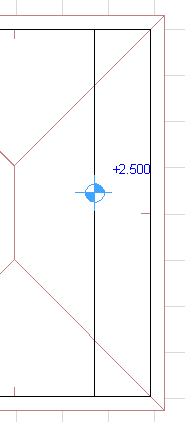
The Design > Roof Extras > Create Roof Level Lines command, available in the Floor Plan, will place a line on a selected roof at the height value you specify in the Roof Level Lines dialog box.
After you place the Roof Level Line, you can place a Level Dimension there to indicate the elevation.
On Top/On Bottom: Choose whether you want to measure the height value to the top or to the bottom surface of the roof.
Specify Roof Level Lines height level: Use either input field - the current story level or Project Zero - to define the height of the desired roof level lines.
Omit Lines Outside Roofs: Check this box to omit level lines that fall outside the floor plan polygon of the roof they belong.
If the checkbox is disabled, all resulting lines will be drawn. In this case, lines that fall outside the roof polygon will be drawn to be of equal length to the pivot line of the roof they belong to.
Group with Roof: Check this box to group level lines with the roofs they belong to.
Note: This option is grayed if the Suspend Groups toggle is active.