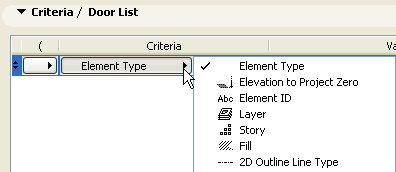
In the Criteria panel of the Interactive Schedule Scheme Settings, select the first line, then choose a criterion for the items you wish to include in the Schedule. For simple Element lists, choose “Element type”.
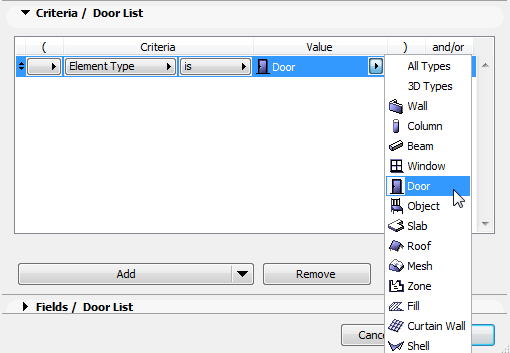
In the Value column, select the desired element. For example, to create a Door List we have chosen “Element Type is Door” as the only criterion.
Add New Criteria
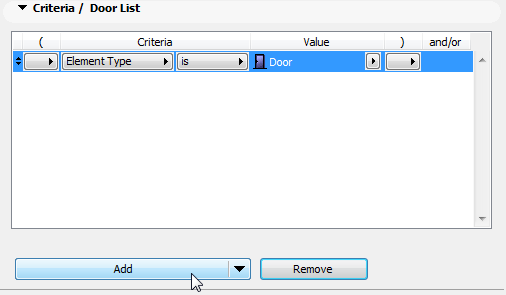
To add a new criterion, click the Add button.
•If the Element Type is an object-type element, the “Add Object Parameters” option is available from the Add pop-up. From the appearing dialog box, choose the desired parameters to add as criteria.
•To add IFC Properties as criteria, choose “Add IFC Properties” from the Add pop-up. From the appearing dialog box, choose the desired properties to add as criteria.
You can now choose a second Element Type criterion, such as Window. The “and/or” field in the first row (“Element Type is Door”) is now editable: in this case, choose “or.”
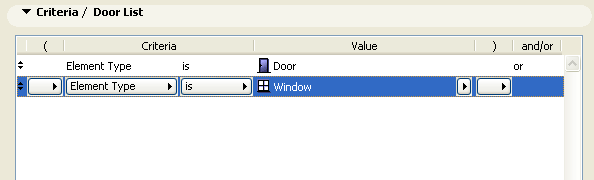
The two values (Door, Window) are joined as an “or” statement, so that the resulting schedule will include every element that is either a Window or a Door.
To narrow the scope of a schedule, add additional criteria. For example, if you want a schedule of only those doors and windows which are on Story 2 and above, add a new criterion by clicking the Add button at the bottom of the dialog box.
Then choose Story from the Criteria list, and complete the row with the desired Story value (>=2).
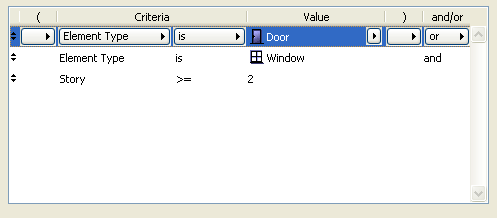
In this example, the schedule will list all elements that fit either of the Element Type Criteria, and also fit the Story criterion: to be on the list, the element must be either a window or a door, and it must be located with the defined Story range.
Add as many criteria as needed to define the Interactive Schedule. For example, you can narrow the elements listed according to their Structural Function Classification (e.g. Load-Bearing or Non-Load-Bearing.)
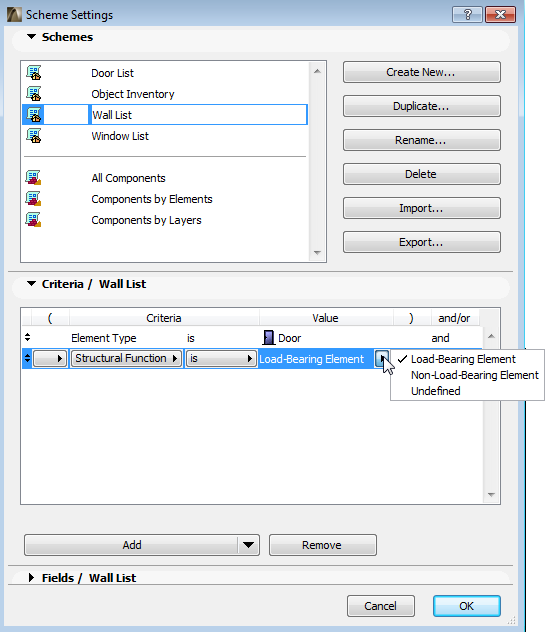
Additional Object Parameters and IFC Properties
Use the black arrow at the right end of the Add button to access additional parameters and properties to use as criteria:
Add Object Parameters: If you have chosen an object-type Element as an Element Type, and you want to use one of its particular parameters as an additional criterion, click this command.
In the appearing dialog box, browse the loaded libraries to find the library part whose parameters you need. Choose the parameter, then click “Add.” This parameter will then be listed in your Criteria list.
Add IFC Properties: If you want to use IFC properties as criteria for the schedule, click this command.
The appearing Select IFC Properties dialog box lists all IFC properties defined for all elements in the project. Only those properties are listed which are checked in the element Settings dialog box (and which will therefore be exported if the project is saved in IFC format).
Note: Use the controls at the top of the Select IFC Properties dialog box to filter the properties listed here:
•Choose a particular IFC Element Type; and/or
•Filter the list by any text string in the property sets and property names
Click on the listed properties that you want to use as search criteria in the Select IFC Properties dialog box. Use Ctrl+click to multi-select.
Click Add as Criteria to return to the Scheme Settings box. The IFC properties you selected are now added as schedule criteria.
Complex Criteria Definition
Keep in mind the meaning of “AND” and “OR” as logical operators.
•If you have a criterion with two statements joined by AND, the criterion will be fulfilled only if BOTH of the statements are true.
•For example: Layer is “Interior - Partition” AND Element Type is Wall. Your schedule will list an element only if it is (1) on the given Layer, AND (2) it is a Wall.
•If you have a criterion with two statements joined by OR, the criterion will be fulfilled if one OR the other OR both of the statements are true.
•For example: Element Type is Wall OR Slab OR Column. Your schedule will list any element which is EITHER a Wall, OR a Slab, OR a Column.
Thus, criteria that use AND are more restrictive, because both statements must be true.
Criteria that use OR are less restrictive, because it is enough for any one of the statements to be true.
Note that if you want to list multiple Element Types, you must join them with an OR statement.
•For example: Element Type is Wall OR Slab. (If you join Element Types with AND, e.g. Element Type is Wall AND Slab, your schedule will return nothing, because an element cannot be both a Wall AND a Slab.)
If needed, use the Open Parentheses and Close Parentheses columns of Scheme Settings to set up nested criteria for more complex schemes: in any selected row, click on the pop-up under the parentheses column to choose a parenthesis, or no parenthesis.
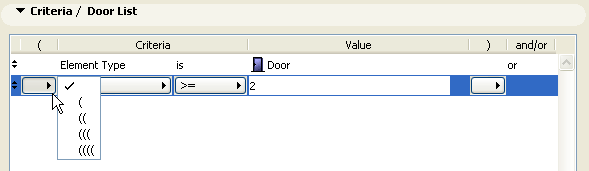
Each “open” must have a corresponding “close” in order for the scheme to be logical. If there is a mistake in your parentheses logic, the Criteria invalid! warning appears at the bottom of the panel.
Complex Criteria Example
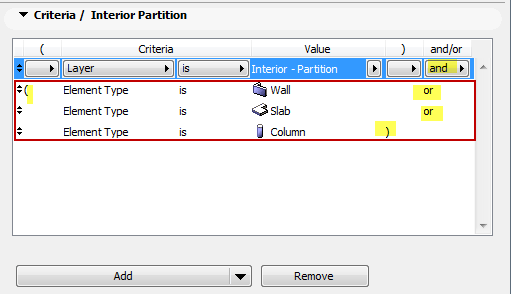
Suppose you want to list all the Walls, Slabs and Columns that are on a particular layer.
To meet this criteria, an element must:
1.be located on that particular layer
AND
2.be either a Wall OR a Slab OR a Column.
To get the correct result, you must make the three element types into a group by putting parentheses around them. Note the parentheses in the image below, which enclose the group of three element types.
Within the parentheses, the three element types must be joined as OR statements, as shown. Remember, an element cannot be both a Wall element AND a Slab element; it is either/or.