Editing Interior Elevation Viewpoints
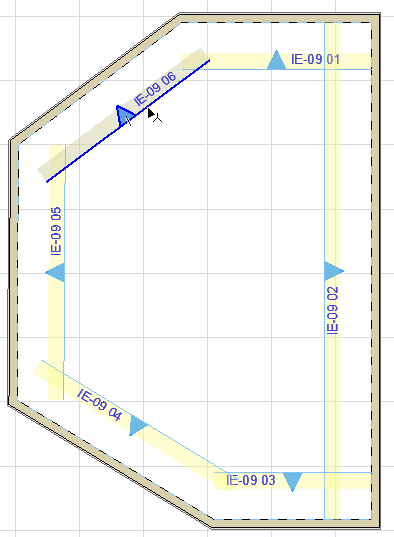
Each viewpoint of an Interior Elevation group can be edited separately. First, select the viewpoint:
•Select any individual Interior Elevation marker, or
•Select any individual line segment of the Interior Elevation line.
The pet palette and context menu commands opened from this segment affect that viewpoint only.
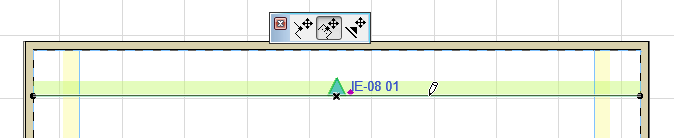
•Use the pet palette’s options to manipulate the selected IE segment or its marker.
•Inserting a node will create a new IE viewpoint in the IE group.
To edit the selected viewpoint:
•Open Interior Elevation Settings. (Use the context menu or the Info Box). Any changes you make here will apply only to the selected viewpoint. Note that certain options in IE Settings are grayed if you are editing a single viewpoint rather than an IE group.
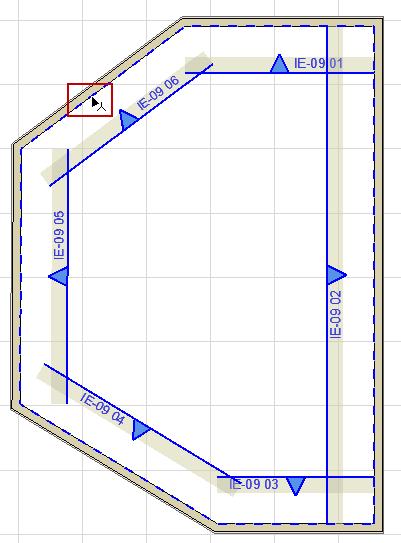
Select an IE Group
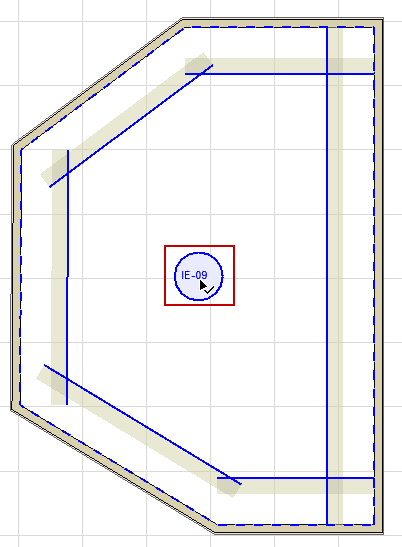
Selecting any segment of the IE Room Boundary polyline selects the entire IE group. If the IE group uses a single, common marker, then selecting the marker also selects the entire IE group.