
The Tab Bar at the top of your ARCHICAD workspace shows all of your open views/viewpoints.
The Tab Bar is visible by default. To turn it on and off, use Window > Show/Hide Tab Bar.
Note: The Tab Bar’s show/hide status is saved as part of your Work Environment.
By default, each time you open a new item, it will open in a new Tab. You can change this tab-opening default preference in Options > Work Environment > More Options.
Exception: You can have only one Floor Plan and one 3D window open at a time.
The Tab Bar lets you navigate easily among open ARCHICAD windows: just click on the tab of the window you want to activate.
The Tab Bar provides additional commands and shortcuts to help you navigate easily to any item of the project, reducing the need for the Navigator Palette.

If the Tab Bar item’s name does not fit, just hover your cursor to see the full name:
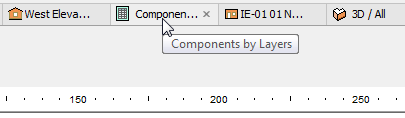
Each new Tab is appended to the right end of the Tab Bar, but you can a tab to any position on the Tab Bar.
When you close an active tab, the previously active one will become active again.
•Tab of Picture window shows feedback on background rendering progress

Rendering in progress

Rendering complete, not yet viewed
To switch among items using the Tab Bar, do any of the following:
•Click on a tab to activate the item
•Cycle among the tabs with the Ctrl/Cmd + Tab shortcut
See also Overflow Items on the Tab Bar.
•Switch to another, related viewpoint using the context menu of a Tab (available items vary depending on the type of view).
For example:
•From a Story tab, navigate to any story
•From an Interior Elevation tab, navigate to any other IE in the same group
•From a 3D window tab, switch between Axonometric and Perspective views
•From a GDL editing window, switch back to the Master window
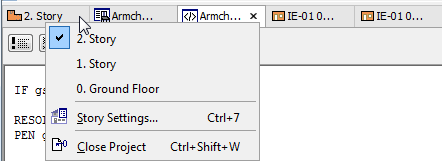
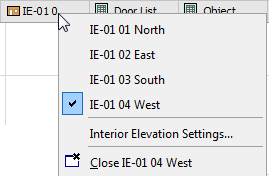
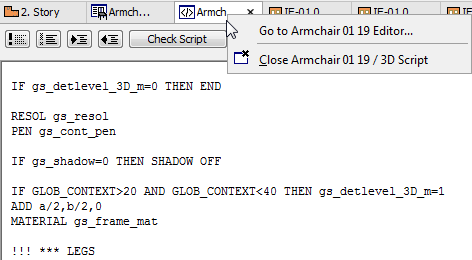
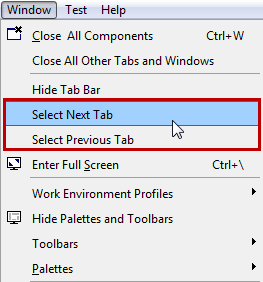
•Use the Window > Show Next Tab or Window > Show Previous Tab commands
Open View/Viewpoint with the Pop-Up Navigator
From the Tab Bar, use the Navigator Pop-up control at the far right:
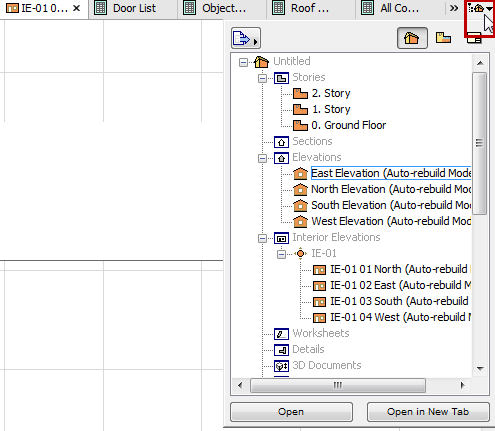
With the pop-up Navigator open, do any of the following:
•Double-click an item to open it (either in a new tab or in place of the current one)
•Right-click an item to access the Open commands from the context menu
•Select an item, then the desired Open command from the bottom of the Navigator
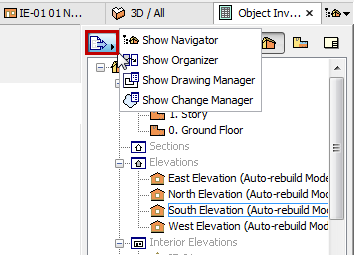
•Show/hide key palettes using the Project Chooser
The Tab Bar’s Navigator Pop-up closes after any click.
View/Viewpoint Feedback in the Tab Bar
•The tab icon indicates whether it’s a view (yellow) or viewpoint (orange).
•If the view does not match the current View Settings, the tab is marked with a warning.
•Double-click the tab (or use tab’s context menu) to restore the view’s saved status.
See also View Settings Dialog Box.
You can have any number of tabs open at a time. If they no longer fit into the width of the tab bar, a double-arrow pop-up appears at the right edge of the Tab Bar.
Click to see a list of the additional tabs.
The last visible tab is also listed here, shown with a checkmark.
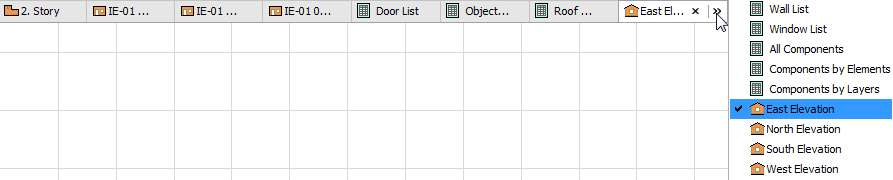
Click on any of these to activate it and add it to the visible tabs on the Tab Bar.
Close Tabs
To close a tab, do one of the following:
•Click the X on the tab
•Use the Close command from the tab’s context menu
•Use the Close command from the Window menu
•Click the mouse-wheel over the tab
To close all tabs but the currently active one, use Window > Close All Other Tabs and Windows.
Dock/Undock Tabs
To undock a tabbed item, do one of the following:
•Use the Undock command from the tab’s context menu
•Use the Window > Undock command.
To dock a tabbed item, use the Window > Dock command.