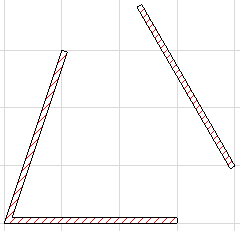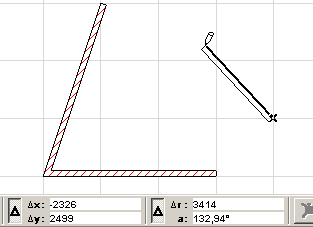
Constraining the drawing direction helps you precisely align or connect new elements. To use the orthogonal direction sets for drawing a new element:
1.Make sure the Grid Snap Function is disabled.
See Grid Snap Function.
2.Click to start drawing an element.
3.Move the cursor from this starting point and hold down the Shift key. ARCHICAD will search for the closest enabled constraint direction.

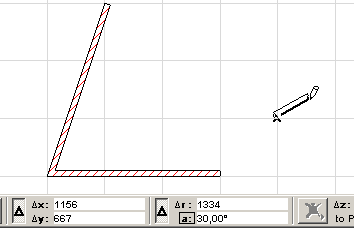
4.If the constrained direction is not what you had in mind, release the Shift key and move the cursor to a position closer to the desired direction, then hold down the Shift key.
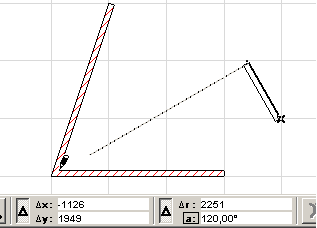
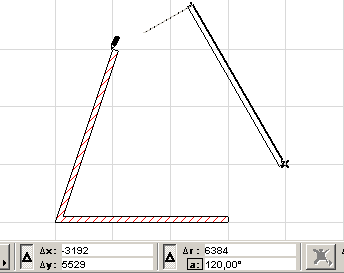
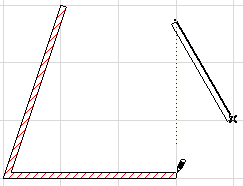
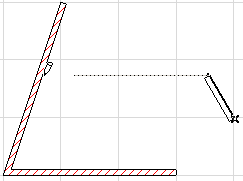
5.When you have chosen the appropriate constraint direction, click the cursor again to place the endpoint of the element. Since the direction remains locked, you can align this endpoint with other elements using the projection mode of the cursor.