Automatic Pointers for Easy-To-Read Dimensions
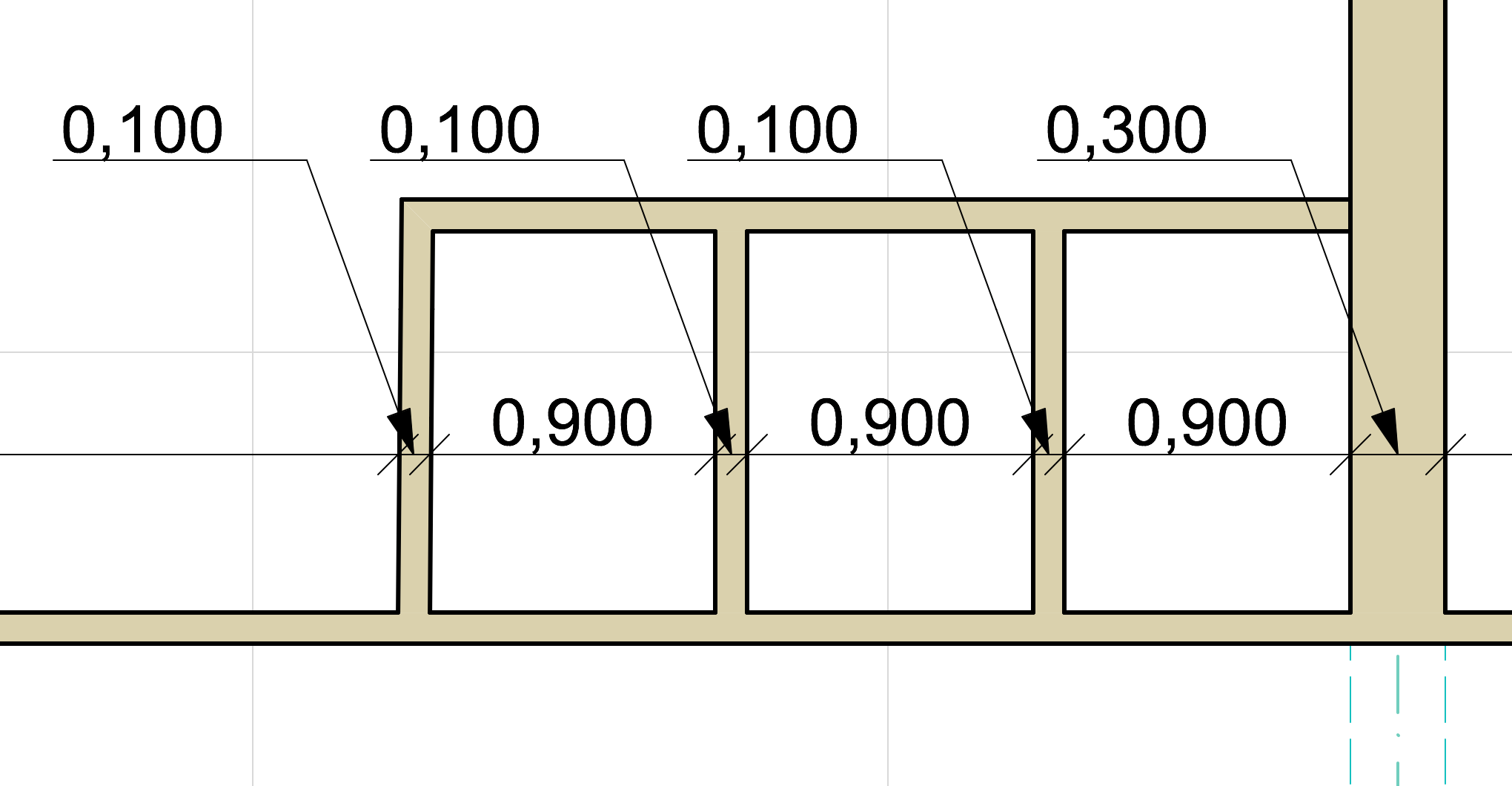
Dimensioning narrow structures close to each other can make it difficult to read plans, because the dimension numbers are too crowded. Until now, users have solved this by dragging the dimension texts away and using a manual pointer to connect them to the referred element. Of course, if any such text item was later moved, you had to readjust the line, too, by hand.
The new Pointer for Dimension Texts in ARCHICAD 19 eliminates this extra work:
•Add a Pointer line to any dimension text
•Pointer line is added automatically when dimension numbers are moved out of area
•Pointer lines are associative and follow every change
Dimension Text Pointers work like labels, with all their formatting possibilities.
Dimension Texts: Right Where You Want Them
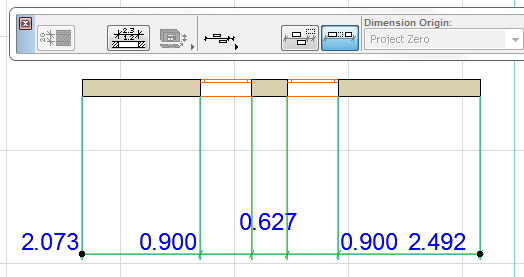
ARCHICAD 19 introduces new options to control the placement of dimension texts – e.g. to place texts underneath the dimension line automatically whenever necessary, and/or allow them to shift laterally. Choose the dimension placement logic that you prefer.
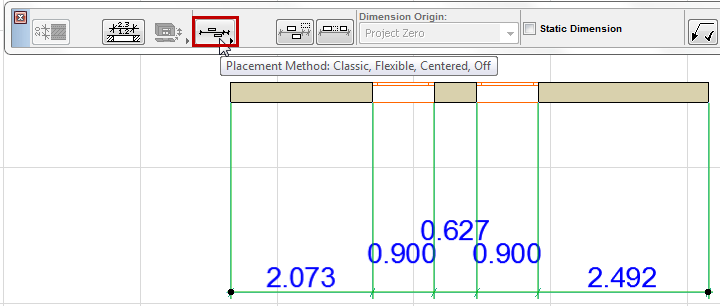
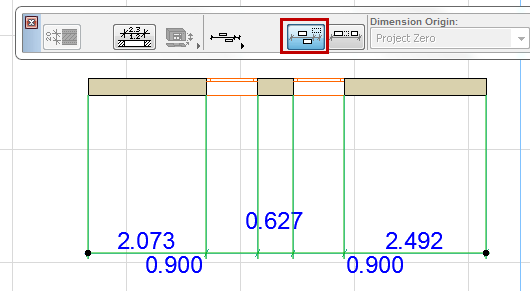
See also Placement of Dimension Text in the ARCHICAD Reference Guide.
Easier Editing of Dimensions
Point-specific new pet palette commands make it easier to edit Dimension points, text boxes and Pointers graphically.
•Split dimension into parts with just one click
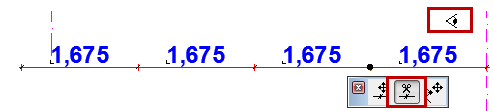

•Break and offset dimension line

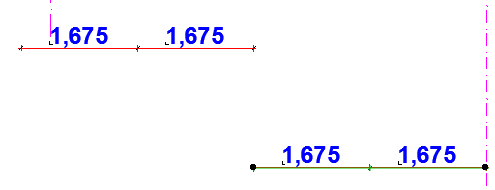
•Move Dimension Point (with visual feedback on the dimensioned point)
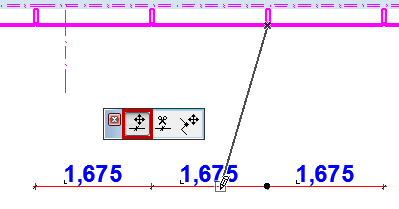
•Edit Length of Witness Line (new option for graphical editing)
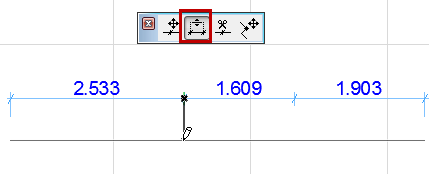
•Edit starting angle of all Pointer lines through Dimension Settings
•All graphical editing commands (e.g. Drag, Stretch) available for Pointer line (as for Label Pointers)
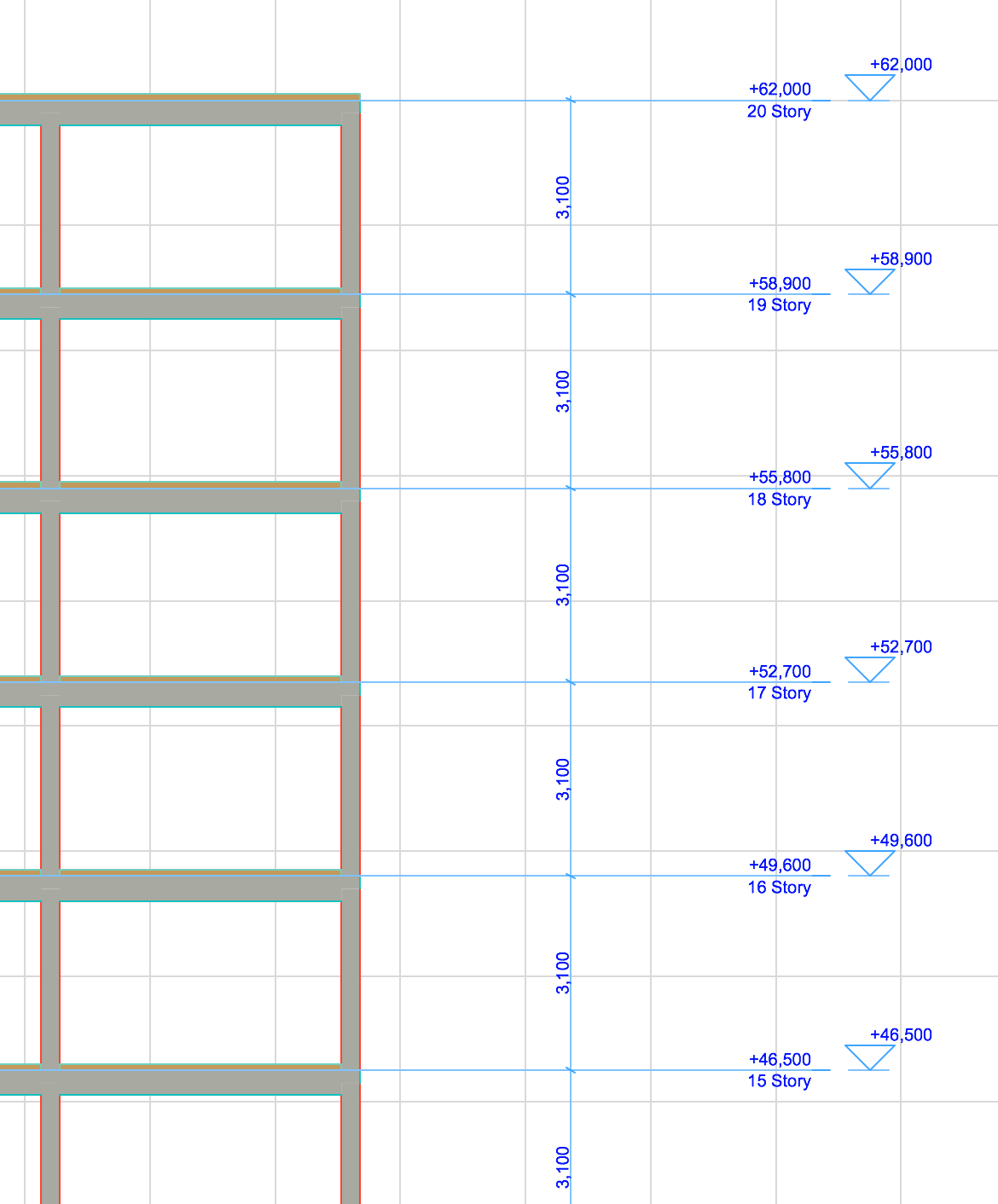
Automatic Dimensioning of Story Level Lines
Dimension a whole skyscraper with just one click.
•In Section/Elevation view, click with the Dimension tool on any single Story Level Line
•After a story level change, all vertical dimensions are rebuilt automatically
Multi-line Dimension Texts
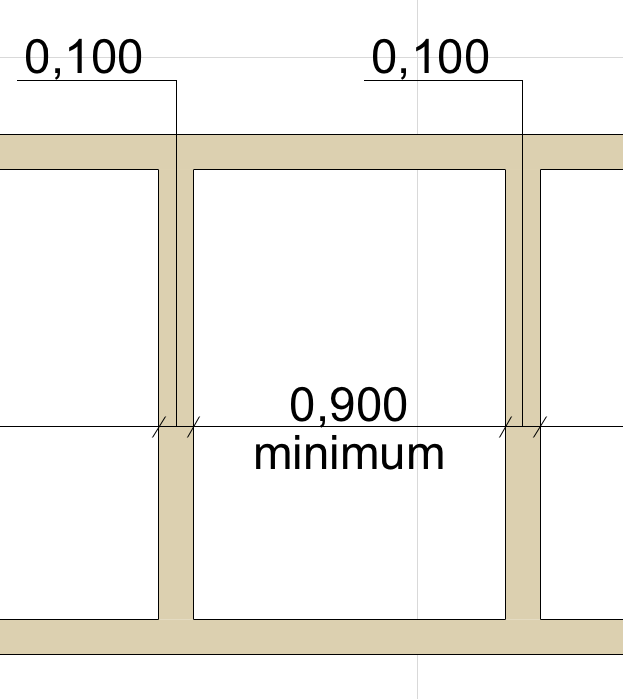
In earlier versions, if you needed several lines’ worth of dimension text, you had to add a separate text box, unconnected to the dimension.
As of ARCHICAD 19, you can add as many lines of dimension text as you need. The full dimension text can be formatted and shifted around as needed, without falling apart.
New Witness Line Option
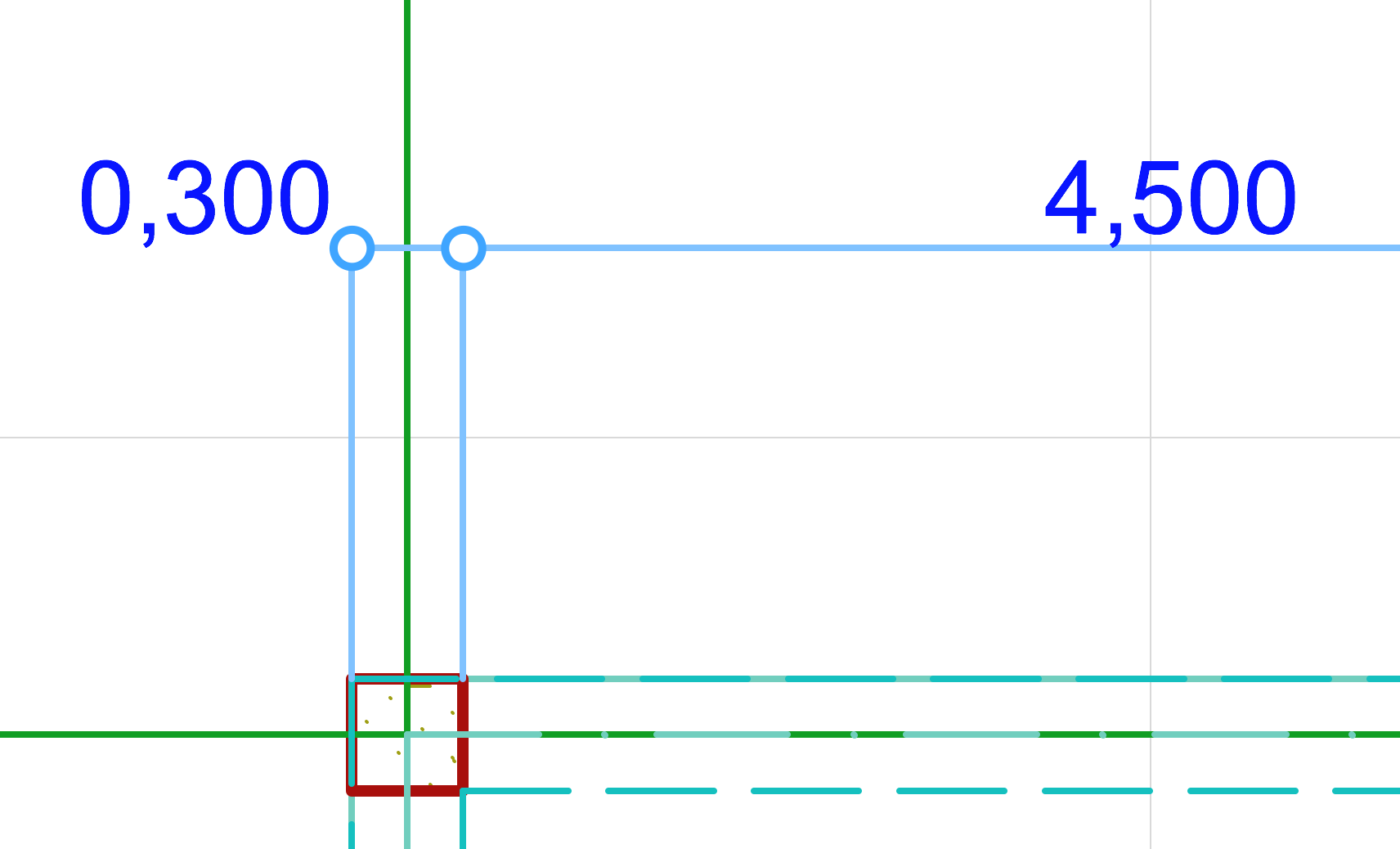
With ARCHICAD 19, you can choose witness lines with no overhang, required for documentations in some markets.
Associative Level Dimensions
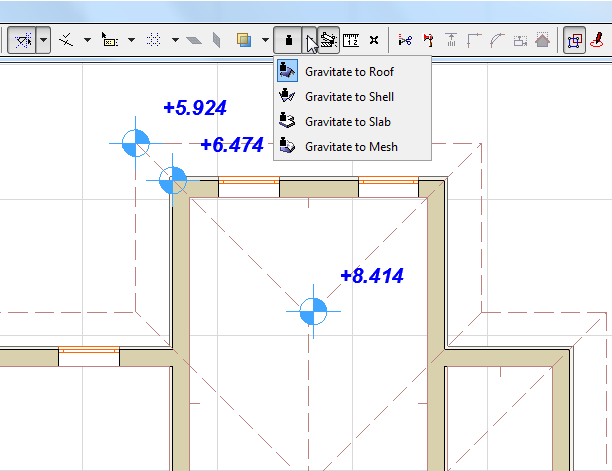
Level Dimensions automatically become associative to the clicked element (Slab/Roof/Shell/Mesh).
You can filter the types of elements further, by using Gravity.