
Apart from thematic feature developments and major performance improvements, ARCHICAD 19 contains a number of fixes, UI changes and renamed controls, all aimed at improving your user experience in small but useful ways. These include the following.
Better Feedback on ARCHICAD Processes
During window updates, library loading and other processes, get improved feedback on what is happening and a clear indication of whether you can stop the process if needed.
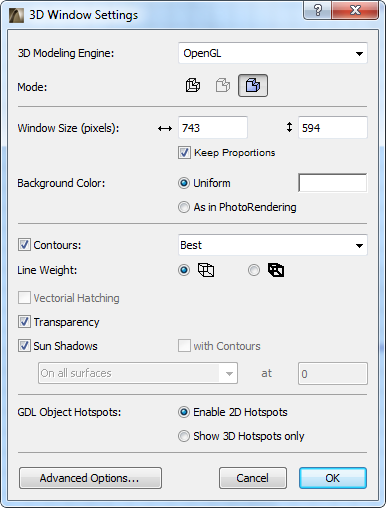
3D Window Settings
Updated and simplified UI.
Surface Settings (CineRender engine)
•Choosing “Image” as the Texture type will now automatically open the “Load Image from Library” dialog box
•The two options in the Match Settings popup are renamed to make them clearer: “Update Internal Settings (from CineRender)” and “Update CineRender Settings (from Internal)”
Improved Editing of Image Textures in Surfaces
•The name of each image is listed among the Surface parameters (not just “Image”)
•Texture size (width/height) in pixels is shown in Surface Settings, and when browsing for a texture.
•You now get feedback if a texture is 'Missing' from the library
•If the Surface channels use multiple images textures of varying sizes, you get immediate feedback and the chance to select a proportion for all of them, to avoid distorting the end result
Show Full Element ID in Zone Stamps
•Zone Stamps, Markers and Labels using the Element ID parameter now display the Full Element ID by default - that is, the ID which includes any Master ID information
•Thus, in a project using hotlinked modules, the Zone ID can be extended by the Master ID of the module instance it belongs to
•The options for displaying element ID in Element Schedules and in library part elements are now renamed as: Full Element ID; Compact Element ID
•No more 15-character limit for the ID field of construction elements (Element Settings > Tags and Categories panel) (new limit is 2048)
Building Material Control for Imported Steel Profiles
In the Standard Steel Profile Database (Options > Import Standard Steel Profile), you can assign a Building Material before importing into Profile Manager.
Composite Structures Dialog Box
•When you drag skins in the list, the dragged skin is placed between skins (instead of swapping two skins)
•When you reopen the dialog box, the last viewed composite is now automatically selected
Profile Manager
“Use Building Material” checkbox renamed to “Override Surfaces” to better match Tool Settings and to be clearer – the on/off has been reversed to accommodate the name change.
Scheme Settings
•Data in the IES Schemes panel can be sorted by ID or Name
•Scheme Settings redesigned to better match similar dialogs and to combine New/Duplicate functionality
•In the Fields panel, use Cmd+A (select all) shortcut to select all fields
•Additional Parameters moved into sub-dialog, with a list view of the parameters and instant Search
•Use Shift and/or Cmd to multi-select, multi-edit, multi-delete, and multi-drag fields
•The Criteria control “is/is not/contains” (e.g. for Building Material Name), now also includes “does not contain”
Wall’s End Surface Pattern
When the “End Surface: Override using Adjoining Wall” is checked, the texture and vectorial hatch are now correctly aligned with the neighboring Wall (if you realign texture of neighboring Wall, the neighboring Wall’s end will match it).
Find & Select Surface Criteria
In the Find & Select dialog box, the “Surface Override” criterion has been changed to just “Surface”, and will search for the Surface regardless of whether it’s an override or the original Building Material surface.
Commands of the Window Menu
Commands have been renamed/changed to fit Tab Bar workflow
Navigator Palette
•“Auto Hide Navigator/Organizer” command has been removed (from context menu of Navigator/Organizer), due to the introduction of the popup Navigator in the Tab Bar
•Navigator and Organizer pop-up can now hide as well as show relevant palettes
Work Environment
•New menu command to change Work Environment Profile: Options > Work Environment > Apply Work Environment Profile
•Guide Lines Panel eliminated from Work Environment Settings
•Simplified Guide Lines settings are now found on the renamed Input Constraints and Guides Panel
•Imaging and Calculation Panel renamed to Model Rebuild Options.
•Includes the Auto-rebuild Model View Control (formerly located on the More Options panel)
•Palette Schemes group has been renamed to Workspace Schemes
Tool Settings Panels
•The Listing and Labeling Panel is now called just Listing, and is hidden by default. (You can make it appear in Tool Settings, by customizing your Work Environment.)
•The Relation to Zones control (formerly on the Listing and Labeling Panel of Wall, Column and Curtain Wall Settings) has been moved to the Model panel (Wall and Column Settings) and the Member Placement Panel (Curtain Wall Settings).
•In Zone Settings: the Undo Top Crops/Undo Bottom Crops command is now called Undo All Crops, and has moved to Design > Roof Extras.
•The Parameters for Listing tab (in Object-type Tool Settings) is now called Descriptions
Other UI modifications
•OSX10.10 only: dialog panel headers and pop-ups now flatter in design (fewer gradients) to fit better with Yosemite style
•SEO palette is narrower and width can be stretched