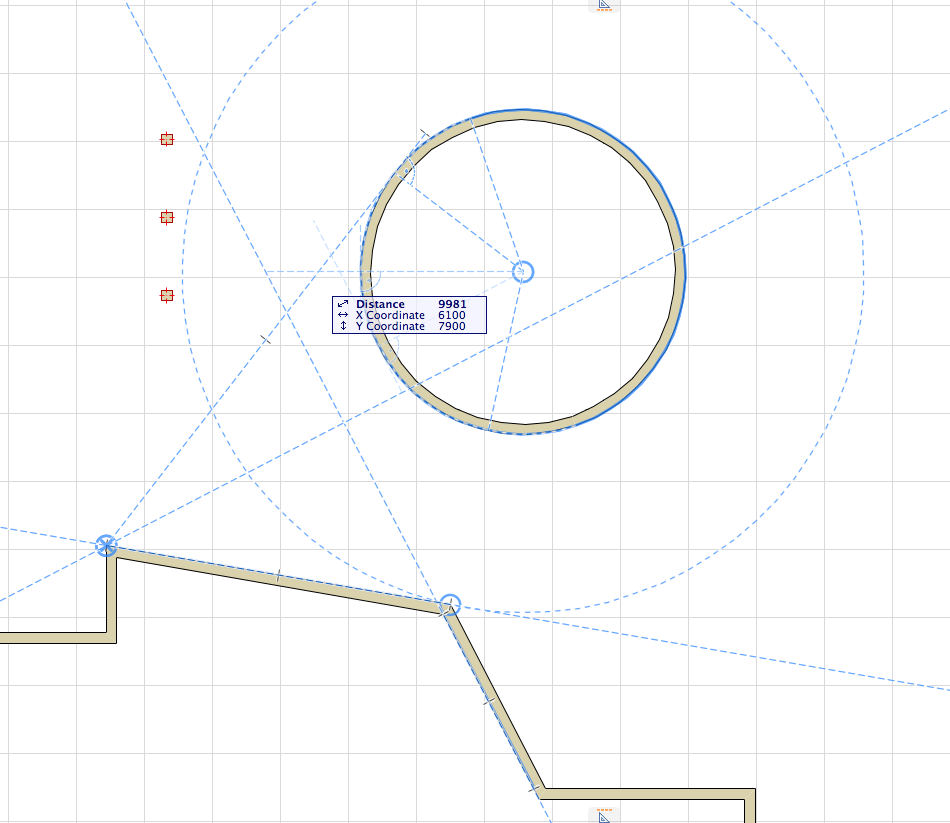
ARCHICAD 19 has overhauled its Guide Lines function to better match the way you work, making precise input even more intuitive.
•The new Snap Guides give you on-the-fly input help when and where you need it;
•while the Guide Lines are placed by you, and stay put until you remove them.
The Snap Points feature (formerly Special Snap Points), expanded with a useful new option, works together with Snap Guides.
Snap Guides: Instant, Smart, Temporary
•Relevant Snap Guides (lines or arcs) are offered automatically during your input (you don’t have to click to find them), based on the current context
•To generate additional relevant Snap Guides, define additional Snap References (points or edges), simply by hovering (or click Q for an instant Snap Reference)
•Use a Snap Reference point as a temporary input origin: a distance entered in the Tracker is measured from this point. For example, to place a window at 60 cm. from a corner, just define that corner as a Snap reference point. Input 60 in the Tracker’s Distance field, and click to place the window.
•Multiple Snap Guides, originating from multiple elements or references, can be used at the same time (no need to choose just one “active” line)
•After you are done with the current element input, the Snap Guides disappear immediately
For more details, see Snap Guides in the ARCHICAD Reference Guide.
Permanent Guide Lines
Introducing permanent Guide Lines familiar from major DTP applications.
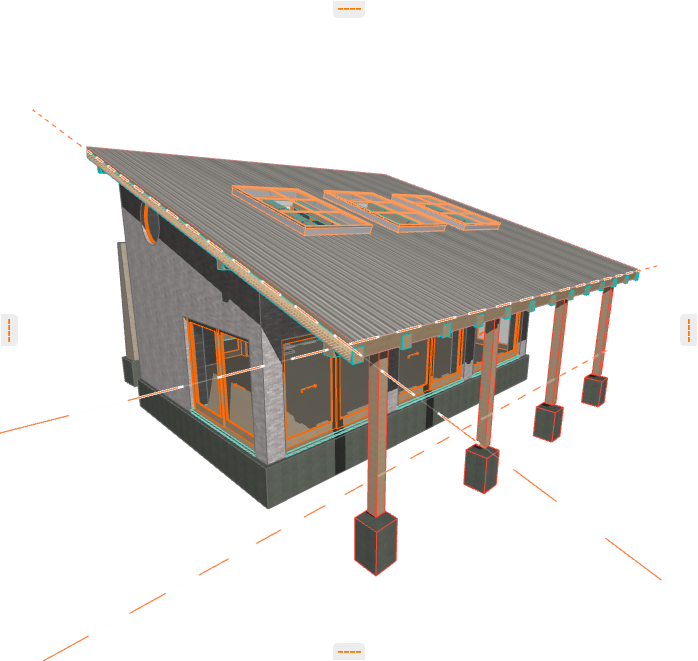
•Drag a Guide Line into the model window from the side of the window (like the cutting plane) to create a Guide Line (or circle) wherever you choose - at a point or edge, or in empty space
•Draw a Guide Line segment anywhere with two clicks
•Guide Lines stay put until you explicitly delete them
•Option to hide all Guide Lines temporarily, or erase any of them graphically

For more details, see Guide Lines in the ARCHICAD Reference Guide.
Improved Snap Points
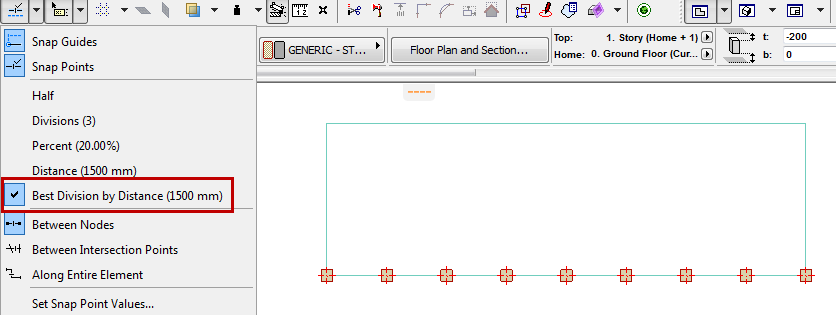
•A new Snap Point option is born: “best division to distance”
Provide a distance value, then hover over the full length element. The ideal division will be automatically calculated, producing equal parts as close as possible to the distance you specified.
Here, we used the new snap point option to place columns along a slab so that they are roughly 1500 apart, equidistant, and with no “piece” left over at the end.
•Enhanced Snap Point feedback shows starting point from which the element is marked
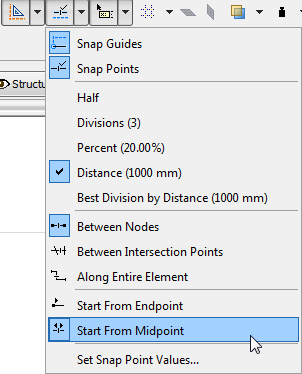

•Snap Points located along a temporary Snap Reference segment remain visible as long as that Reference does. Even if you start editing at the other end of the Snap Reference, the Snap Points you defined are still visible.
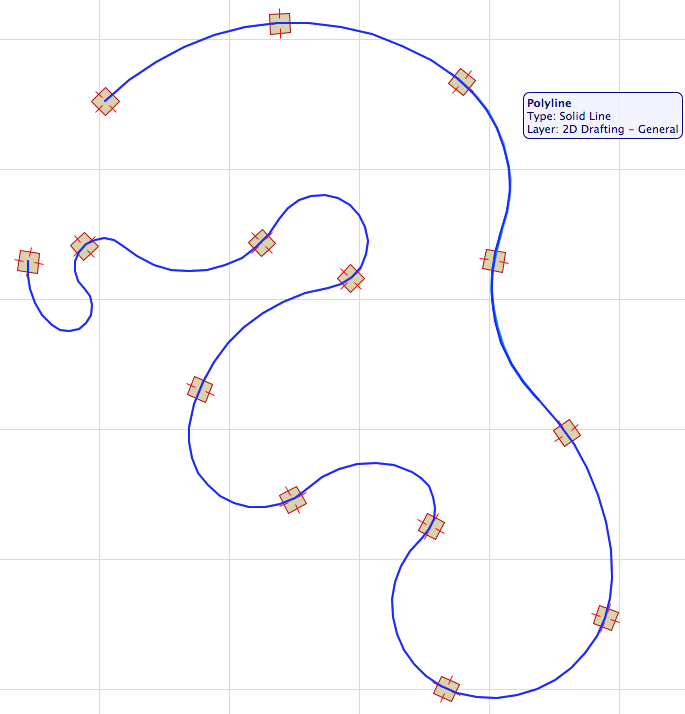
•Entire Polylines can be treated as a single unit, so you can use Snap Points along them intelligently
For more details, see Snap Points in the ARCHICAD Reference Guide.