Select Multiple Elements Using Arrow Tool
1.Activate the Arrow tool.
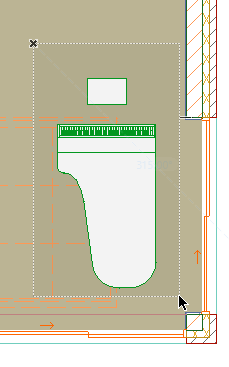
2.Click on the screen and draw the selection rectangle/polygon.
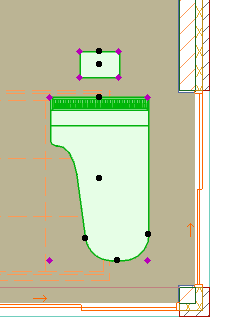
This will select all the elements inside the area, and deselect all other currently selected elements. Keep the Shift key pressed to select additional elements.
Note: To select an area instead of explicitly selecting elements, use the Marquee tool.
See Marquee Area.
You can fine-tune your selection logic using the various Arrow tool options, explained below.
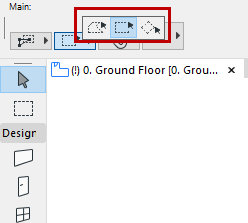
The Arrow tool’s Info Box offers three selection methods when using a rectangular or polygonal shape.
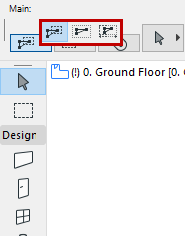
•With the first, you only have to include one node, edge or curve of an element to select that element.
•With the second, all nodes/edges must be inside the selection area for the element to be selected.
•With the third, direction-dependent selection method, the selection logic will depend on the direction in which you draw the rectangle.
-If you draw the selection rectangle from right to left, then the first selection method is in effect: that is, any element with at least one node inside the rectangle will be selected.
-If you draw the selection rectangle from left to right, then the second selection method is in effect: that is, any element with all nodes inside the rectangle will be selected.
Selection Area Shapes
In the Arrow tool’s Info Box, the options are Polygonal, Rectangular and Rotated Rectangular.