See also Navigating in the Interactive Schedule Window.
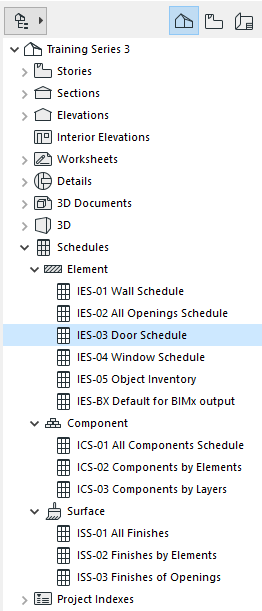
ARCHICAD comes with predefined Schedules, such as Door List; Wall List; Window List. To open any of these schedules to list the elements in the current project, double-click the Schedule name in the Navigator.
.
You can also access Schedules through
•the Mini-Navigator Toolbar
•the Window > Navigate > Schedules menu
•the Window menu
The Schedule window opens, showing the schedule, along with formatting options in the left column. To display the schedule only, without the formatting panel, click the black arrow on the dividing line.
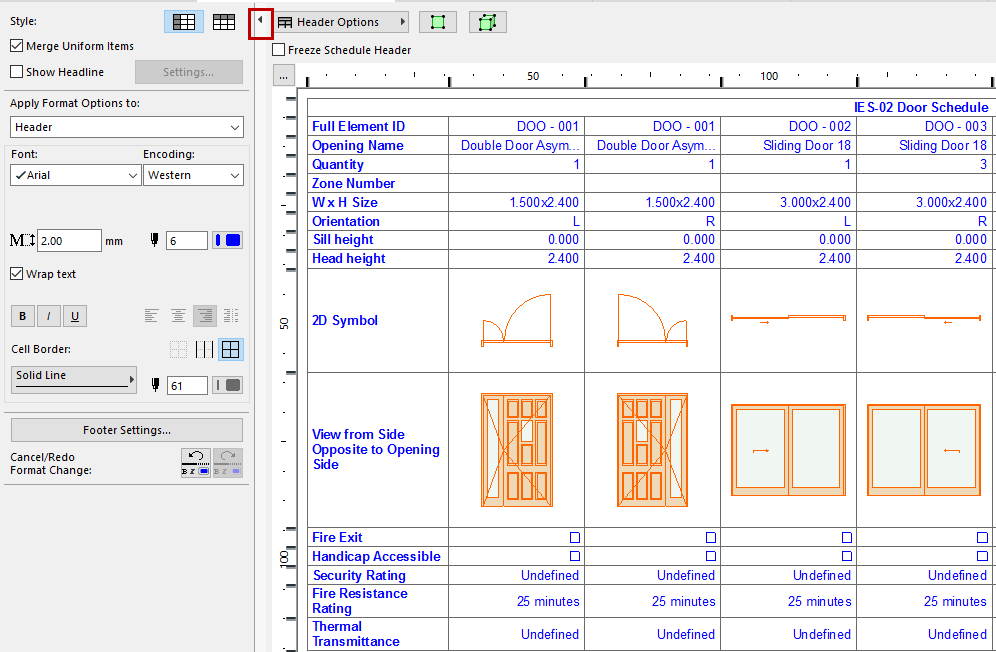
For information on formatting the schedule, see Format Options (Interactive Schedule).
Adjust Cell Size and Display Size
•To adjust individual row or column heights, manually drag the tabs on the top and left side of the schedule.
•To fit the a row or column to its contents, double-click any tab.
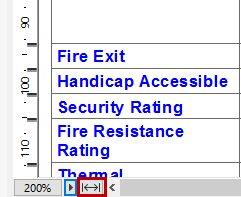
•Adjust the Zoom using the pop-up from the bottom scrollbar
•To fit the schedule to the current window size, click the Fit to Width icon
Navigating in the Interactive Schedule Window
To navigate among fields in the Interactive Schedule window, use familiar keyboard shortcuts:
Move right or left: Enter, Shift+Enter
Move down or up: Tab, Shift+Tab