Draw Curtain Wall Boundary in the Section Window
Use this method to create a Curtain Wall by drawing its Boundary freehand, in the Section window.
Note: Using this Boundary method in the Floor Plan will create a horizontal Curtain Wall placed at the Story level.
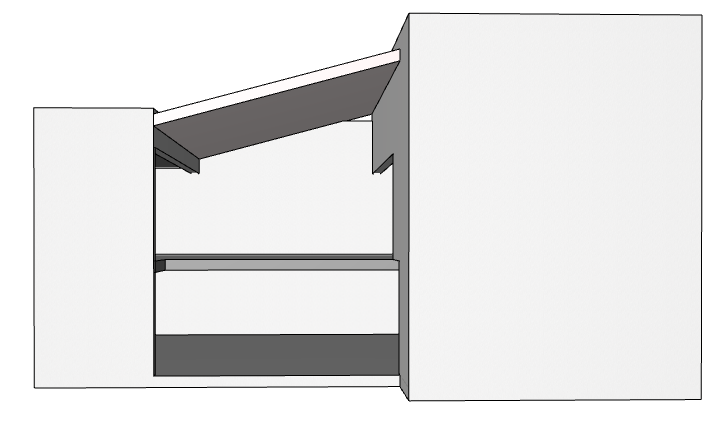
We start with the following building model. We will create a Curtain Wall whose Boundary runs along the opening on the building’s southern face. To do this, we will use the Boundary geometry method in the Section Window.
1.Draw a Section Line in the Floor Plan. This Section’s purpose is to define the Curtain Wall’s input plane. In Section windows, the Curtain Wall input plane exactly coincides with the Section plane.
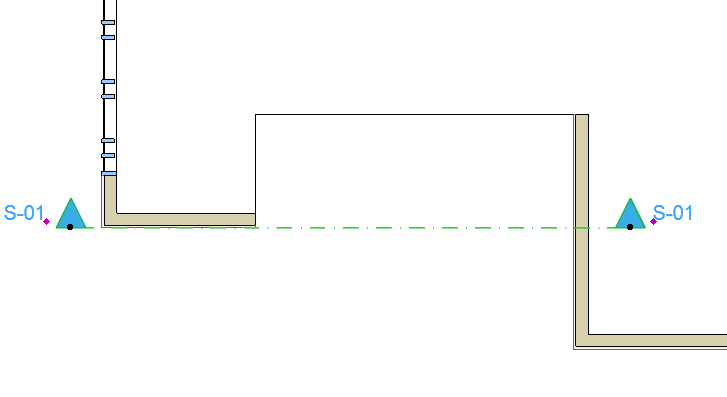
2.Open the Section.
3.With the Curtain Wall tool active, choose the Boundary geometry method from the Curtain Wall Info Box.

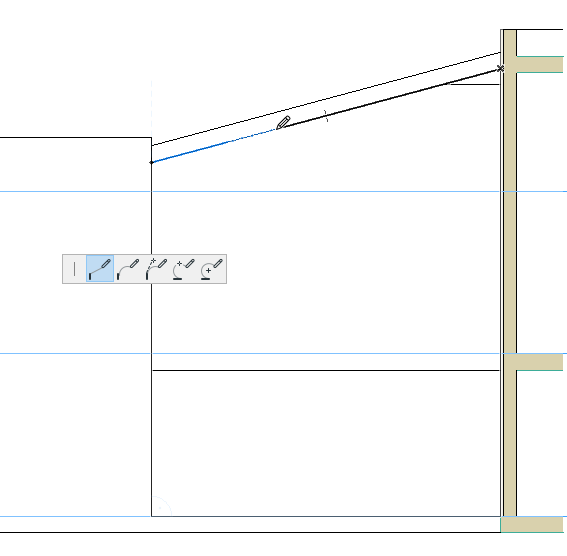
4.Draw the Curtain Wall Boundary along the desired contour, clicking at each node as when drawing any polyline.
5.Double-click to close the polygon.
Note: The Reference Line of this Curtain Wall is the first Boundary segment you draw.

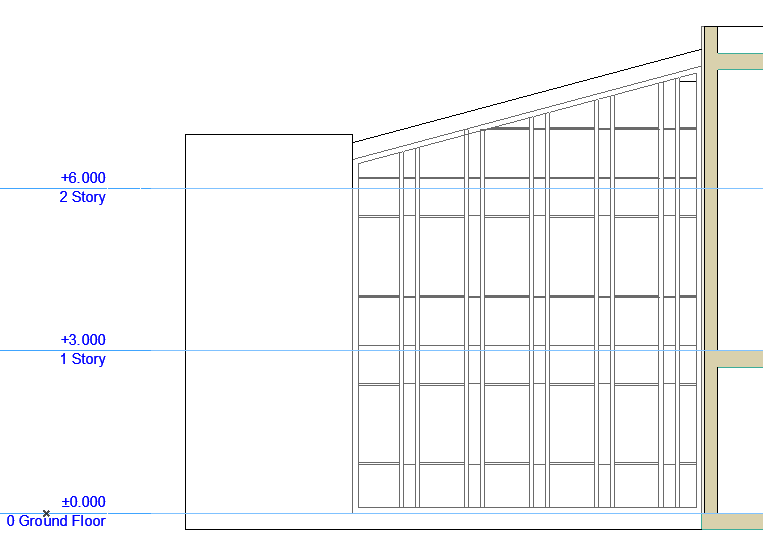
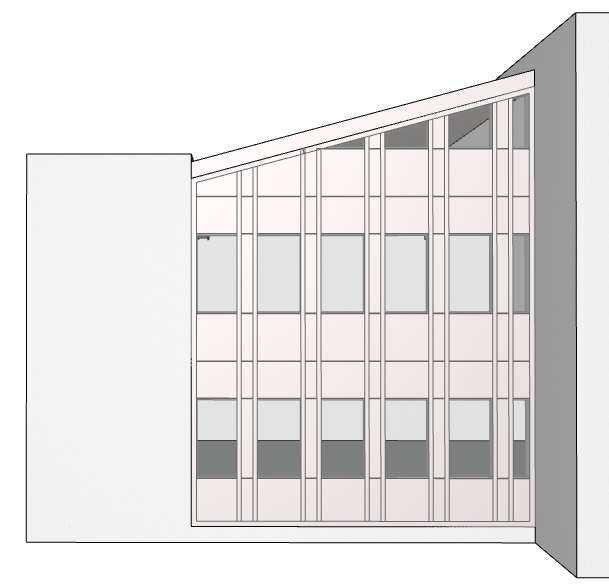
To edit the Curtain Wall’s individual Members, select the Curtain Wall and click the Edit button. (If you select the Curtain Wall in the Floor Plan or Section/Elevation, this is the “Edit in 3D” button.)