Place Door- or Window-Type Panel in Curtain Wall
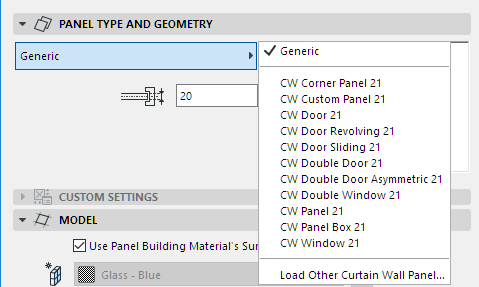
You can place a GDL-based panel which behaves like a window or a door. Some of these are predefined in ARCHICAD and are listed in the Type pop-up list in the Panel Type and Geometry panel:
To place a door-type panel into a Curtain Wall:
1.Select the Curtain Wall and go into Edit mode.
2.Select the existing panels that you want to replace with a door-type panel. (Only rectangular panels will work.)
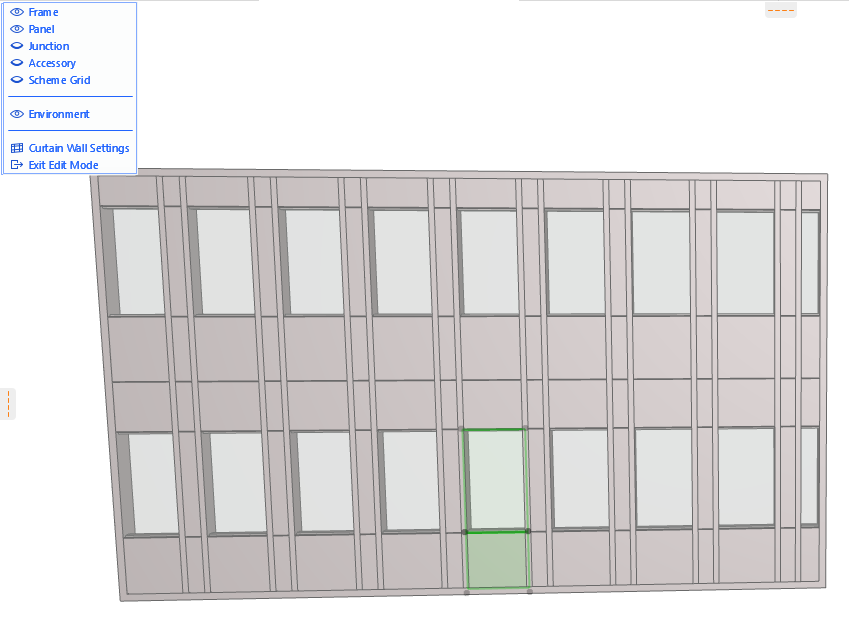
3.Merge the two selected panels by deleting the Frame between them:
Turn off the panel display so that you can see the Frames better.
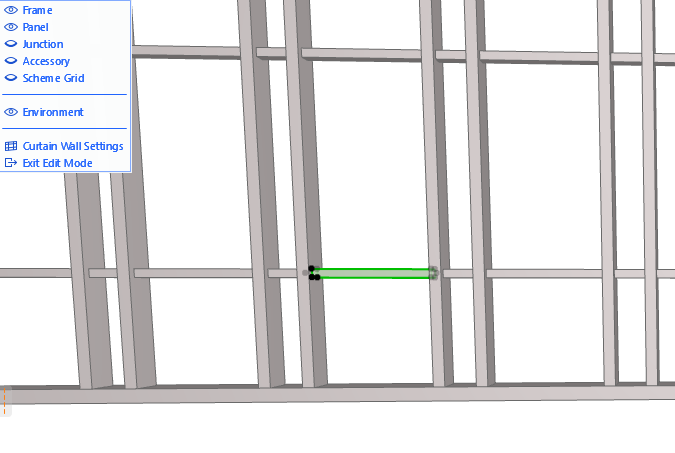
4.Select the Frame which divides the two panels.
5.Delete the Frame.
6.Turn the panel display back on (click the eye icon back open next to “Panel” in the list controlling Edit mode display) and notice that the two panels selected earlier have been merged into a single panel.
7. Select this panel.
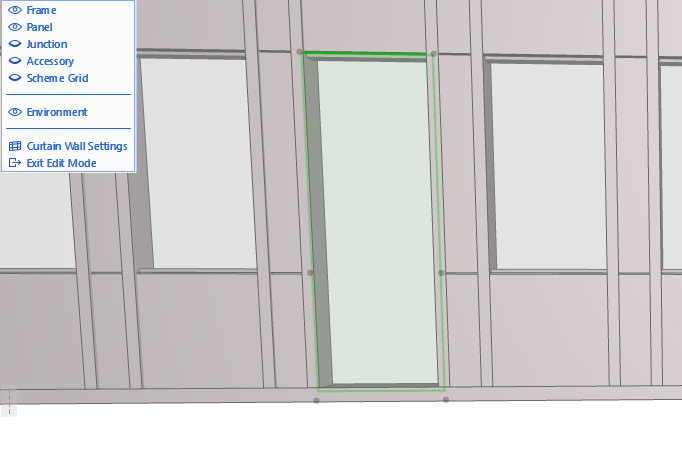
8.In the Info Box, select the desired Door Type.
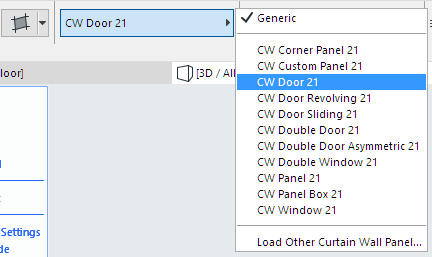
The selected panel is replaced with a door-type panel, which you can open and close like other GDL doors. This newly placed panel is in neither the Main nor Distinct class; it is “custom.”

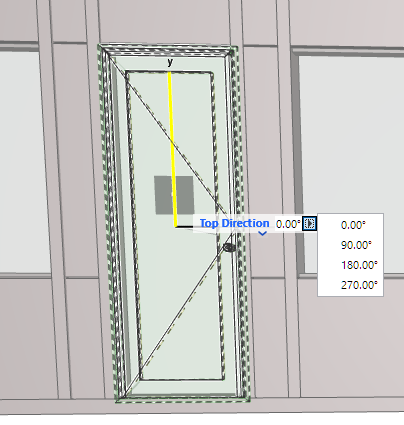
Note that this door-type Panel object has an editable parameter called “Top Direction.” This lets you redefine the “top” of the door by 90 degree increments in case you later free-rotate the Curtain Wall and the “top” of the door changes its position.