Add New Junction to the Curtain Wall
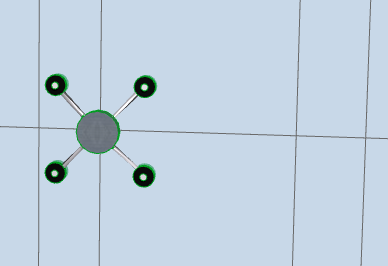
A Curtain Wall Junction is an optional structure that serves to connect panels to each other, to support or (more often) to substitute for Frames, resulting in a seamless, more lightweight structure than the traditional Framework. Junctions can only be placed at either or both ends of grid lines.
Moving the Grid Lines (and hence moving the visible or invisible Frames) will also move the Junction. Only one Junction can be added to each Frame gridpoint.
In ARCHICAD, a Junction is a GDL object. Its geometry and display attributes are all determined by their GDL parameters, which you can find in the parameter list of the Junction Type Panel.
See Junction Type Panel.
When a Junction is selected in Edit mode, you can
•Open Junction Selection Settings and change them
•Drag the Junction to another panel connection point (3D Edit mode only)
•Delete the Junction
Manually placed Junctions can be configured individually with custom properties in Junction Tool Settings, or else you can apply System-level Junction settings (from the Junction page of Curtain Wall Settings) by setting their Class as System Junctions.
See Curtain Wall Settings: Junctions.
Junctions can be placed either one by one or automatically at every intersection. Choose either of these options under Member Placement in Curtain Wall System Settings.
See Curtain Wall Settings: System Page: Member Placement Panel.
Junctions are placed on the inside of the Curtain Wall by default. You can flip the Junction to the opposite side of the Curtain Wall (use the Flip button in Junction Tool Settings or Info Box).
Add New Junction to the Curtain Wall
1.Enter Curtain Wall Edit mode from the 3D window.
2.Activate the Junction Tool. To use Custom parameters, open the Junction Settings page and adjust the parameters as needed.
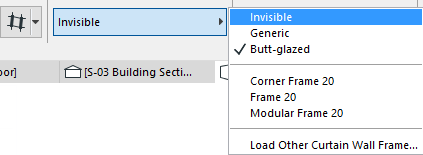
3.To use the Junction as a substitute for Frames: select the Frames at a desired panel connection point and switch them to “Invisible” type.
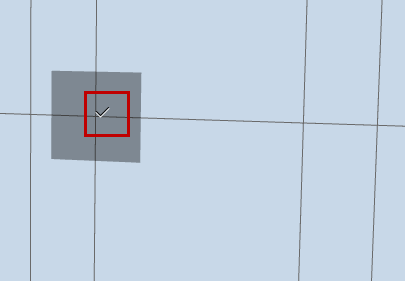
4.Click the hotspot in the middle of the connection.
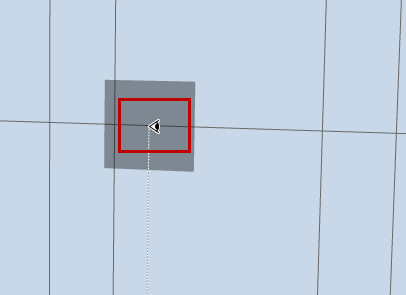
5.Click to define which side of the Curtain Wall you want to place the Junction. It will be placed at the nearest panel connection point to your click.