
A Curtain Wall Accessory is an optional non-load-bearing member - such as a sun shade, a decoration strip or a canopy - attached to the Curtain Wall at any Frames.
Add New Accessory to Curtain Wall
Customize an Individual Accessory
In ARCHICAD, accessories can be placed one by one, in Curtain Wall Edit mode only, using the Accessory Tool. (There is no automatic Accessory Placement method.) An Accessory can be configured in Edit mode with custom properties, but you can also set Accessories to use the System-level Accessory settings from Curtain Wall Settings.
In ARCHICAD, an Accessory is a GDL object. Its geometry and display attributes are all determined by its GDL parameters, which you can find in the parameter list of the Accessory Type tab page.
Moving Grid Lines or Frames will move the Accessory along with them.
Add New Accessory to Curtain Wall
1.Enter Curtain Wall Edit mode from the 3D window.
2.Activate the Accessory Tool.
3.Use the Info Box to define the Accessory type and set Class to decide whether the newly placed Accessory’s properties should be linked to the corresponding page of the Curtain Wall Settings (System Accessory), or not (Custom).

4.Click on a Frame or a Frame endpoint - the endpoint closest to your click is the Accessory startpoint.

5.Drag the cursor and click to determine the endpoint of the Accessory.
6.Click with the eyeball cursor to determine the direction of the Accessory: outside or inside the Curtain Wall.
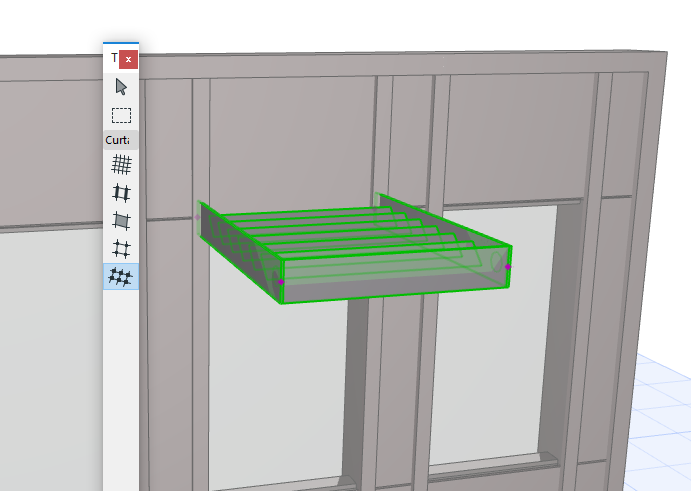
Customize an Individual Accessory
When an Accessory is selected in Edit mode, you can
•Open Accessory Selection Settings and change them
•Drag the Accessory onto another Frame (in 3D Edit mode only)
•Flip the Accessory to the opposite side of the Curtain Wall (Use the “Flip” button in Accessory Tool Settings or the Info Box)
•Delete the Accessory
Set the visibility to make your work easier (for example, turn off the visibility of everything except for Accessories, Frames and the Scheme.)