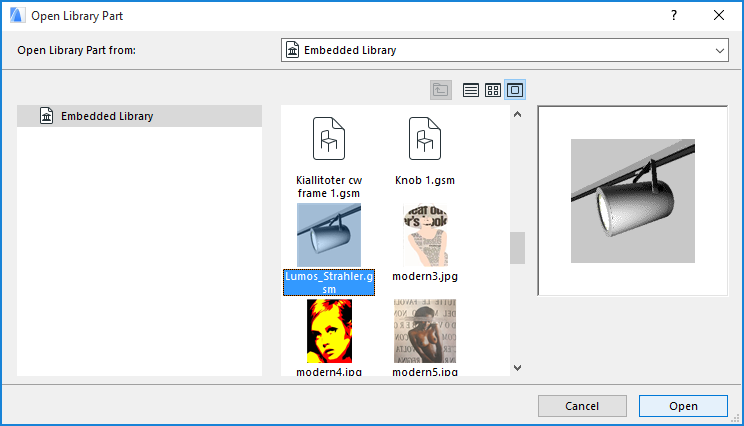
1.Go to File > Libraries and Objects > Open Object.
2.In the Open Library Part dialog box, select the library part. (In Teamwork, you must reserve the library part.)
3.If it is an editable GDL Object: Click to Open the GDL Object Editor. (Reserve the editing window, if it is not reserved already), and make the necessary edits.
See GDL Object Editor.
4.If it is a non-editable GDL Object (e.g. located in a linked library): Click View to see its settings in GDL Object Editor. You cannot modify the object settings here. Use Library Manager to extract the library part to a local folder, then edit it and reload it to the project.
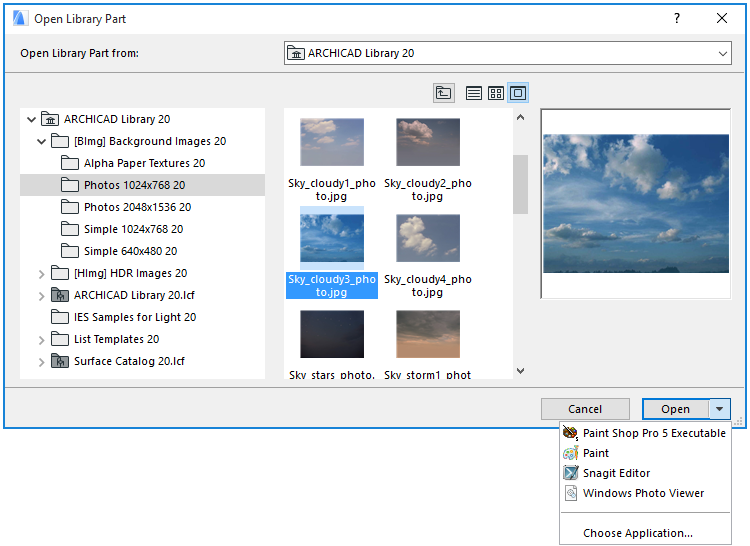
5.If it is another type of editable library part: Click the dropdown to choose the application in which to open and edit the selected library part.
Watch the Video:
Open Library Part dialog improvements
6.Close the window and save the modifications.
Teamwork users will update their projects with the modified BIM Server library data as soon as they do a Send & Receive.
Solo users will update their projects with the modified BIM Server library data as soon as they do a Reload & Apply from Library Manager.
Access Library Part in BIM Server Library
You can access a library part in a BIM Server Library only if:
•You have reserved the object
•Your access rights include “Library Part – Delete/Modify”
•The library part is located in a regular folder, and is not a PLA or LCF file
Note: In Library Manager, the contents of PLA and LCF files are shown expanded into a tree view. To access the contents (a library part), select the item, choose Duplicate or Export, and provide a folder location. The folder is then opened, with the content available for editing.
Otherwise, the Object Editor window of such an object is Read-Only.
Edit a Placed GDL Object
To edit the parameter script of a GDL object already placed in your plan, select it, then use File > Libraries and Objects > Open Object
Use the appearing GDL Object Master Window to modify existing objects in a single environment. In this window, you can add or edit the Parameters, Components, Descriptors, Scripts and the 2D Symbol of the GDL Object.
For details, see GDL Object Editor.