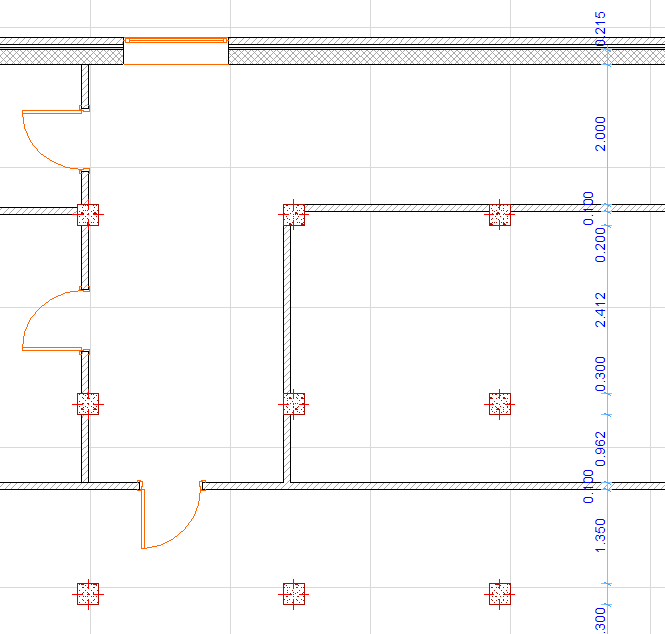
Automatic Interior Dimensioning
Use this function to quickly dimension a set of selected Columns and composite or profile (complex) elements on the Floor Plan.
1.Select one or more Columns or Composite/Profile elements to be dimensioned.
Note: Profiled Columns will be ignored.
2.Open the dialog box from Document > Annotation > Automatic Dimensioning > Interior Dimensioning.
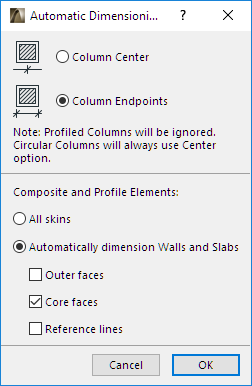
3.Choose preferred dimensioning options.
Column Dimension Preference
•Column Center: Dimension the axis of the column
•Column Endpoints: Dimension the endpoints of the column.
Note: A circular column will always be dimensioned at its center regardless of this checkbox.
Composite and Profile Elements
Choose an option:
•All Skins: Each skin of the composite/profile element is dimensioned separately. (If this is unchecked, a single dimension is applied to the total width of all the skins.)
•Automatically dimension Walls and Slabs: Dimension points are placed at the faces and/or reference lines depending on the options checked below (at least one category must be checked):
◦Outer faces
◦Core faces
◦Reference lines
Note: These options have the same effect as Automatic Method of Dimension Details (Dimension Tool Settings).
4.Drag the cursor to draw a temporary line across the selected elements to be dimensioned.
◦Walls, Columns, Beams, and Slab, Roof and Mesh edges perpendicular to or crossing the drawn line will be dimensioned. The line can consist of several segments.
5.Double-click to finish drawing the line.
6.Click to place the dimension chain.