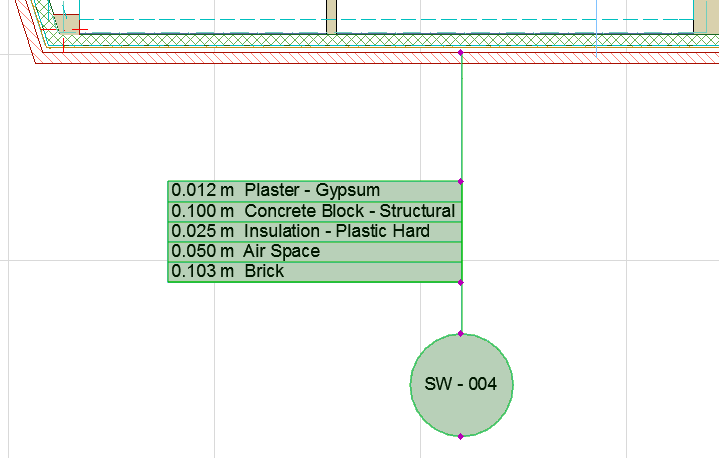
Symbol Labels for Element Information
Symbol Labels can display all kinds of element information on the drawing, for example the skins of a composite Wall.
Symbol Labels are GDL objects. Along with Text/Autotext Labels, they are available from the Label Tool pop-up and Label Tool Settings.
The standard labels included in your ARCHICAD Library are designed to meet most of your labeling needs right out of the box. The following are the standard Symbol Labels available in the ARCHICAD INT Library. Labels provided in other localized ARCHICAD libraries may vary, to meet local standards.
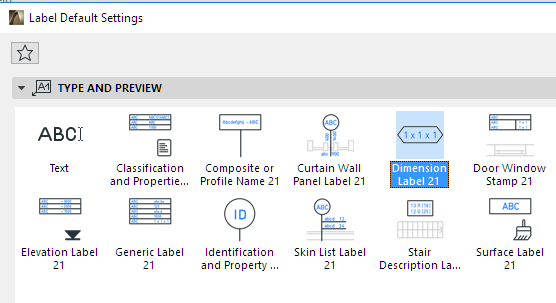
•Classification and Properties Label: Displays the parameters that have been defined for this element in its Classification and Properties panel (Element Settings), in table form.
•Composite or Profile Name: Depending on element structure, the label displays the name of the Composite Structure, Complex Profile, or (for basic structures) its Building Material.
•Curtain Wall Panel Label: Displays the desired parameters of a selected Curtain Wall Panel: ID, dimensions, Sill Height to Floor, fire/acoustic rating.
See also Labeling Curtain Walls.
•Dimension Label: Displays the element’s dimensions (length, width, height, thickness), surface area and volume in rows.
•Door Window Stamp: Displays the desired parameters of a Door or Window, in table form: ID, dimensions, performance rating, surface, etc.
Watch the Video:
Door Window Stamp
•Elevation Label: Displays the top and bottom elevation of the labeled element. For Slabs, choose either Core or Finish as the reference point.
Watch the Video:
Elevation Label
•Generic Label: Displays the desired element parameters in table form.
•Property Label: Can be placed on any element; displays the Element ID.
•Skin List Label: Can be placed on elements that can be composite (Wall, Slab, Roof or Shell), or on a Fill element.
◦Displayed parameters can include Building Material, ID, Manufacturer, Description, and/or Cut Fill.
◦This label consists of a single one row when placed on an element with a basic structure (displays the Building Material), a Complex Profile element (Profile name), or a Fill element (Fill type or Building Material).
Watch the Video:
Skin List Label
•Surface Label: Displays the name of the element surface as selected in Label Settings.
See also Select Surface (for Surface Label).
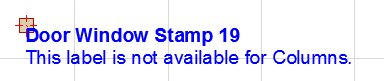
Not every label can be placed on every element type. For example, if you inadvertently attach a Door Window Stamp to a Column, a “placeholder” text will inform you of the mistake.
Note: For each label, Custom Label Settings provides information on which element types it can be applied to.
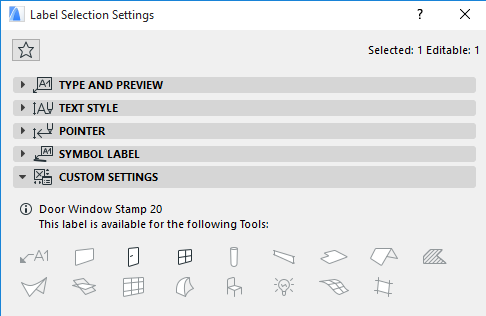
For more details, see Custom Settings for Symbol Labels.
You can create your own Symbol Labels as you would any other GDL Object by choosing the File > Libraries and Objects > New Object command.