Optimize Display of Point Cloud Object
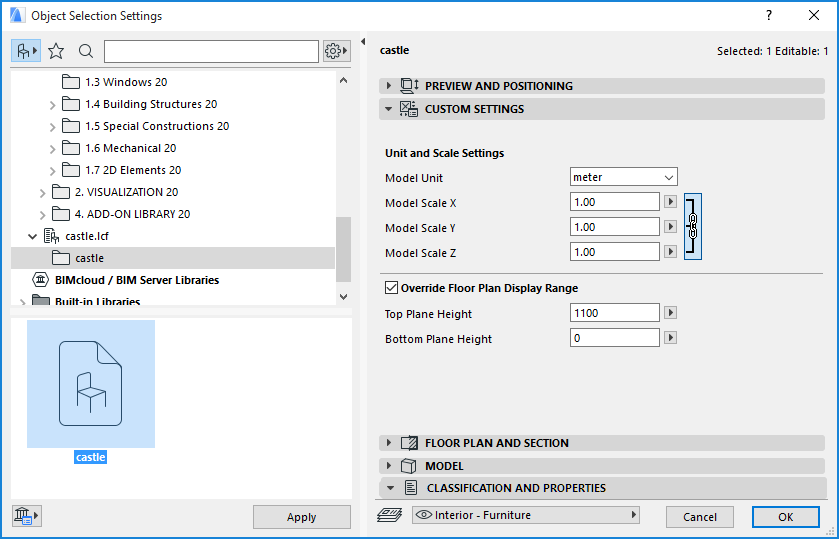
Use the Custom Settings panel of a Point Cloud object to change its display, to make it easier to work with.
Unit and Scale Settings: As needed, stretch or resize the object using the Model Scale settings.
Watch the Video:
Point Cloud - Scaling the Point Cloud Object
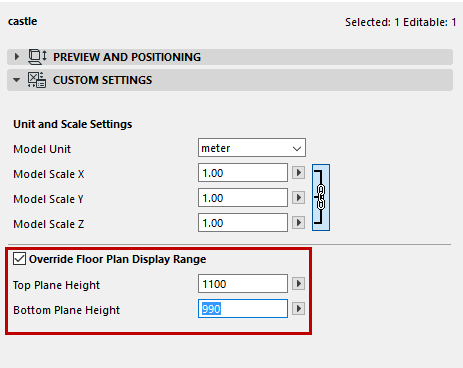
Override Floor Plan Display Range: By default, the object will be displayed according to the current Floor Plan Cut Plane height. If needed, you can override this display limit for the point cloud object, if it is hard to see contours.
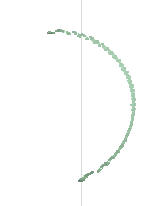
For example, we wish to trace the column shape in this garage object, but at the current Floor Plan Display range, the contour is too blurred.
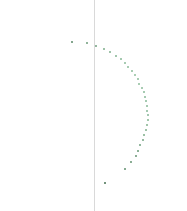
You can narrow the display range values to make the contour easier to trace:
Watch the Video:
Point Cloud - Point Cloud Objects in Sections/Elevation and 3D Document Viewpoints
Point Cloud - Point Cloud Objects on Layouts
Point Cloud - Point Cloud Objects in the 3D Viewpoint