
Curtain Wall Settings: Scheme Page
The controls in this dialog box define the grid pattern.
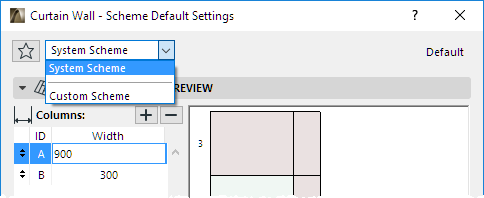
In Curtain Wall System Settings, the Scheme page sets the System-level default settings for Schemes.
Scheme Tool Settings contains identical controls. Scheme Tool Settings is available in Curtain Wall Edit mode only. Use the Class pop-up to apply System-level Scheme settings to the selected Curtain Wall. If you customize any parameters in Scheme Tool Settings, the Class pop-up will show “Custom.”
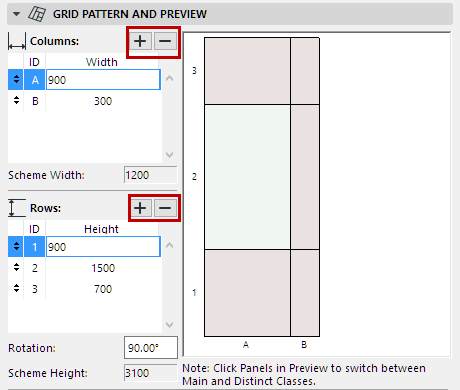
Curtain Wall Settings: Scheme Page: Grid Pattern and Preview Panel
Use these controls to define the pattern of the Curtain Wall grid, by columns and rows. This grid will determine the size and arrangement of the Curtain Wall panels.
•Each Column has an alphabetical ID (A, B, ...)
•Each Row is numbered.
Enter a value for the length of the panel in the Column/Row. Notice how the Preview image changes accordingly.
To create a new Column or Row or delete a selected one, click the Plus/Minus sign.
Rotation: Enter a Rotation value for the Rows relative to the Columns.
Note: Rotation angle will not be reflected in the Preview window.
Scheme Width/Height: These values indicate the total width and height of the grid pattern.
Preview
In the Preview window, click on any panel to assign it to a different Panel class: the click will toggle the panel between the “Main” and “Distinct” panel classes. The two panel classes are in two different colors. (The colors are those of the Building Material if used, unless an outside face surface override is applied.)
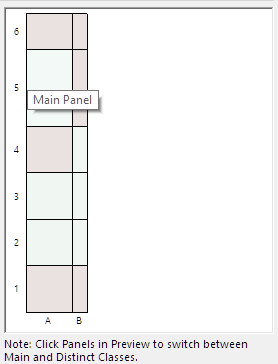
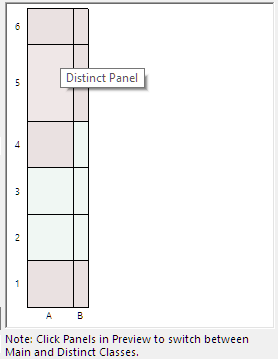
Panel class properties are defined in the Panel (Distinct and Main) dialog boxes of Curtain Wall System Settings.

Use this control to determine where to place the origin of the grid/panel pattern on the Curtain Wall Reference line segment.
•For a Curtain Wall with a plane or cylindrical base surface, the “Reference line segment” is the first vector or arc you draw when defining the surface.
•For a Curtain Wall based on an extruded profile, each segment of the reference polyline is considered separately: the pattern position chosen here will be applied separately to each of the Curtain Wall segments.
Choose one of the following Pattern position options.
•Custom Origin: This option will enable you to graphically move the grid pattern along its reference line, after you have placed and selected the Curtain Wall.
The next four options lock the origin of the grid pattern to a specific reference point on the Curtain Wall. (Only the Columns are locked; the Row pattern will remain editable.)
•Start with Segment: The grid pattern will begin at the start of the reference segment.
•Start from Center: The grid pattern will begin at the center of the reference segment, and will be distributed in two directions, on each side of this center. (This option means that the center of the Curtain Wall will always have a gridline running through it.)
•Align to Center: The center of the grid pattern will be placed at the center of the reference segment.
•End with Segment: The grid pattern will begin at the endpoint of the reference segment.