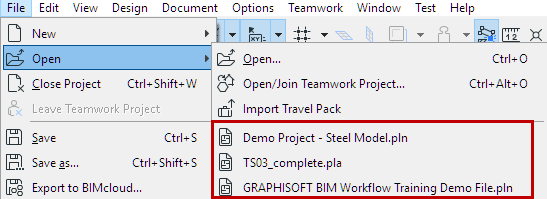
Do one of the following:
•From a running ARCHICAD:
–Use File > Open
–Select a recent project from the pop-up
•From the Start ARCHICAD dialog: Select one or more recent projects (see below)
Note: To open the Start ARCHICAD dialog, do one of the following:
-Double-click the ARCHICAD program icon
-Click the ARCHICAD Starter application
-If the selected project cannot be opened the first time, check this box and try again.
Start ARCHICAD Dialog: List of Recent Projects
The Start ARCHICAD dialog lists all the ARCHICAD projects, including Teamwork and module (.MOD) files, that have been opened by the program.
•Click the list or tile icon to see projects in tile view or list form
•Hover over a project to see its Project Info
Note: These data are user-defined tags entered at File > Project Info.
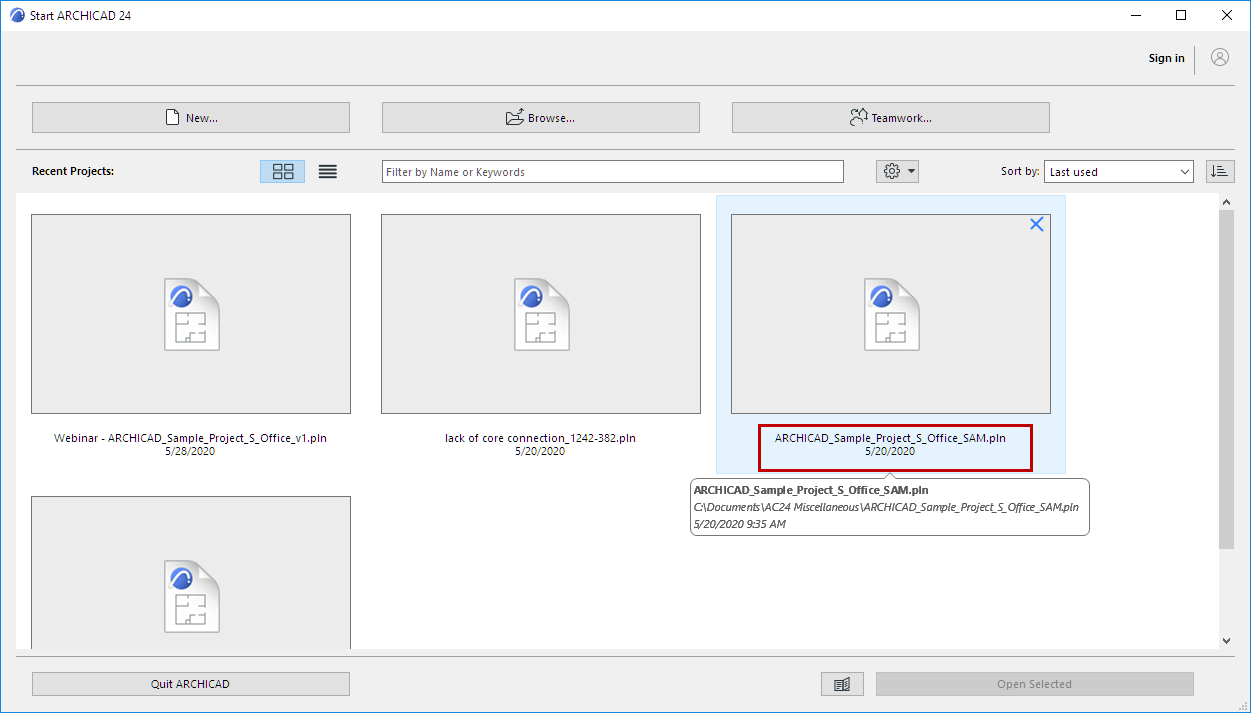
Recent Projects in Tile View
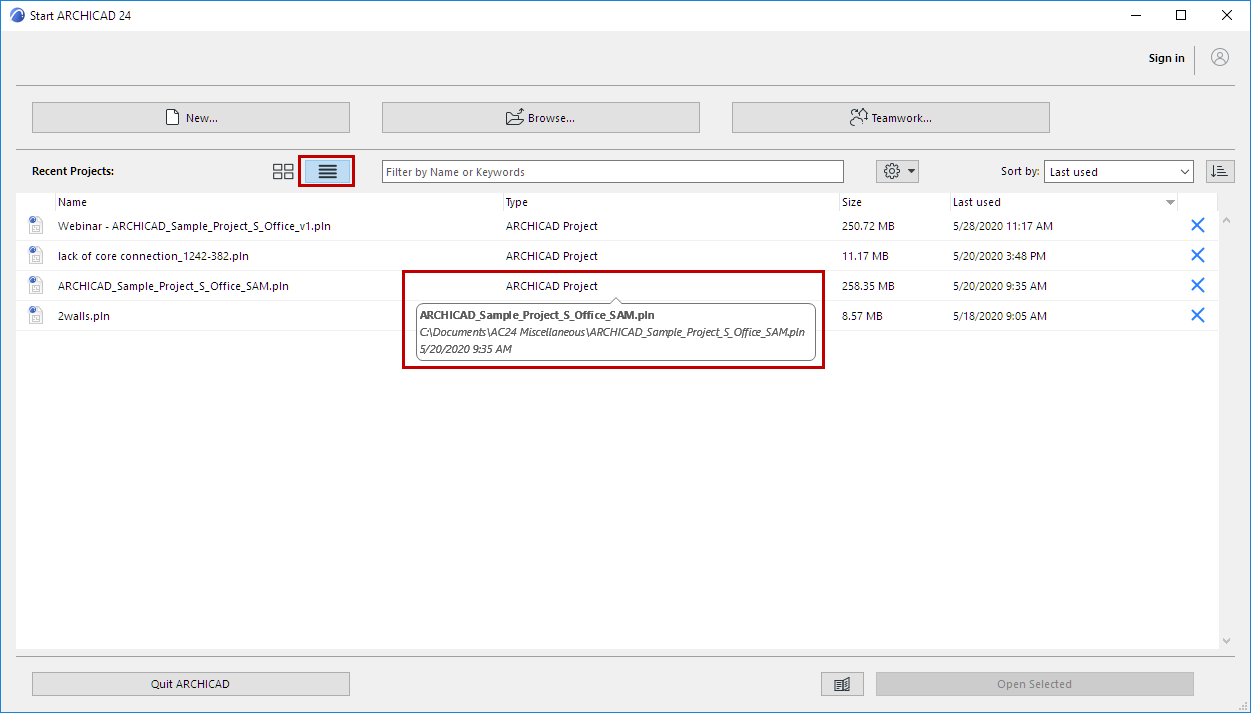
Recent Projects in List View
•Recovery files are in red type
Note: If you remove a Recovery file from the Recent Projects list (with the red X), it is deleted entirely, and you cannot retrieve it again.
•Not Available: The project is located on an external drive or network that is not currently available
•Remove a project from the Recent List: click Delete, Backspace, or the blue X
In List view:
•Sort by name, last used, size or file type, in ascending or descending order
•Filter projects by name, keyword, or any other Project Info data
In Tile view:
•The Preview cycles among the project’s last-opened tabs and its Project Preview picture (if any).