For general information: see Using the attribute dialogs.
To open the Layers dialog, do one of the following:
•shortcut: Ctrl+L
•Layer Settings icon in the Quick Options bar
•Options > Element Attributes > Layers
•Document > Layers > Layers
•Layers icon of Attributes toolbar (Windows > Toolbars > Attributes)

The left panel lists existing layer combinations. The right side lists all the layers defined in the project, in either list view or folder view.
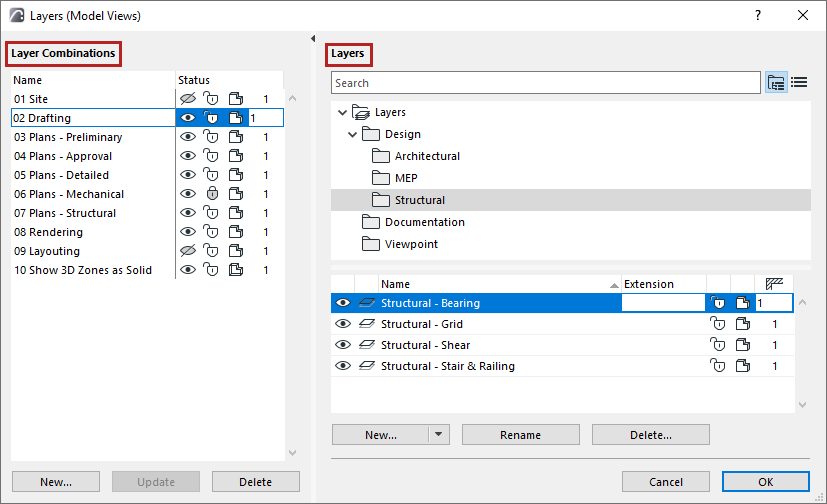
Listed layers are displayed with icons indicating their status:
•Show/hide
•Lock/unlock
•3D view mode
See Layer status.
Intersection group number
For any layer: set an Intersection group number to control element intersections.
See Use layers to prevent intersections.
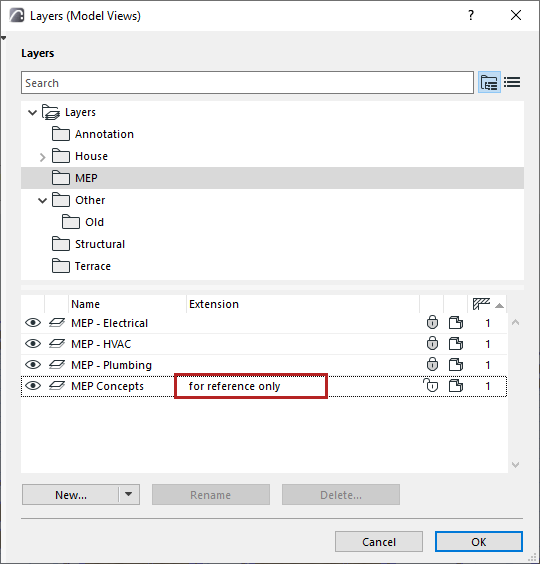
Layer name extension
For any layer: add an optional extension to its name. This can act as an additional sorting control.