Migrate from Archicad 26 and earlier
The new version of Archicad will work perfectly well with any older-version Archicad libraries. However, if you stay with your older libraries, you will not get the full benefit of library improvements and fixes.
We recommend that when you migrate a project to Archicad 27, you also migrate your older-version Library to the Archicad 27 Library, using the easy and automatic Migrate Archicad Libraries function.
At any time, to view information about possible Library-related issues in your current project, check the Libraries item in the Action Center (File > Info > Action Center).
Migrate Archicad Libraries when Opening Older-Version Project
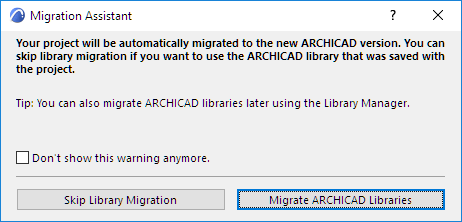
When you open an older-version project in Archicad 27, and if your project includes an Archicad Library, you are prompted to use the Migrate Archicad Libraries function:
Click Migrate Archicad Libraries. This process will do the following:
•Load the new Archicad library
•Load the Archicad Migration Libraries folder (What is a Migration Library? See below.)
•Automatically replace placed objects from the older libraries (versions 17-26) with their latest compatible version
•Remove Archicad libraries with lower version numbers
The Migrate Archicad Libraries process may take several minutes. Once it is complete, if your project includes objects from pre-Archicad 17 libraries, you may still have missing library parts. In this case, use Library Manager to load Old Archicad Migration Libraries. (What is a Migration Library? See below.)
If you choose Skip Migration, you will load the old Library that was saved with the project. All placed objects will be available from that library, but you will not be able to use any library improvements and fixes from the latest version.
Migrate Archicad Libraries for a Running Project
You can use the Migrate Archicad Libraries process at any time, not only when migrating an older-version project.
Use the Migrate Archicad Libraries button in Library Manager.
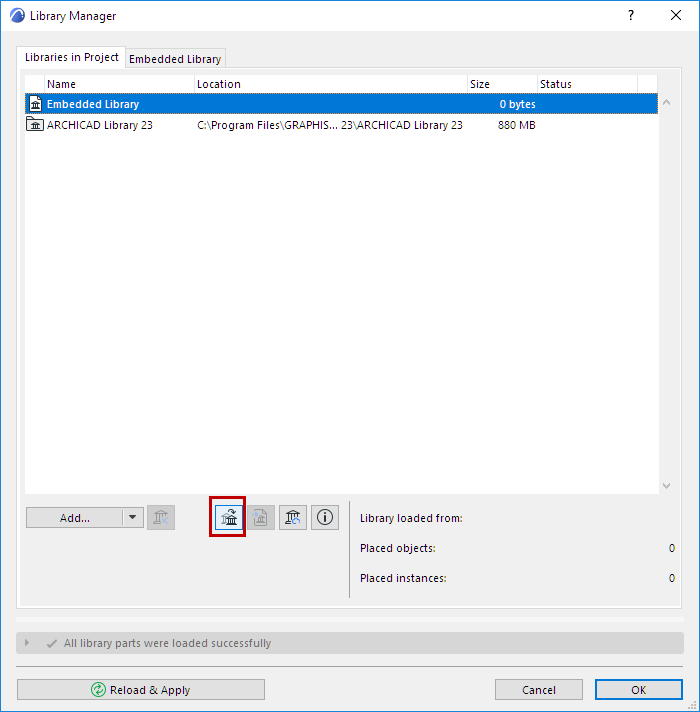
Note: If the button is not shown in Library Manager, this is because all needed libraries (latest Archicad library plus Migration libraries) have already been loaded; and the project has no missing library parts.
Replace Older-Version Surfaces and Textures
To replace the older-version surfaces in your project with new ones from the AC27 Library’s Surface Catalog, do the following:
1.Open the Surfaces dialog (Options > Element Attributes > Surfaces)
2.Use New > Replace Settings from Catalog.
Each new version of the Archicad Library contains many objects that have been updated since the previous version. For the most part, these updated objects are compatible with placed older versions of the same object, and will automatically replace the older versions.
Some objects from older Archicad libraries, however, have no counterpart in the new Archicad 27 library (typically, these are “discontinued” objects deemed obsolete). But if you have such objects placed in your project, you want them available even if after migrating.
Archicad Migration Libraries serve this purpose: they contain only those objects that do not have counterparts in the latest-version Archicad Library. A Migration Library is much smaller than full-version Archicad Library.
When Are Migration Libraries Used?
Migration Libraries are loaded automatically with two workflows:
•Migrate Archicad Libraries
See Migrate Archicad Libraries when Opening Older-Version Project.
•Consolidate: If you have placed objects from multiple Archicad libraries and have loaded all the libraries, you will be prompted to Consolidate your libraries. The Migration Libraries are loaded automatically.
See Consolidate Multiple Archicad Libraries.
If you do not use these workflows, then some of your placed objects from older-version projects may not have a compatible corresponding object in Archicad 27. In this case:
•Those incompatible older objects will be “Missing Objects” if you have removed your old libraries. In this case, you must replace these missing objects with new ones from the Archicad 27 library, and reset their parameters as needed.
•Keeping your old libraries alongside your new libraries is not recommended, because many of the loaded objects will be duplicates and/or superfluous, and increase library loading time and potential errors.
•If you still have missing library parts, you may be using library parts from Archicad libraries earlier than version 17. If so, you must manually add the Old Archicad Migration Libraries folder to the project, using Library Manager.
Where to Find Migration Libraries
Migration Libraries are installed on your computer as part of Archicad installation. They are divided into two folders:
•Archicad Migration Libraries (for Archicad library versions 17 and up)
•Old Archicad Migration Libraries (generally available for Archicad library versions 10-16)
You can also download Migration Libraries from the Graphisoft website.
Note: Available migration libraries may vary, depending on your localized version.
Obsolete Objects
Objects are “obsolete” in two cases:
•it has been discontinued entirely (e.g. a computer or TV object that is no longer current)
•the object has a counterpart in the new Archicad version, but due to changed parameters or functions (e.g. a window whose sash has been altered), the old object will not be replaced automatically
If you use the Migrate Libraries or Consolidate functions as described above, the Migration Libraries will be loaded automatically, together with the necessary obsolete objects, and you won’t have any missing objects.
Replace Obsolete Object with Latest Library Part
If you are using an obsolete object (e.g. window from an earlier version) and wish to replace it manually with the newest corresponding library part, be aware that the new window will not be exactly the same as the older one (otherwise, it would have been replaced automatically).
Therefore, when you do replace the old window with the new one, you should reset the new window’s parameters as needed.
To expedite this, use Parameter Transfer: this way, you will pick up the old window’s parameters and inject them into the new window before placing it. This still won’t produce an exact replica, but everything that can be replicated will be, and this will save you manual work.